Search Atlas offers a fully integrated SEO suite that goes beyond the link analysis that Majestic is known for.
While Majestic specializes in analyzing link intelligence, Search Atlas transforms that data into actionable strategies through AI-driven automation and advanced content planning tools.
For agencies and SEO professionals, this means moving from pure analysis to a comprehensive system that integrates backlink research, content creation, and technical SEO optimizations into one streamlined workflow.
This guide will walk you through transitioning your backlink analysis and SEO workflows from Majestic to Search Atlas, showing how to leverage Search Atlas’s backlink tools, automate technical SEO with OTTO SEO, and build topical authority with AI-driven content features.
1. What Is the Initial Setup in Search Atlas?
Start by configuring your workspace properly to enable seamless tracking, automation, and performance insights.
Create a New Project
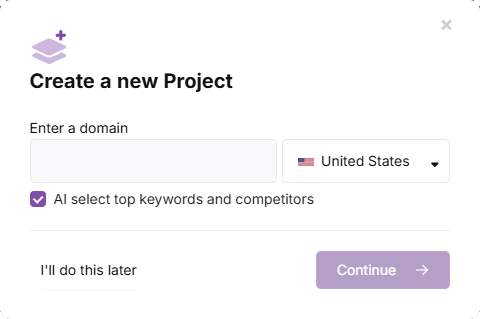
Log in to your Search Atlas account, scroll down in the main Dashboard, and click + Create new.
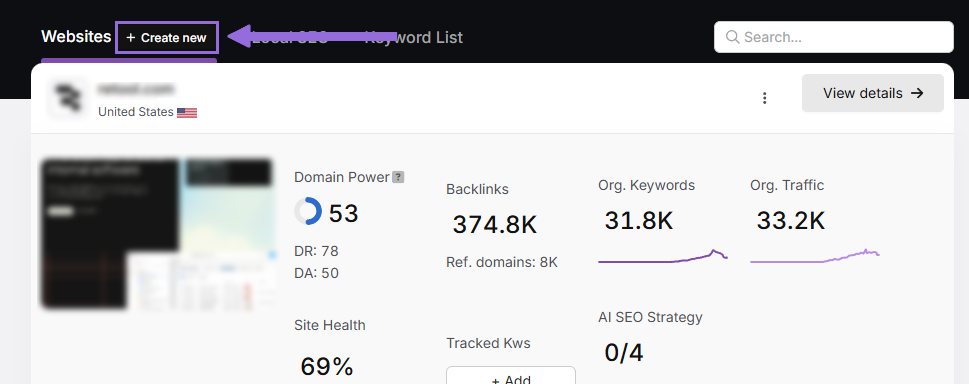
Enter your domain, select the target country, and optionally enter primary keywords for tracking.
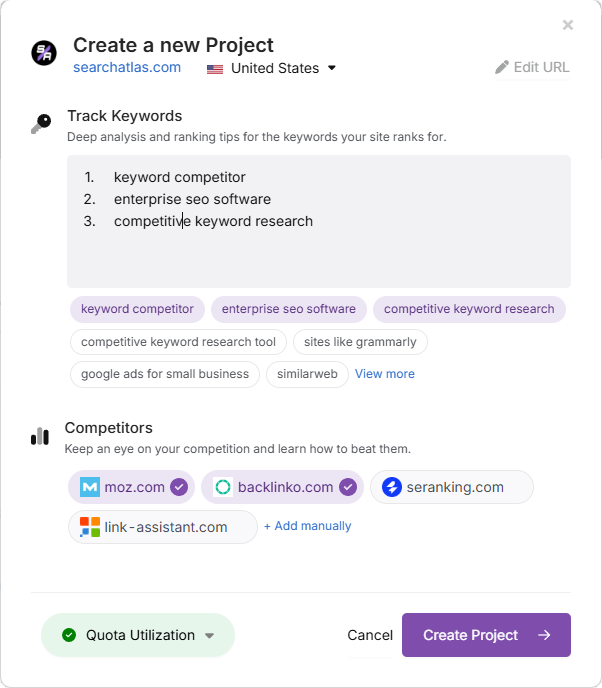
Add or remove recommended keywords and also add your main competitors. You will be able to change both of these options later.
Connect Key Integrations
Google Search Console (GSC)
Click on Site Metrics > All Sites > Connect GSC Account.
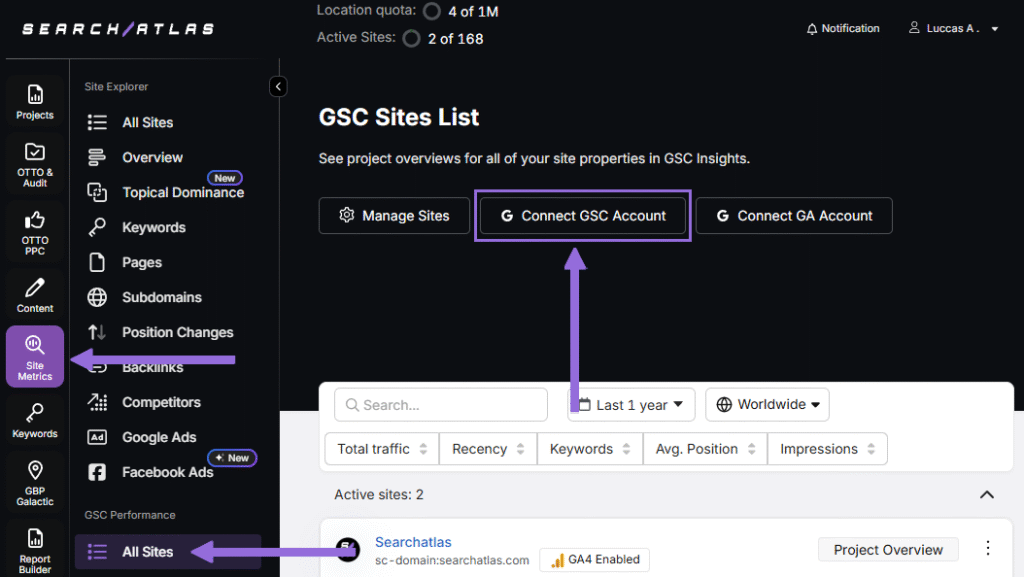
Authorize access and connect your verified property.
After GSC is connected, go to Manage Sites.
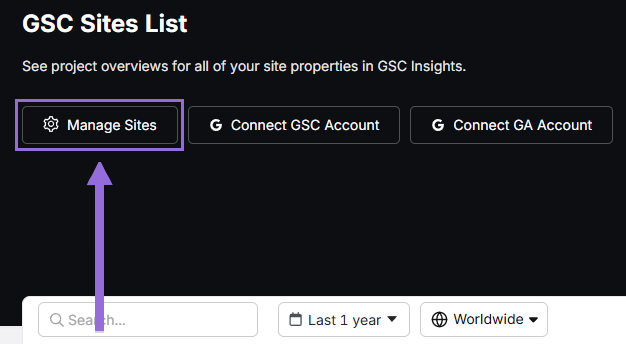
A slider will appear showing all imported GSC properties (they are disabled by default). Find your domain and then click Enable.
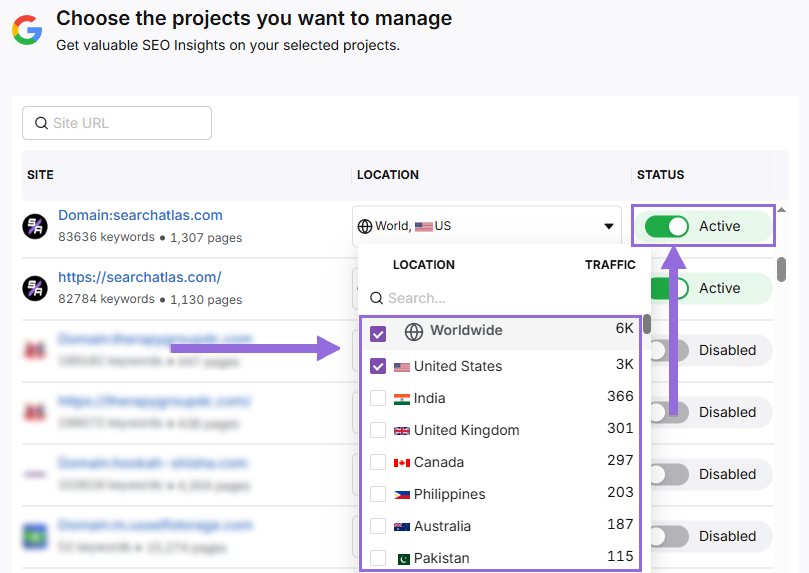
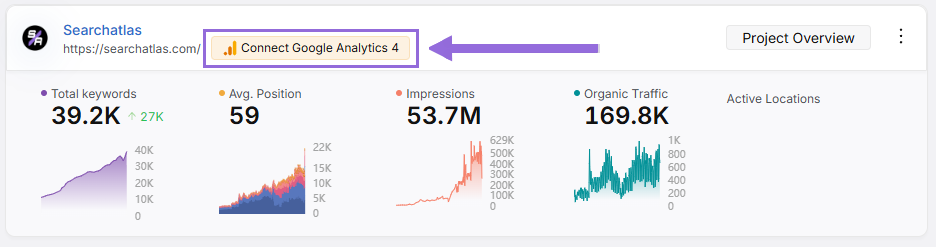
Google Analytics 4 (GA4)
From your GSC Performance dashboard, click on Connect Google Analytics 4.
Select your GA property or connect your GA4 account. Authorize access and connect your verified property.
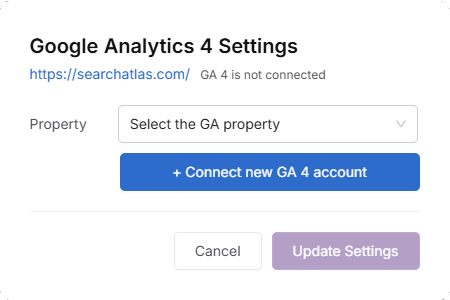
Once enabled, Search Atlas will link keyword data, impressions, CTR, and engagement metrics automatically.
You can use publicly shareable links for fast access to verification if needed.
2. How to Migrate Backlink Analysis Workflow From Majestic to Search Atlas?
Export your key backlink data from Majestic for future reference.
From Majestic
Log in to your Majestic account and search for your domain.

Navigate to the Ref Domains or Backlinks tab to view the detailed link data.
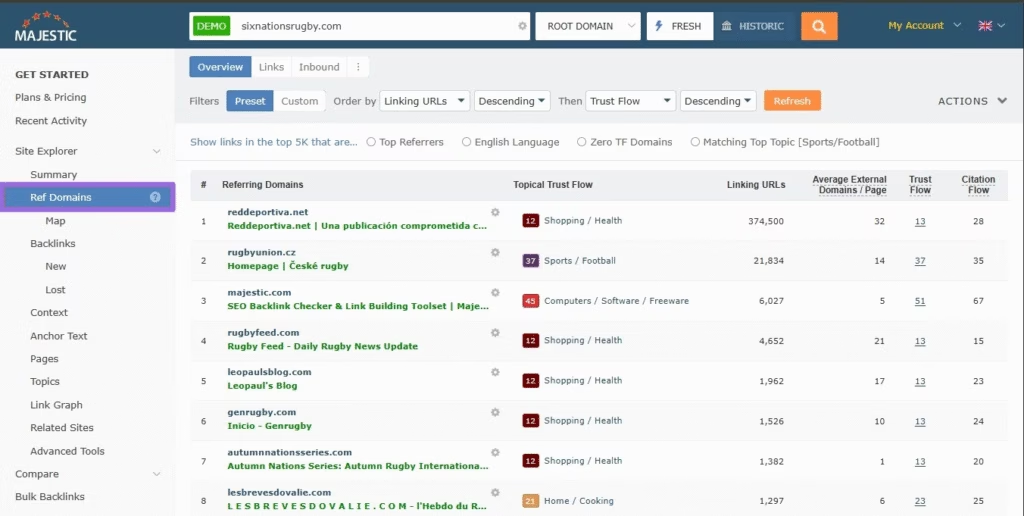
Click Actions and choose the Raw Export or PDF Report to download a complete list of backlinks for your records.

In Search Atlas
Next, you will perform a fresh analysis of the same domain using the Site Explorer in Search Atlas.
Go to Site Metrics > Site Explorer.

Enter the domain you want to analyze into the search bar and click on Search.

Click the Backlinks tab to view a comprehensive list of all backlinks, referring domains, anchor text, and authority metrics.

You can filter this data or export it for reports.

3. How Can You Build Topical Dominance with Search Atlas Instead of Majestic?
While Majestic’s Topical Trust Flow measures a domain’s authority by categorizing backlinks into topical buckets, Search Atlas offers Topical Dominance, which evaluates and helps improve a site’s expertise through content strategy and coverage depth.
Topical Dominance in Search Atlas helps you create a cohesive content strategy that positions your domain as an authority within a chosen knowledge domain.
From Majestic
Log in to your Majestic account and save any Topical Trust Flow scores you wish to keep for your records before transitioning to Search Atlas.
In Search Atlas
To build Topical Dominance, Search Atlas uses tools that focus on content creation and strategy:
Identify Content Gaps with Topical Dominance
Go to Site Explorer > Topical Dominance.

Enter your domain and at least one competitor’s domain. Click on Analyze Topical Dominance.

The tool will analyze your position across three levels:

- Specific Topic: Narrow, granular topics.
- Broad Topic: Related topics within a category.
- Knowledge Domain: The overarching topic grouping.
Use the Topical Gap analysis to identify areas where competitors cover topics you’re missing.

Plan a High-Level Strategy Using the Topical Map
Navigate to Content> Topical Map.

Click Create Topical Map and specify the number of clusters you wish to create, how many long-tail keywords should be generated for each cluster, and the desired number of titles for each long-tail keyword.

Choose your preferred AI settings and click Update Settings.

Once the topical maps are generated, you can view them in the table provided. Click on the View topical map button.

To add ideas to your topical map, click the Edit Topical Map button.

You have the flexibility to view your topical map ideas in either a Diagram or Table format.

If you’re in Diagram format, select a node to reveal a pop-up menu.
From the pop-up menu, click Add To Topical Map to incorporate that specific idea into your plan.

Gray nodes indicate ideas not yet added to the topical map, while green nodes represent ideas that have been included.

After adding an idea to the topical map, you can create content, publish it, and view it on your WordPress website.

Execute Your Strategy Using the Content Planner
Go to Content > Content Planner.

Enter a seed keyword, and the tool will generate clusters of related keywords, grouped by a number of metrics including search intent and difficulty.

Click on a cluster, review and select the relevant keywords that align with the gaps identified in the Topical Dominance tool.

Use the checkboxes to select or deselect multiple keywords within the cluster.
Once you’ve finalized your selection, either choose Generate Article Suggestions to get a preview of AI generated suggestions.

You woud be presented with a number of AI suggestions to pick from. Review and click on Use this Draft.

After selecting a draft, click on Create New Article to proceed.

The editor will guide you through drafting your content using built-in AI suggestions.
4. How to Enable Automated SEO Optimization in Search Atlas?
While Majestic is excellent at identifying problems through data analysis (like finding broken links, it does not have an AI agent that automatically implements changes.
With Search Atlas, you can set up OTTO SEO, the AI agent that automates nearly every SEO task, including technical audits, on-page optimization, link building, content creation and optimization, Local SEO and GBP optimization, and more.
This is a new workflow, so there are no steps to perform in Majestic.
In Search Atlas
Obs: It’s necessary to go through the Site Audit on your project before activating OTTO.
Go to Projects > + Add a Website

Select one of your projects that doesn’t have OTTO installed, or add a new website.

Select the GSC and GBP profiles for the project and add your business details.

Follow the step-by-step tutorial to install the OTTO pixel on your website.

Installing OTTO on another CMS
Go to OTTO & Projects > Installation Guide. You will find short tutorials for:
- Google Tag Manager
- WordPress
- Webflow
- Squarespace
- Shopify
- ClickFunnels
- Wix
- GoHighLevel (GHL)
- Custom Installation

Here is a quick recap on how to install OTTO SEO on WordPress.
Go to your WordPress dashboard. Open the Plugins section. Search for “Search Atlas” in the plugin directory. Click Install Now, then activate the plugin.
[wordpress-step1]
Copy the API key provided during setup. Open the Search Atlas plugin settings by clicking the Search Atlas logo in the left-hand menu. Navigate to General Settings. Paste the API key into the Search Atlas API Key field and continue.
[wordpress-step3]
Copy the code provided in the next step. Return to your WordPress dashboard. Access the plugin settings again. In General Settings, check the Enable OTTO box. Paste the code into the OTTO Pixel UUID field. Save changes.
[wordpress-step5]
OTTO SEO now runs inside WordPress, automating fixes and SEO updates across your site.
How to Configure OTTO SEO?
Here is a quick tutorial on how to configure OTTO Autopilot and its settings.
5. Exporting Reports from Majestic and Setting Up Reports in Search Atlas?
You cannot directly transfer reports from Majestic to Search Atlas. However, you can save them for future reference and use Search Atlas’s advanced Report Builder to recreate and enhance your reporting workflows.
From Majestic
Log in to your Majestic account and navigate to the Reports section.
Select the report type (Standard or Advanced) based on the data you need.
Apply filter options as required and download the report in your preferred format (PDF or CSV).
In Search Atlas
Go to Report Builder > Report List.

Choose the location, date range, and the widgets you want to report, like:
- AI Summaries
- Site Explorer
- OTTO SEO
- Orders & Tasks
- Google Analytics data
- Google Search Console data
- Facebook Ads
- Google Ads
- Google Business Profile
- Keyword Rank Tracking
Next, set up automated reporting by adding recipients. Select how often to email the report (weekly, monthly, or quarterly), and pick the day of the week for delivery.

Choose between Default Layout and Custom Layout, and create the report.
Customize the Reporting
After creating the report, click Configure Report to change the Integrations, Scheduled emails, and Layout.
In the Layout section, you can customize the report entirely.

Click Add Custom Text to include your own text or HTML, allowing you to add branding elements like your logo, banner, or links.

Scroll down to click and drag each metric into the report. You can position them wherever you prefer.

Add the AI Summaries
In the Integrations section, you can include the AI Summary Overview.
These automated summaries highlight the key insights from your report, making it easier for you and your stakeholders to quickly understand the results.

Creating a Local SEO Report
Click on Edit Report and navigate to the Local SEO and GBP Section. Add as many Local SEO projects and GBP accounts as needed for the report.

The previously configured heatmap for each Local SEO project will be automatically included. They are fully customizable.

The GPB data will also be added automatically, and each metric can be adjusted as needed.

Sharing the Report
Once your report is configured, you can download it as a PDF or share it via a Share URL or Get iFrame Code.
The iFrame Code is an HTML element that allows you to embed another HTML page within your own.

White Label Reporting
Search Atlas enables you to completely white-label your dashboard and URL.
Go to Agency White Label and set your custom dashboard URL and logo.

When you share your report via Shareable URL, it will display your logo and URL.
6. How to Leverage Search Atlas Onboarding Process?
Search Atlas offers multiple support channels to help you with the migration process and any other questions. Here is how to make the most of our onboarding process.
Watch Tutorial Videos
Search Atlas offers step-by-step tutorials on YouTube to help you set up reports, dashboards, and automations.
Book a 1:1 Onboarding Session
During your trial, you can schedule a 1:1 onboarding session directly from the dashboard. A product expert will help you customize your setup, connect integrations, and configure OTTO SEO for automation.
Follow the 7-Day Email Campaign
As soon as you start your free trial, you’ll receive a 7-day onboarding email sequence. Each email walks you through a core feature.
Technical Documentation
Access full technical docs via the Help Center for detailed instructions on using every tool. Everything is searchable and regularly updated.


 Allan F.