Knowing how to make your website faster starts with what Google actually measures, because speed is no longer judged by a single load-time number. Google scores every page on Core Web Vitals, three metrics covering loading speed, responsiveness, and visual stability, and a weak score on any of them can hold back rankings on an otherwise solid page.
A slow page also loses visitors before they see your content, making speed both a ranking factor and a revenue problem. This guide covers the current thresholds, how to test your site, and the fixes with the biggest impact.
Why website speed determines your rankings and revenue
Website speed is the measurable time it takes a page to load, respond to input, and settle visually in a visitor's browser, and Google treats all three of those things as ranking signals. Whether the site is an online store or a content publisher, the pages that load fast and stay visually stable keep visitors engaged long enough to convert. Pages that lag lose that window immediately, often within the first few seconds of a visit.
Slow pages also cost real money, and the data on this holds up. As then-Amazon engineer Greg Linden documented, delaying Amazon's pages in 100-millisecond increments produced steep, costly drops in revenue. Every second Walmart shaved off page speed brought a 2% lift in conversion rate, confirmed in its own case data. And when Mozilla cut 2.2 seconds off its download page's load time, it picked up roughly 10 million additional Firefox downloads a year.
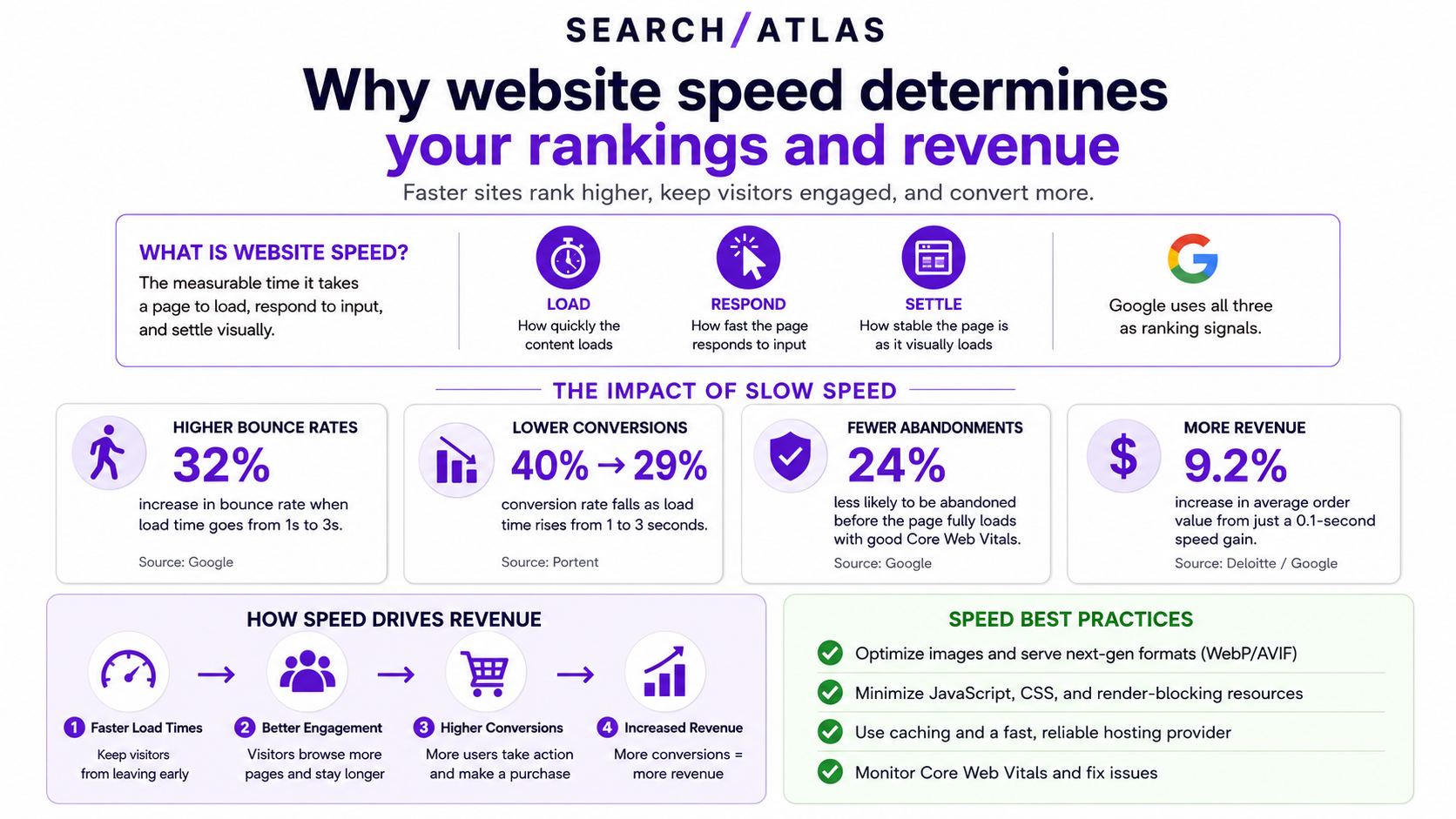
Google's own field data backs the same pattern: bounce rate climbs 32% once load time crosses from one to three seconds, and Deloitte's Milliseconds Make Millions research found that a 0.1-second speed gain lifted average order value by 9.2% for retail sites.
Mobile makes the stakes higher. More than half of mobile visitors abandon a page that takes longer than three seconds to load, and Google indexes and ranks primarily off the mobile version of a site under mobile-first indexing. That means the performance of your mobile experience, not your desktop one, is what determines most of your organic visibility today.
What "fast enough" looks like in 2026
A website counts as fast in 2026 when it passes Google's three Core Web Vitals thresholds, each scored at the 75th percentile of real visitor traffic rather than a single test run. Google calls this field data, collected from the Chrome User Experience Report (CrUX), and it is what actually affects rankings, distinct from the lab data a one-time speed test produces. The three metrics, documented on web.dev, are:
- Largest Contentful Paint (LCP): how long the biggest visible element, usually a hero image or headline, takes to render. Good is 2.5 seconds or under, needs improvement is 2.5 to 4 seconds, and anything above 4 seconds is poor.
- Interaction to Next Paint (INP): how quickly the page responds when a visitor clicks, taps, or types. Good is 200 milliseconds or under, needs improvement is 200 to 500 milliseconds, and poor is anything above 500 milliseconds.
- Cumulative Layout Shift (CLS): how much visible content jumps around while the page loads. Good is a score of 0.1 or under, needs improvement is 0.1 to 0.25, and poor is above 0.25.
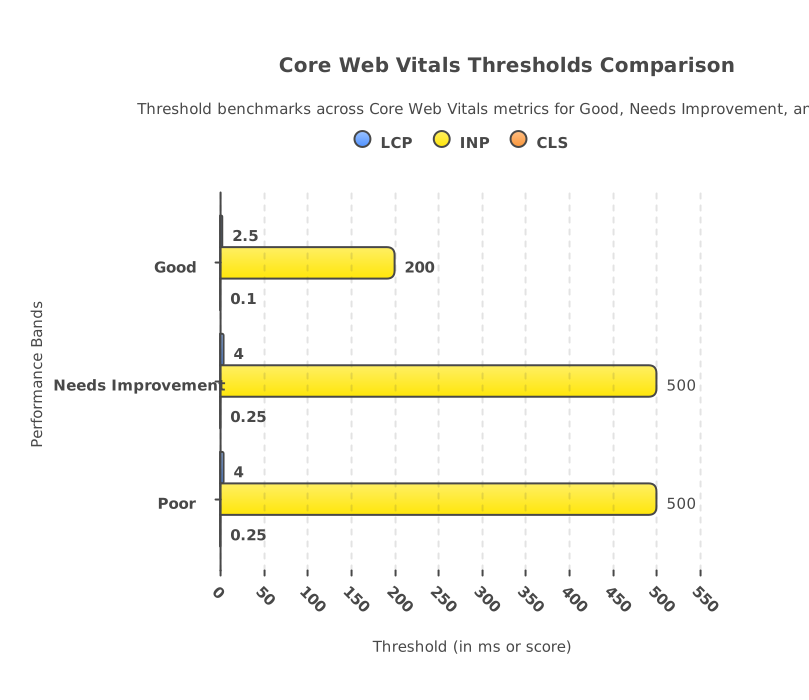
INP replaced First Input Delay (FID) as the official responsiveness metric. FID only measured delay before the first interaction; INP measures every interaction and reports the worst one. A page can pass LCP with a fast hero image and still fail INP if a heavy JavaScript bundle makes the search bar sluggish. Layout stability is scored independently through Cumulative Layout Shift. That means a page can still lose ranking ground if ads or images push content around while it renders. What Core Web Vitals actually measure, and why Google chose these three is worth a closer look if the thresholds above raise more questions.
How to test your website speed before you fix anything
The first step in making a website faster is finding out exactly where it currently stands, because guessing which fix matters most wastes time on changes that will not move the score. Start with Google's PageSpeed Insights. It returns lab data (a simulated test) and, when enough traffic exists, field data (real Chrome user data) for a single URL. Enter the page, run the report, and read the score out of 100: 90 and above is fast, 50 to 90 is moderate, and below 50 is slow.
PageSpeed Insights also lists specific opportunities under each result, like unused JavaScript, oversized images, or render-blocking resources, ranked by estimated time savings. Other lab-based testing tools, like GTmetrix and WebPageTest, offer similar diagnostics with slightly different visualizations, such as a filmstrip view showing exactly how a page renders frame by frame. Any of these gives a useful lab snapshot. But lab data is captured under controlled network and device conditions, so it will not always match what real visitors on a mix of connections and devices actually experience. Compare the full lineup in this roundup of page speed tools.
That single-page view is mainly useful for a homepage or landing page, since it will not catch problems spread across a whole site. Running a full-site crawl with a Site Auditor scan checks Core Web Vitals data, indexability, and structural issues across every URL at once, and scores overall site health on a 0 to 1000 scale so a team can see which templates are dragging the average down. For a deeper walkthrough, see how to run a page speed analysis.
12 fixes that actually make a website faster
Once you know which pages are slow and why, the fixes fall into a few categories: infrastructure, assets, code, and ongoing maintenance. Work through them roughly in this order, since infrastructure and asset fixes tend to produce the largest gains for the least engineering effort.
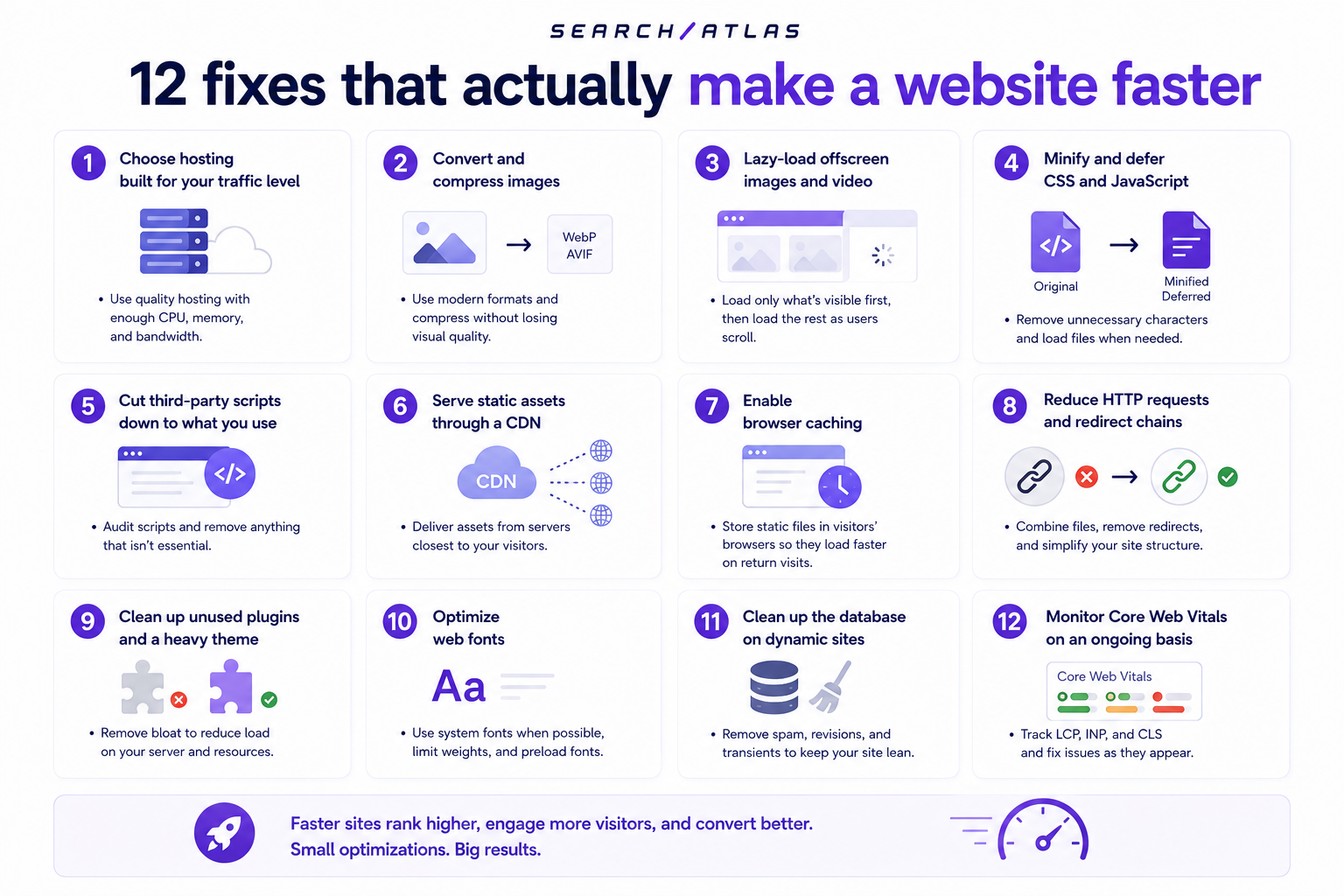
Jump straight to any fix: 1. Hosting · 2. Images · 3. Lazy-load · 4. Minify/defer · 5. Third-party scripts · 6. CDN · 7. Browser caching · 8. HTTP requests · 9. Plugins/theme · 10. Web fonts · 11. Database cleanup · 12. Monitor Core Web Vitals
1. Choose hosting built for your traffic level
Shared hosting puts a site on the same server as hundreds of other sites, so a spike in traffic to any one of them can slow every site on that server. Moving to a dedicated server or cloud hosting removes that dependency and gives a site its own resources. For sites with global traffic, look for a host with edge locations or built-in CDN support, since server location strongly affects how fast the first byte reaches a distant visitor.
2. Convert and compress images
Images are usually the single largest contributor to page weight. Save photos as WebP or AVIF instead of JPEG or PNG, since both newer formats produce smaller file sizes at the same visual quality. Then resize every image to the actual dimensions it displays at, rather than uploading it at full camera resolution. Tools like TinyPNG or Squoosh compress files further without a visible quality loss, and pairing compression with the right format alone can cut page weight substantially on an image-heavy site.
For sites that serve the same image at different sizes across devices, responsive images (using the srcset attribute) let the browser download only the size it actually needs, rather than sending a desktop-sized file to a phone screen. This matters most on product listing pages, blog thumbnails, and hero banners, where the same source image often gets reused across multiple layouts at wildly different display widths. Compression is only part of getting images right; image SEO best practices covers the rest.
3. Lazy-load offscreen images and video
Lazy loading delays the download of images and video that sit below the fold until a visitor actually scrolls to them. That shrinks the amount of data the browser has to fetch before the visible part of the page finishes loading. Most modern browsers support native lazy loading through a single HTML attribute, so this fix rarely requires a plugin or a script. It has the added benefit of protecting CLS, since offscreen media that has not loaded yet cannot push other content around.
4. Minify and defer CSS and JavaScript
Minification strips unnecessary spaces, line breaks, and comments out of code files without changing what the code does, which reduces file size and speeds up download. Tools like UglifyJS handle JavaScript and CSSNano handles CSS. Most modern build tools apply this automatically at deploy time. Beyond minifying, defer any JavaScript that is not needed to render the visible part of the page. That lets the browser paint content before it finishes downloading and executing scripts further down the page. Common JavaScript-side causes of slow rendering are covered in JavaScript SEO issues and fixes.
5. Cut third-party scripts down to what you use
Every embedded chat widget, ad network tag, or analytics script adds its own network request and its own JavaScript execution time, and these scripts are a common hidden cause of poor INP scores. A practical audit follows three steps:
- List every third-party script currently loading on the site, using the network tab in browser developer tools.
- Verify each surviving script still delivers real business value to marketing, support, or analytics.
- Remove or consolidate anything that fails that test.
For the scripts that survive the audit, load them with a deferred or lazy strategy so they run after the main content has already rendered, instead of blocking the page while they load. A chat widget that loads three seconds after the page becomes interactive costs nothing in perceived speed, while the same widget loading synchronously in the page head can single-handedly push INP into poor territory.
6. Serve static assets through a CDN
A content delivery network stores copies of a site's static files (images, CSS, JavaScript) on servers positioned around the world, so a visitor's browser pulls those files from whichever server sits physically closest to them. That shorter distance means less time in transit and a faster-feeling page, particularly for visitors far from the site's primary server. Most CDNs also absorb traffic spikes and add a layer of security against bot traffic and basic attacks.
7. Enable browser caching
Browser caching stores static files on a visitor's own device the first time they load a page, so a repeat visit pulls those files locally instead of downloading them again from the server. This mainly speeds up second and later visits rather than the first one, but for any site with returning traffic, the load-time savings compound quickly. Setting appropriate cache headers is usually a server or CDN configuration change rather than a code rewrite.
8. Reduce HTTP requests and redirect chains
Every file a page loads, whether an image, a script, or a font, triggers a separate request to the server, and each one adds a small amount of latency. Combine small CSS or JavaScript files where possible, and audit internal links for redirect chains: a link that points to a URL which redirects again before landing on the final page. Updating internal links to point directly at the final destination removes that extra round trip entirely.
9. Clean up unused plugins and a heavy theme
On CMS platforms like WordPress, every active plugin adds its own code to the page, whether or not a visitor ever uses the feature it provides. Audit installed plugins on a regular schedule and remove anything inactive or redundant. The same logic applies to the site's theme: a lightweight, speed-optimized build with clean code and minimal external script dependencies will consistently outperform a feature-heavy one, even before any other fix is applied.
10. Optimize web fonts
Custom fonts block rendering until they download, and a poorly configured font can cause visible text to flash or shift as the real font swaps in, hurting both LCP and CLS. Subset fonts to only the character sets actually used, and preload the fonts needed for above-the-fold text. Then set font-display: swap, so the browser shows fallback text immediately instead of leaving the area blank while the custom font downloads.
11. Clean up the database on dynamic sites
Sites running on a database, most CMS platforms included, accumulate overhead over time. Post revisions, spam comments, orphaned metadata, and expired transients (temporary cached data that outlived its use) all add weight to every database query the page makes. Running a periodic database cleanup keeps queries fast, which matters most on pages that pull dynamic content like search results, filtered product listings, or comment threads.
12. Monitor Core Web Vitals on an ongoing basis
A speed fix that passes today can regress the moment a new plugin, ad unit, or marketing script gets added later. Set up ongoing monitoring rather than treating a one-time audit as the finish line, since CrUX field data updates continuously and a site's real-world score can drift between audits without anyone noticing until rankings slip.
Mobile speed carries more ranking weight than desktop
Yes, mobile page speed affects rankings more directly than desktop speed, because Google's mobile-first indexing means the mobile version of a page is what Google actually crawls and ranks. A site with a fast desktop experience but a sluggish mobile one gets judged, and often penalized, on the version most visitors never see. Test every fix above on mobile specifically, rather than assuming it carries over from a desktop result. Mobile devices generally have less processing power and slower connections than a developer's test hardware. Speed is one piece of that picture; the mobile SEO guide covers what else mobile-first indexing rewards.
Common mistakes that undo speed gains
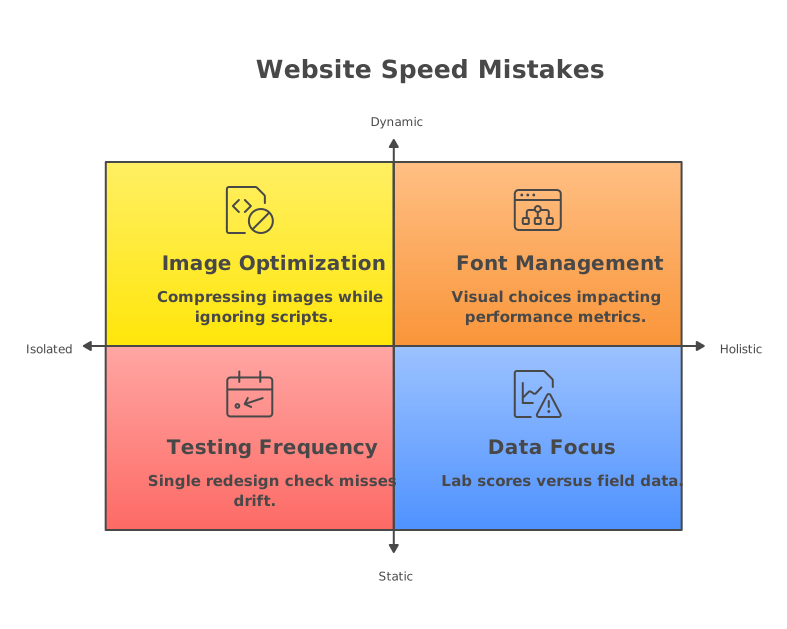
Fixing one part of a page while ignoring another often cancels out the improvement. Each mistake below shares the same root cause: optimizing one metric in isolation instead of testing the full page under real conditions.
- Optimizing images while leaving third-party scripts untouched. A site can compress every image on the page and still fail INP because a marketing pixel or chat widget is blocking the main thread.
- Testing speed once after a redesign and never again. This misses the slow drift that happens as new plugins, tracking scripts, and content get added over months.
- Chasing a perfect PageSpeed Insights lab score while ignoring the CrUX field data Google actually uses for ranking. The two can diverge on a site with varied device and connection speeds.
- Treating web fonts as a purely visual decision. Loading several weights without subsetting or preloading them quietly drags down LCP and CLS.
Frequently asked questions about making a website faster
Do 301 redirects hurt website speed?
Yes, but only when they stack. A single redirect adds a small, usually negligible delay. A redirect chain, several hops before the final URL, adds a full extra round trip to the server for every one of those hops. Audit internal links periodically and update them to point straight at the final URL instead of relying on a redirect to get there. For the full redirect-strategy guide, see 301 redirects for SEO.
What is the fastest way to improve page speed on a tight budget?
Image compression delivers the largest speed gain for the least engineering effort on most sites. Converting existing images to WebP or AVIF and resizing them to their actual display dimensions typically cuts page weight substantially without touching a line of application code, and most compression tools are free to use. Pair that with enabling browser caching and lazy loading offscreen images, both of which are configuration changes rather than a rebuild.
How does a CDN improve website performance?
A CDN improves performance because it answers each visitor from the nearest available server, not from one central location the whole world has to reach. Shorter physical distance means less time in transit, which shows up directly in a faster Largest Contentful Paint score. A CDN also helps a site stay responsive during traffic spikes, since the load is spread across many servers instead of concentrated on one.
How often should I re-test my website's speed?
Re-test at least once a quarter, and immediately after any change that adds a new script, plugin, or major content type to the site. Core Web Vitals field data reflects a rolling 28-day window of real visitor traffic, so a regression introduced by a new marketing tag might not show up in reporting for several weeks if nobody is checking. Sites making frequent content or design changes should set up continuous monitoring rather than relying on quarterly manual checks alone.
Can too many plugins slow down a website?
Yes, active plugins load their own code on every page regardless of whether a visitor interacts with them, adding both file size and execution overhead.
A site running a dozen plugins for features it barely uses is often carrying more page weight from plugins than from its actual content. A periodic plugin audit that removes anything inactive or redundant is one of the simplest fixes on this list to implement.
Does upgrading hosting always fix a slow website?
No, hosting alone cannot fix a slow website because server response time is only one component of overall performance.
It will not fix a bloated page built from unoptimized images, excessive third-party scripts, or unminified code. A site on excellent hosting can still fail Core Web Vitals if the page itself is heavy. Treat a hosting upgrade as one input among the fixes on this list, not a substitute for the rest of them.