Botify is an AI-powered SEO platform that helps enterprises maximize online visibility across traditional and AI search engines through automated website optimization, performance analytics, and scalable content management. Botify has a strong technical SEO focus, but users often want more comprehensive search marketing tools along with AI capabilities.
Search Atlas offers comprehensive SEO capabilities along with AI assistance and automation in the form of OTTO SEO. The platform covers the entire workflow from keywor and competitor research to content creation, on-page and technical optimization, and outreach, PPC, and digital PR.
Every Search Atlas plan includes free OTTO SEO activation with extensive databases and flexible audits. We help you upgrade to Search Atlas’s automated system that executes improvements automatically while satisfying all your SEO needs in one platform.
1. What Is the Initial Setup in Search Atlas?
First, set up your workspace correctly to allow smooth monitoring, automation, and performance tracking.
Set Up Your First Project
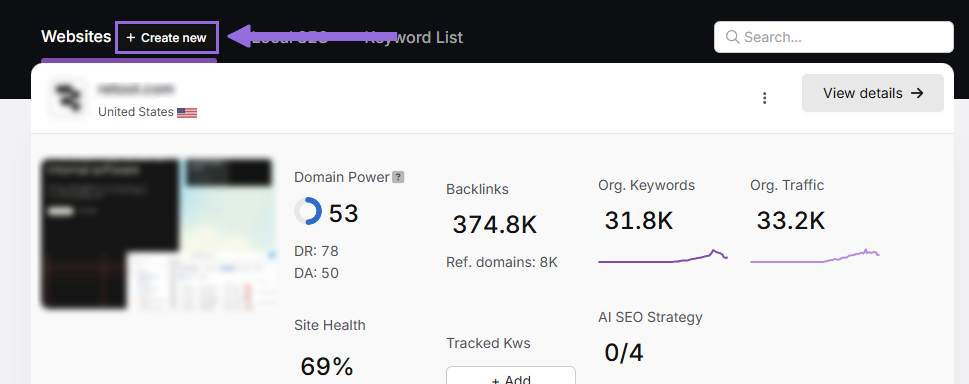
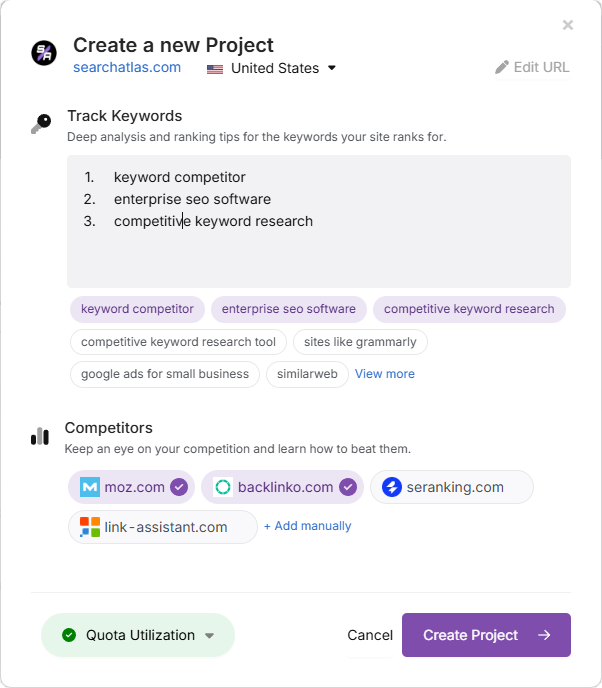
Access your Search Atlas account, go to the main Dashboard, and select + Create new.
Add your website domain, choose your target location, and include primary keywords for tracking if you want.
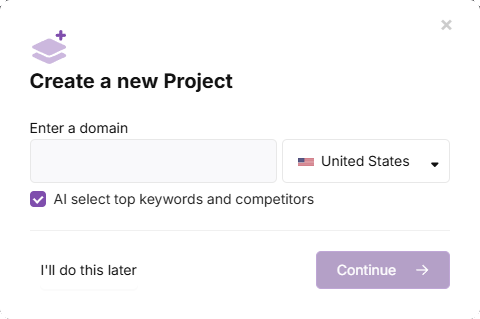
Adjust the suggested keyword list and add your main competitors. You can always modify these settings later.
Link Important Tools
Google Search Console (GSC)
Go to Site Metrics > All Sites > Connect GSC Account.
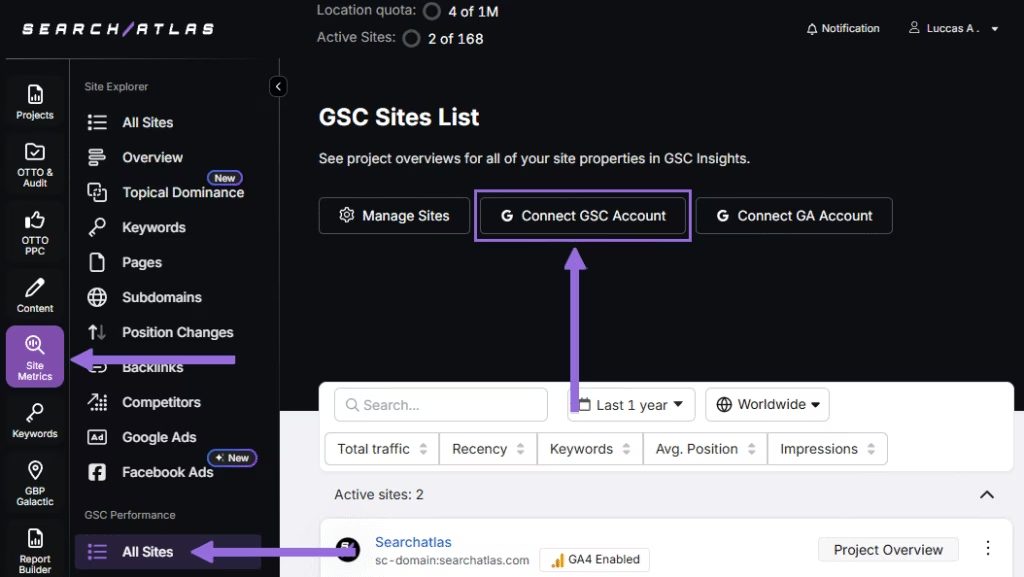
Give permission and link your verified website property.
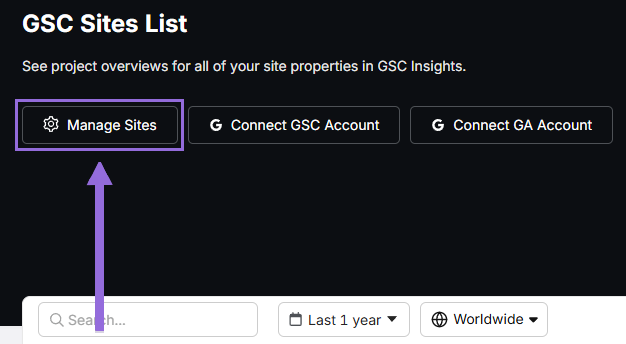
After you connect GSC, go to Manage Sites.
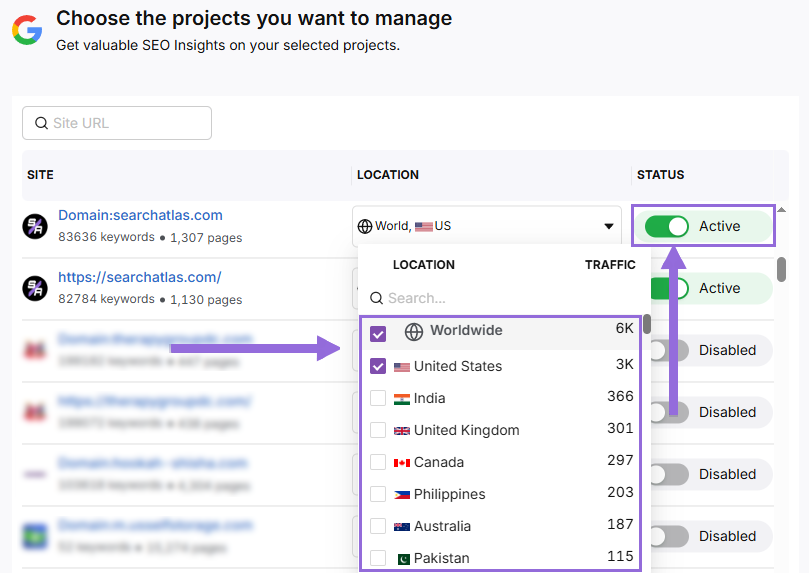
You’ll see a toggle showing all imported GSC properties (they’re disabled by default). Find your domain and click Enable.
Google Analytics 4 (GA4)
In your GSC Performance dashboard, select Connect Google Analytics 4.
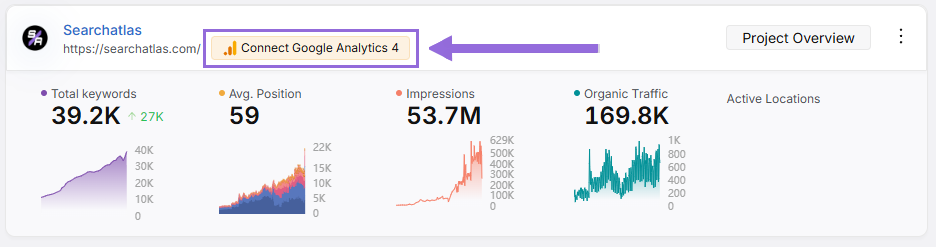
Pick your GA property or link your GA4 account. Give permission and connect your verified property.
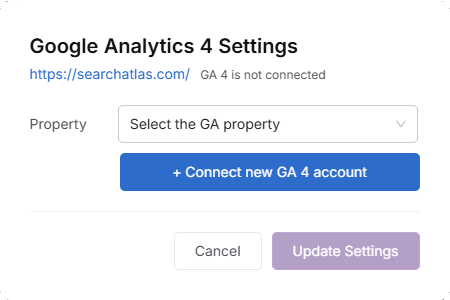
When activated, Search Atlas will automatically connect keyword information, impressions, click-through rates, and user engagement data.
You can use public sharing links for quick verification access when needed.
2. How to Export Crawl Data From Botify and Set Up the Site Audit in Search Atlas?
You don’t need to import site audit data from Botify for Search Atlas to work. Search Atlas performs fresh technical scans automatically using the Site Auditor. However, you can keep your old data for reference.
From Botify
To export crawl data from Botify, first gather your project configuration including username, project slug, analysis slug, and API token. Then create a POST request to the Botify API with a BQL query specifying the data dimensions you want to export (like URLs, HTTP codes, metadata, and performance metrics).
Finally, monitor the export job status using the returned job ID until it’s complete, then download the compressed CSV file from the provided download URL.
Set Up Site Audit in Search Atlas
Navigate to OTTO & Audit > All Audits > Site Auditor.
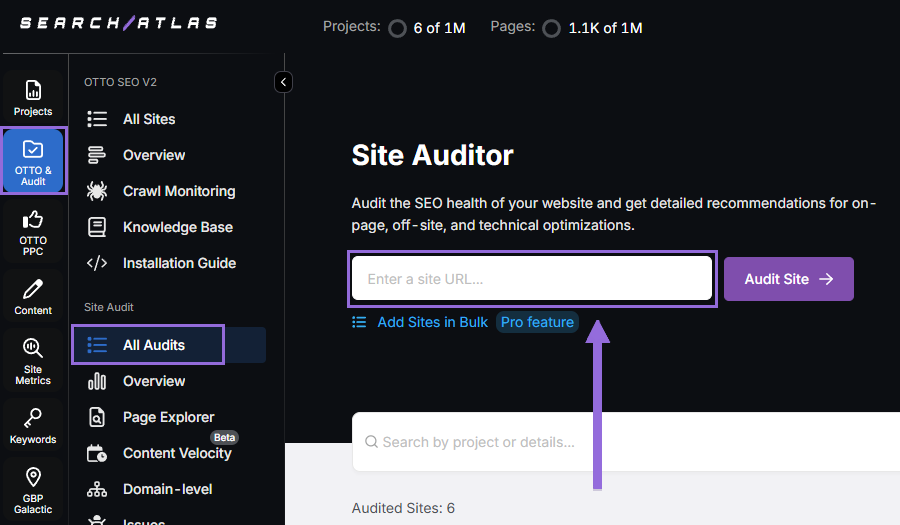
Add your website domain and set up the crawl settings:
Set up crawling using these options:
- User agent (choose Search Atlas bot for the most accurate results)
- Pages to crawl (starts at 100 by default)
- Crawl speed (starts at 20 pages per second)
- How often to crawl (starts at every 7 days)
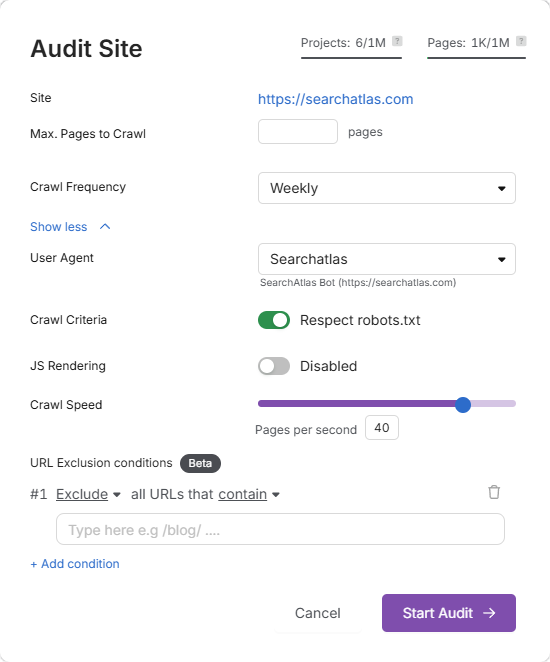
Start a complete scan to begin crawling all pages on your domain.
Pro Plan Feature: Multiple Site Auditing
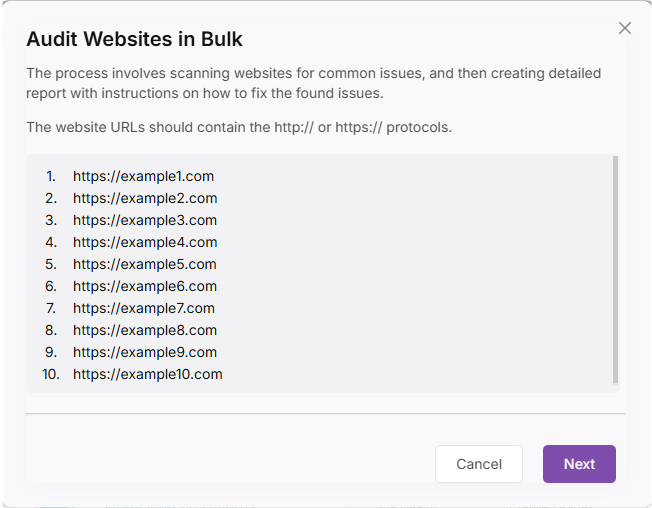
For agencies or when auditing several websites, use Update Sites in Bulk and add multiple domains to run audits at the same time.
This works great for checking multiple projects at once.
3. How to Export Keyword Rank Data from Botify and Import to Search Atlas?
To import your ranking data into Search Atlas, get CSV files from Botify.
From Botify
To export keyword data from Botify into CSV, you need your project username, project slug, and API token from your account configuration. Create a POST request to the Botify API endpoint using a BQL query that specifies the search console collection with your desired date period.
Include dimensions like URL, keyword, device, and country, plus metrics such as clicks, impressions, average position, and CTR in your query. Monitor the export job status using the returned job ID by sending GET requests until the status changes from “PROCESSING” to “DONE”.
Download the compressed CSV file from the provided download URL and extract it.
In Search Atlas
Navigate to Keywords > Keyword Rank Tracker
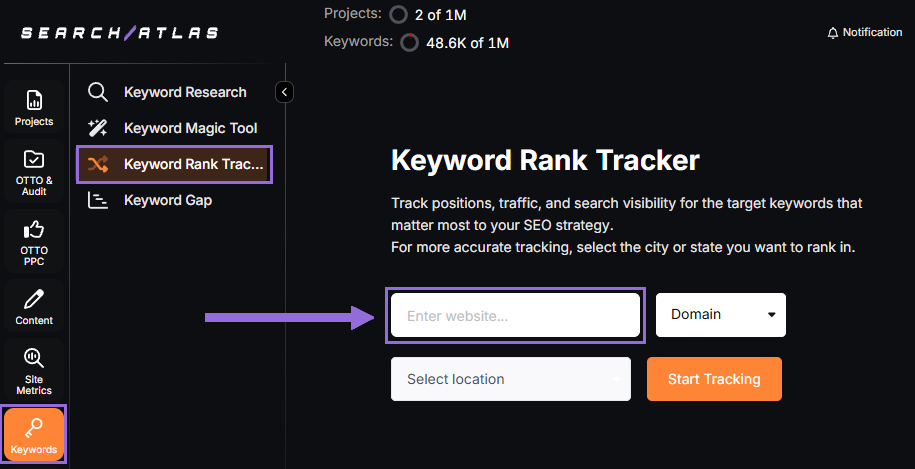
Add your website domain or specific page URL, then choose your target location (country, state, city, county, or province).
Example: Monitor rankings for searchatlas.com in Las Vegas, Nevada
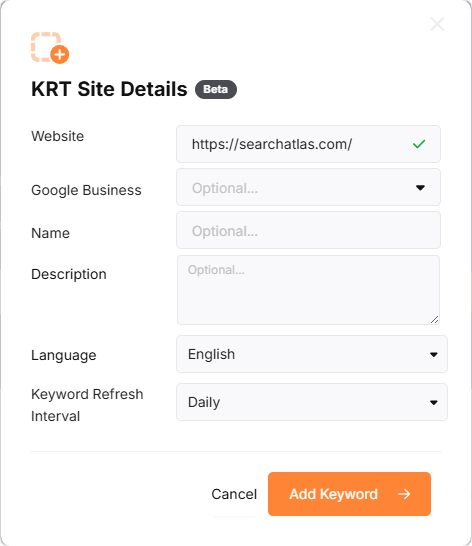
Select Start Tracking and link your Google Business Profile (GBP) if you have one. Fill in your project name, description, language, and how often you want keyword updates (Daily, Weekly, Monthly, or Custom).
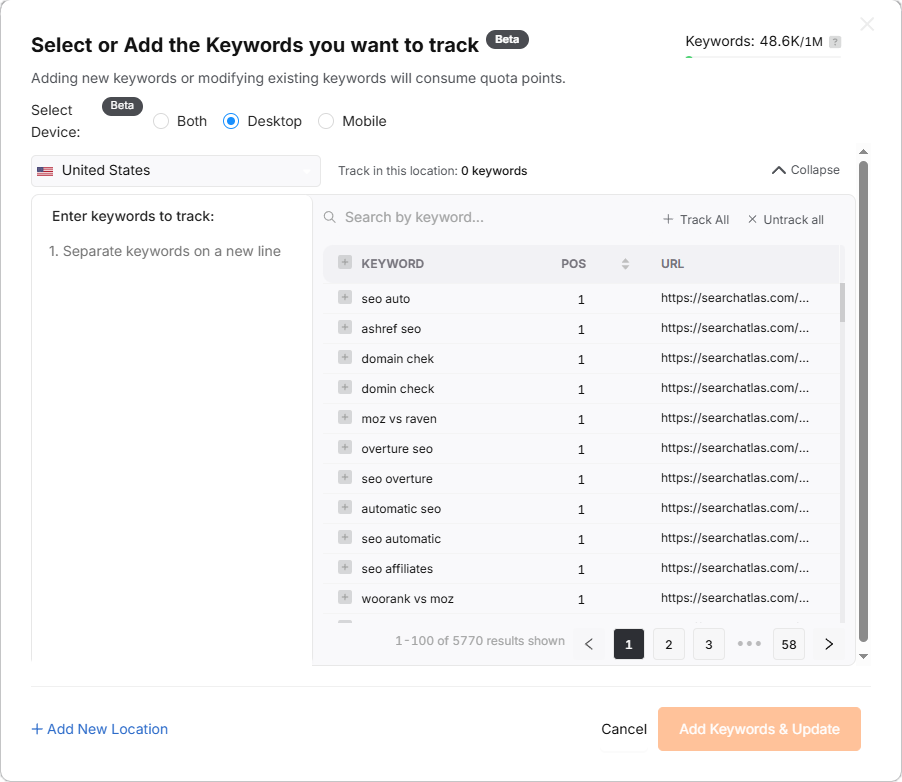
Search Atlas will suggest keywords automatically, and you can pick from these suggestions or add keywords manually from the Botify CSV file.
4. How to Import Local SEO Data and Set Up GBP Project in Search Atlas
Botify doesn’t have dedicated local SEO tools. Here’s how to set up Search Atlas’s local SEO features.
In Search Atlas
Navigate to Local SEO > Connect GBP, and link your verified business listing.
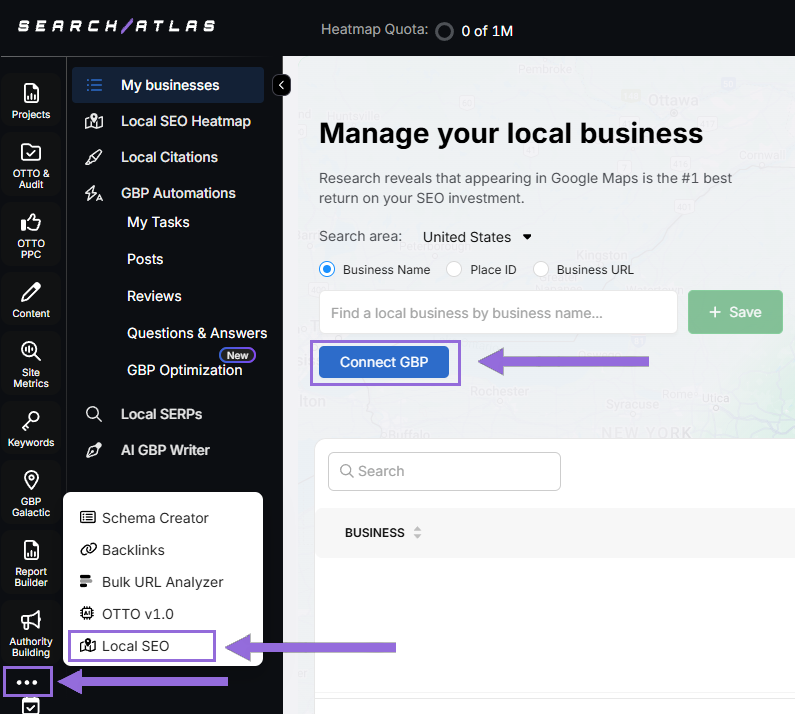
Give permission and connect your verified business property.
Find Your Business
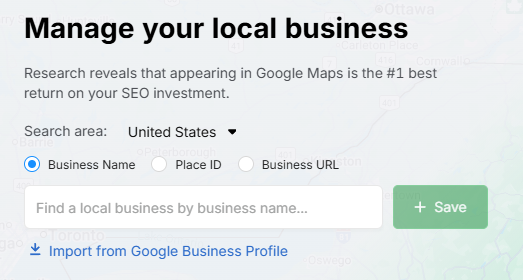
Find your business by name, Place ID, website URL, or import through email invitation.
Select + Save to set up your local SEO project.
Set Up the Heatmap
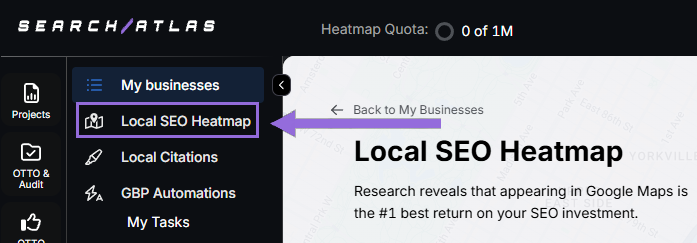
Once GBP is connected and your project is saved, go to Local SEO > Local SEO Heatmap.
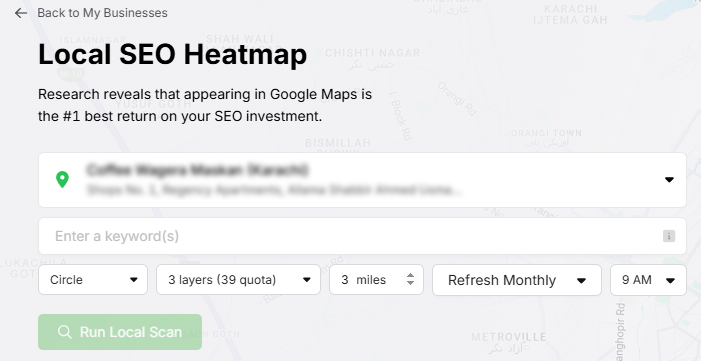
Enter the keywords you want to track, pick between circle or rectangle to set your tracking area, and choose the radius. We suggest:
- 3-5 miles → Use 3 layers or grids
- 10-25 miles → Use 4-5 layers or grids
The larger your mile radius, the more layers or grids you should use. This helps increase grid density for better coverage.
Set refresh intervals and pick specific times when your business is open. Don’t choose midnight or off-hours, as this may show lower rankings than your actual performance.
Click on pins to remove unnecessary ones (like empty areas) to save your quota and prevent skewed average rankings.
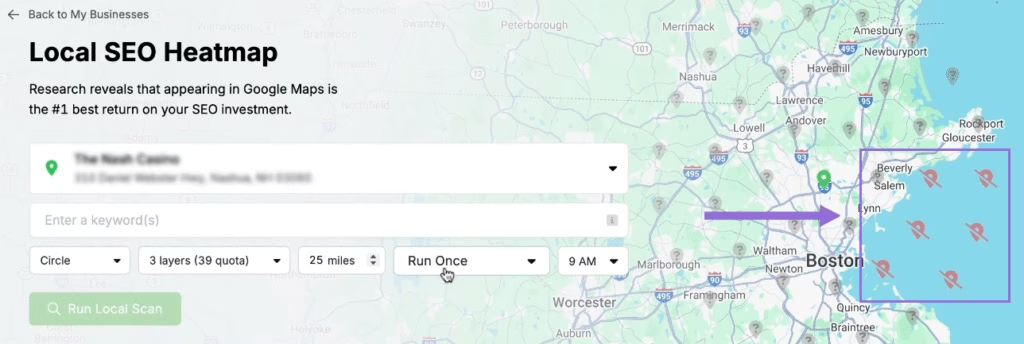
Modify Existing Reports
Select an existing project and click at the top of the page.
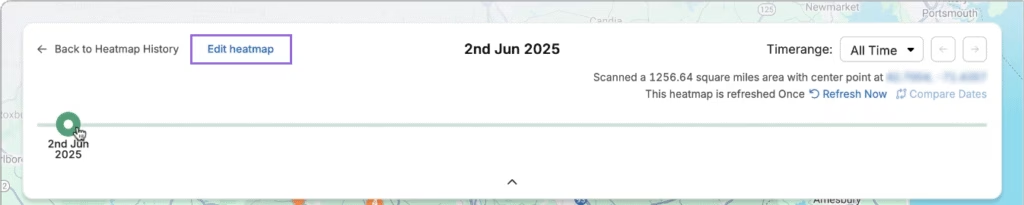
A timeline will show your ranking progress over time. Select Edit heatmap to change any of your settings.
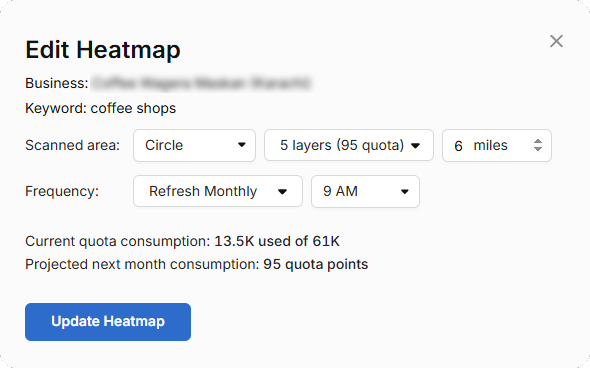
Analyze Against Competitors
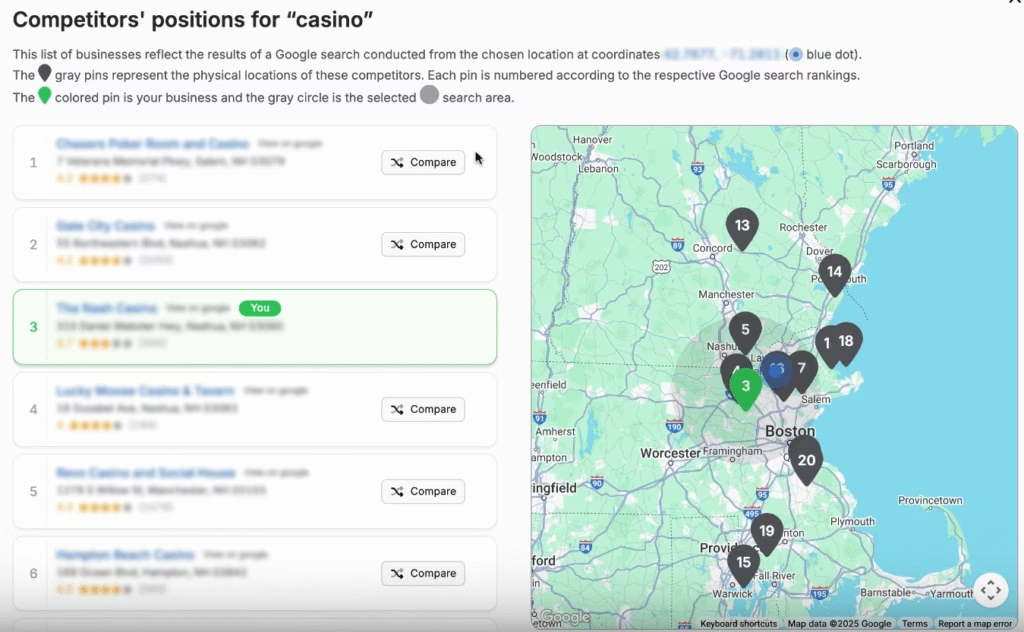
You can see how your business ranks compared to local competitors in your area. Click on any individual pin you want to focus on.
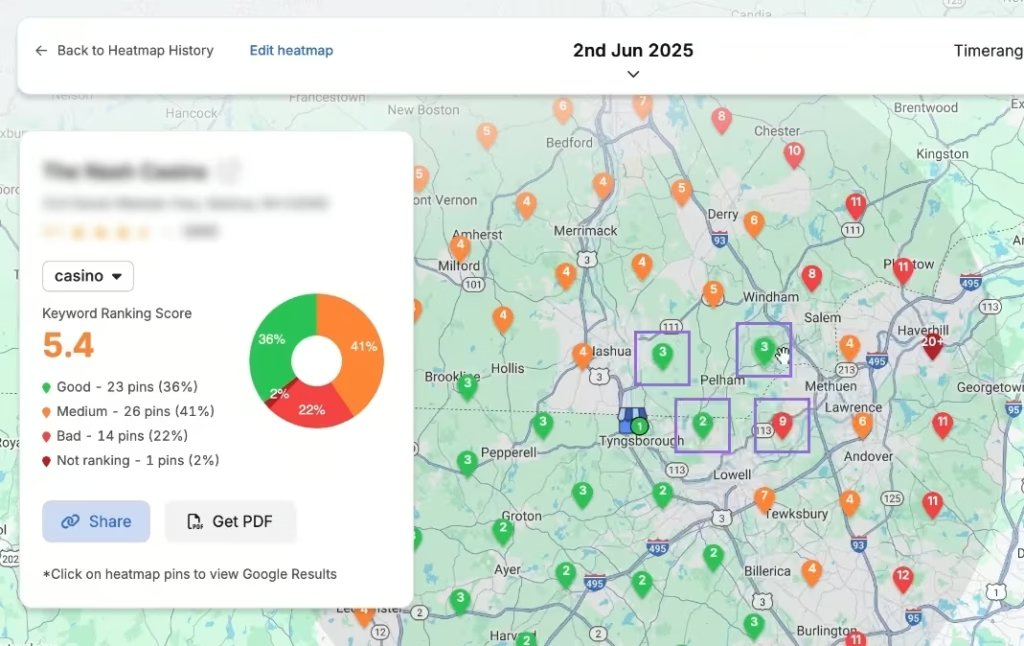
A list of local competitors will appear for the same keyword and location. Select Compare to pick which competitor you want to analyze.
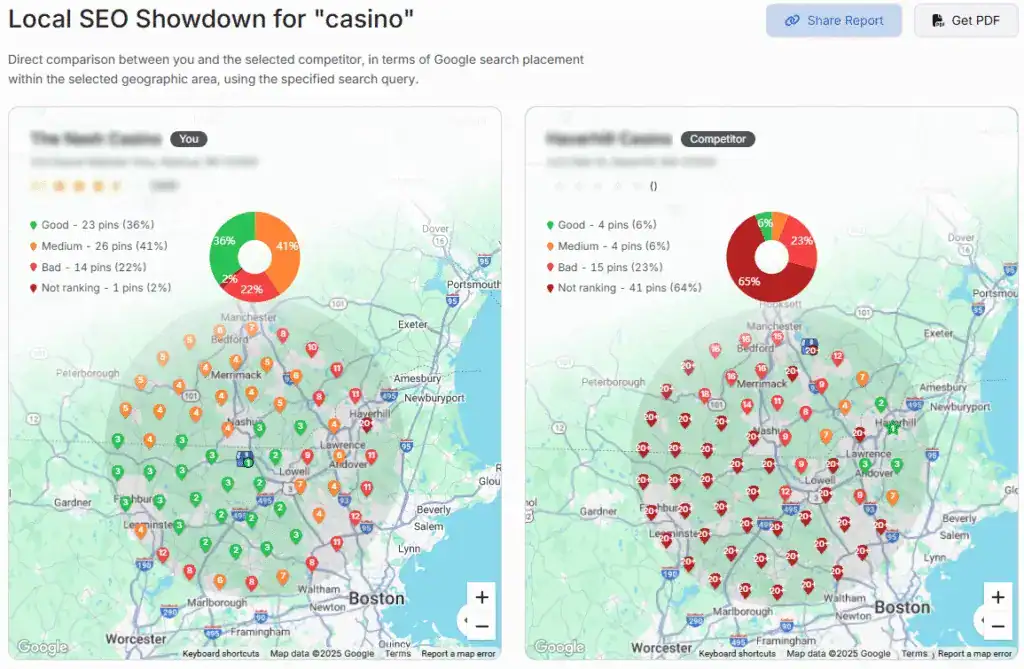
Your business and the chosen competitor will appear side by side. You can move around, zoom out, and zoom in to study the entire area.
Set Up Local Rank Tracker
Go to Keywords > Keyword Rank Tracker
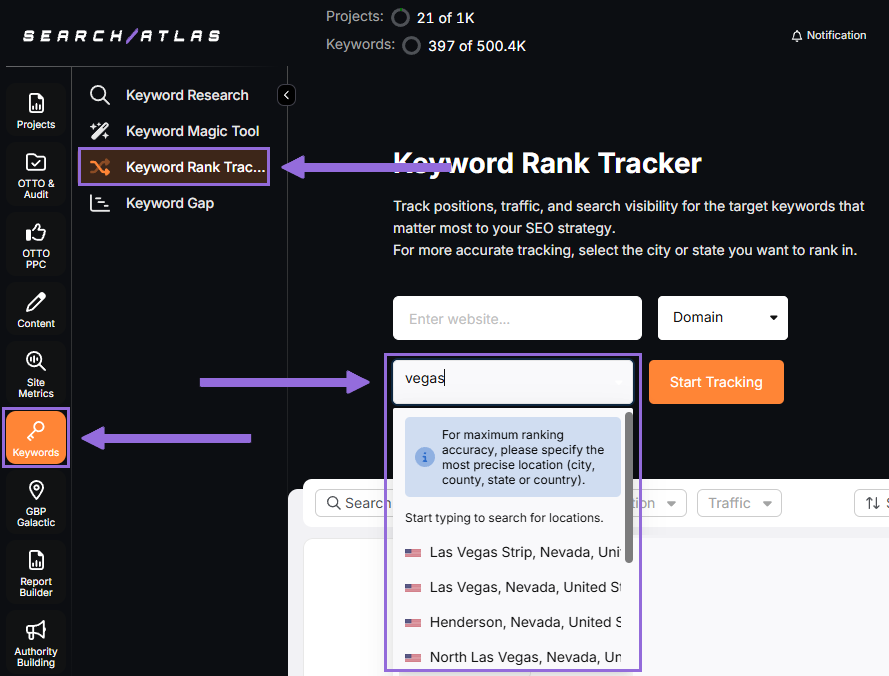
Add your business website or specific page, choose your exact target location, and select Start Tracking.
Configure device preference, language, frequency, custom naming, and campaign description.
Import local rank tracking data for different countries from Botify.
Track Multiple Locations
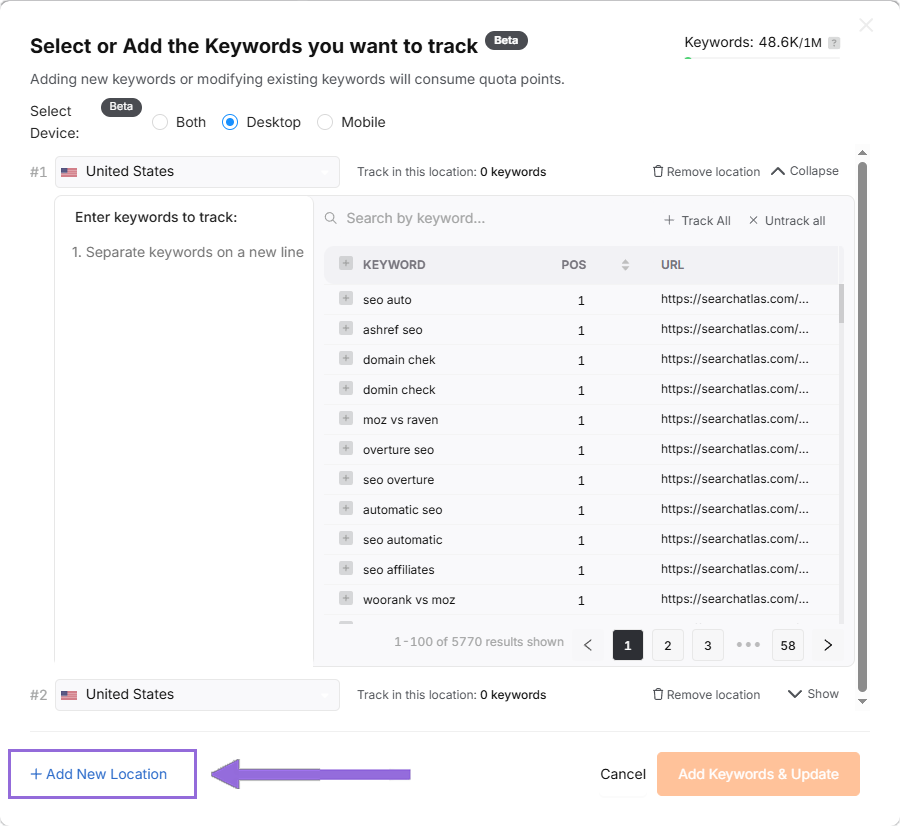
If you manage several business locations for the same project, click + Add New Location to monitor keywords for multiple areas in one report (like Las Vegas and New York) and set different keyword groups for each location.
5. How Do You Migrate Backlink Analysis Data from Botify to Search Atlas?
Botify doesn’t have dedicated tools for managing backlinks, only internal links. Set up your backlink analysis in Search Atlas from scratch.
For a full feature comparison before committing to the switch, the Search Atlas vs Botify page covers how the two platforms differ across technical SEO, content, AI visibility, and backlink analysis.
In Search Atlas
Navigate to Backlinks > Backlink Research.
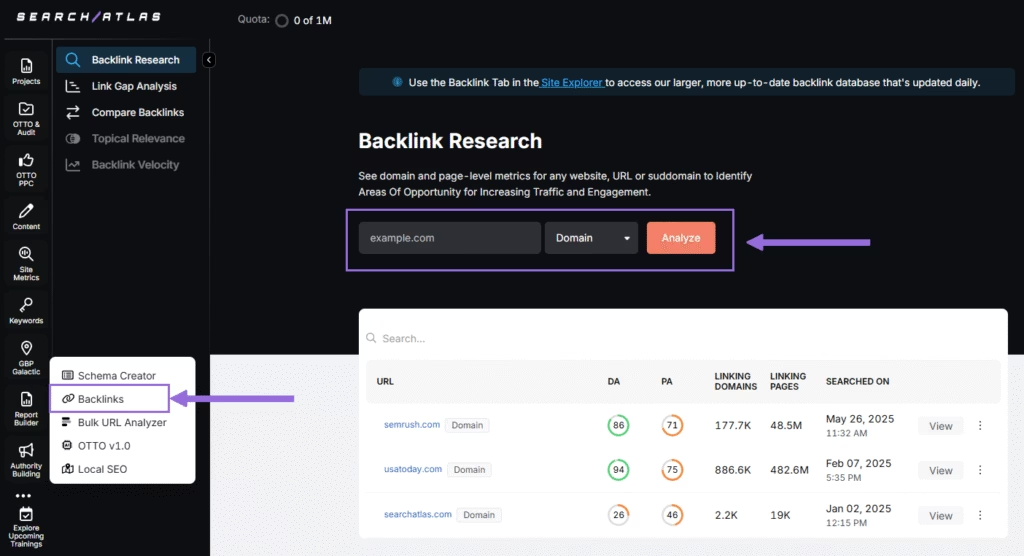
Enter your Domain or Page and click Analyze.
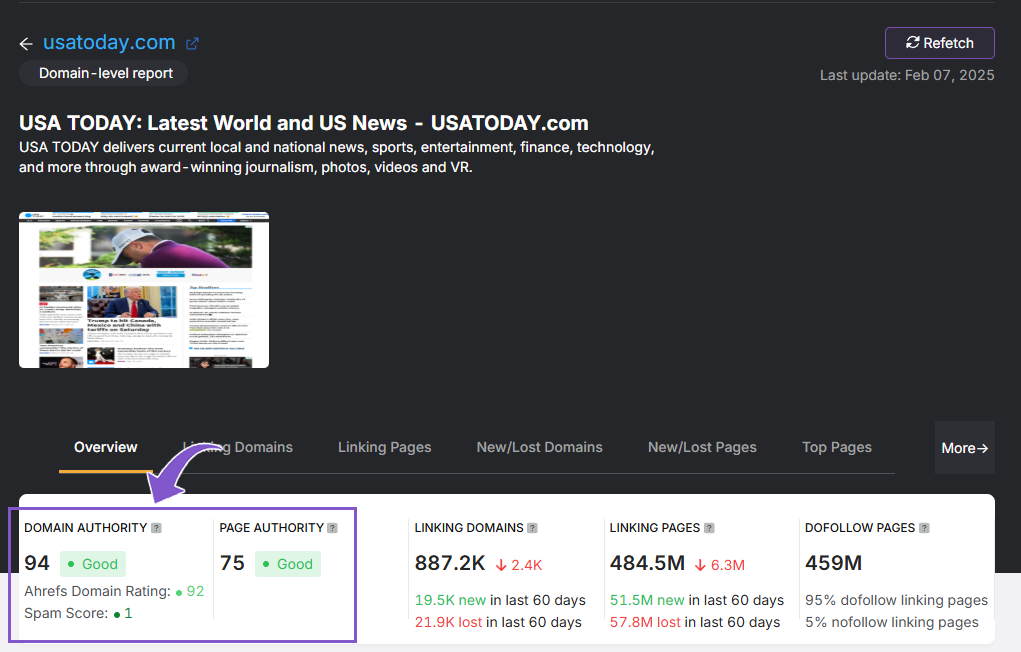
Get a complete analysis of the website’s backlink profile, including authority scores, linking domains and pages, plus additional metrics.
6. How to Migrate Content from Botify to Search Atlas’ Content Genius?
You can easily transfer your current content from Botify to Search Atlas’s Content Genius for simplified editing and optimization.
In Search Atlas
From your Search Atlas main dashboard, go to Content > Content Genius.
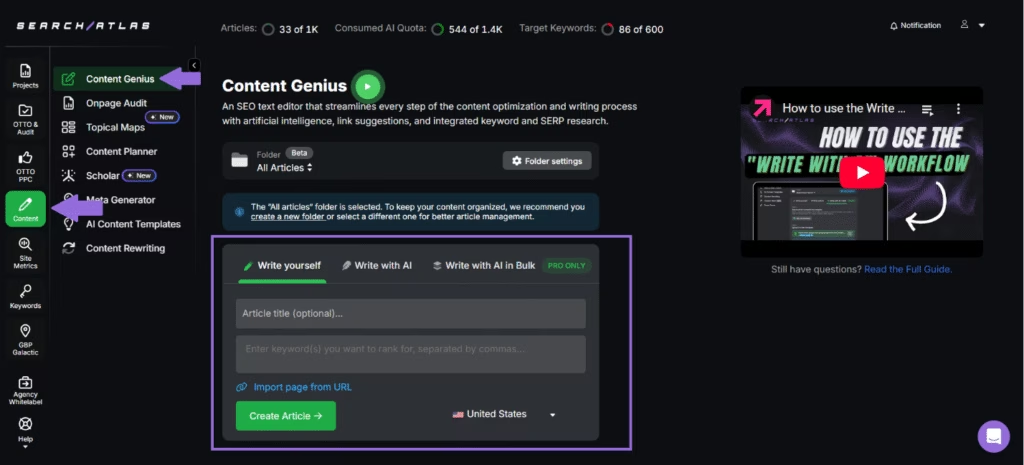
Select the Write Yourself option, then choose Create Article.
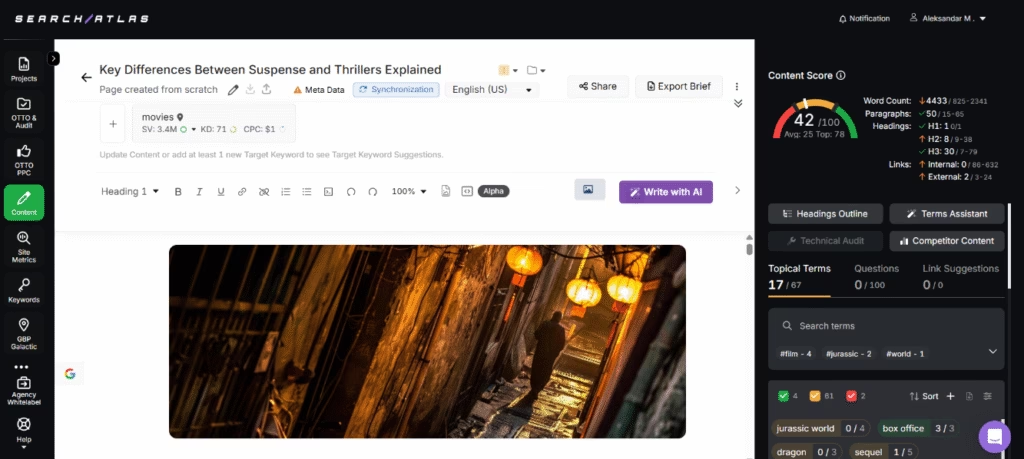
You have two ways to bring in your content:
- Direct Transfer: Copy and paste your article text straight from Botify or a doc into the editor
- URL Import: Enter the web address of your published content along with your target keywords
Search Atlas will automatically identify related keywords and topical terms for your content.
Using the URL Import Method
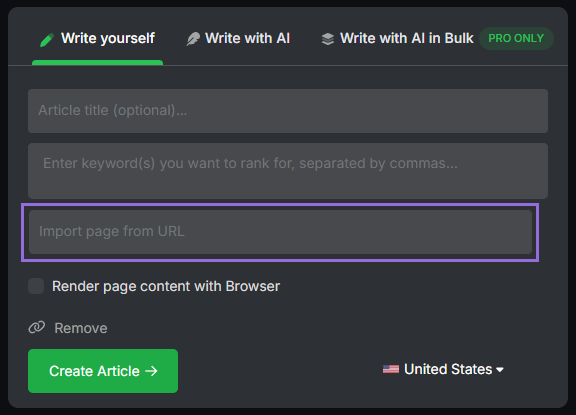
Enter your article’s URL, add the primary keywords you’re targeting, and click to import.
The platform will analyze your content and provide recommendations for:
- Technical improvements
- Content structure enhancements
- Keyword optimization opportunities
7. How to Set Up Reports in Search Atlas?
Automating your reporting in Search Atlas is fast and simple. Here’s how to do it.
In Search Atlas
Go to Report Builder > Report List
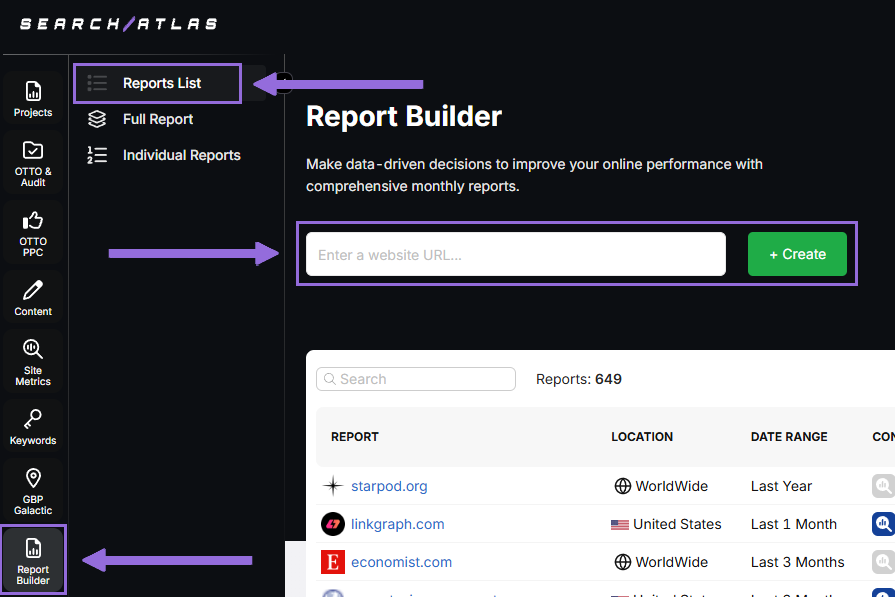
Select your target location, time period, and the data widgets you want to include, such as:
- AI Summaries
- Site Explorer
- OTTO SEO
- Orders & Tasks
- Google Analytics data
- Google Search Console data
- Facebook Ads
- Google Ads
- Google Business Profile
- Keyword Rank Tracking
Then set up automatic report delivery by adding email recipients, choosing how often to send reports (weekly, monthly, or quarterly), and selecting which day of the week for delivery.
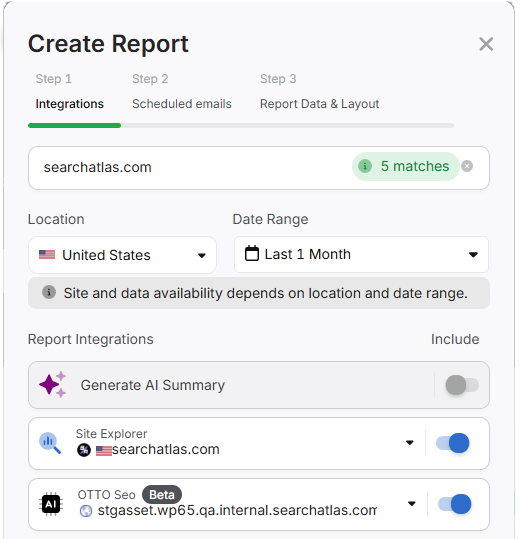
Pick either Default Layout or Custom Layout, then generate your report.
Customize the Reporting
Once your report is created, select Configure Report to modify the Integrations, Scheduled emails, and Layout.
The Layout section allows you to completely personalize your report.
Select Add custom text to include your own text or HTML, which lets you incorporate your branding such as logos, banners, and clickable links.
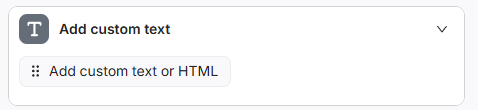
Scroll down and drag each data point into your report. You can position any metric wherever you prefer in the layout.
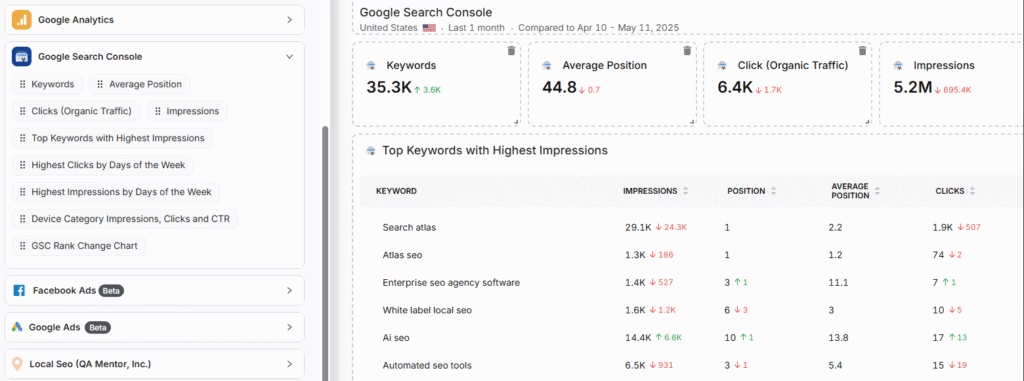
Include AI Summaries
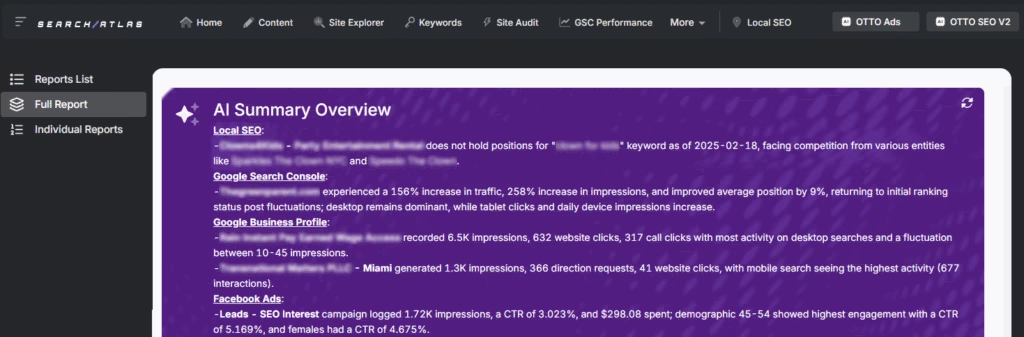
Under Integrations, you can enable the AI Summary Overview.
These automatic summaries quickly emphasize the most important aspects of your report, making it simpler for you and your clients to grasp the findings.
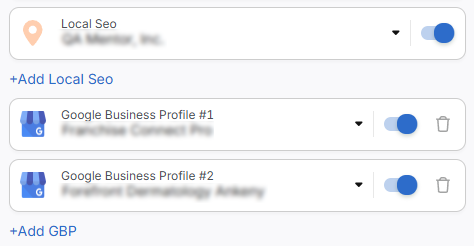
Building a Local SEO Report
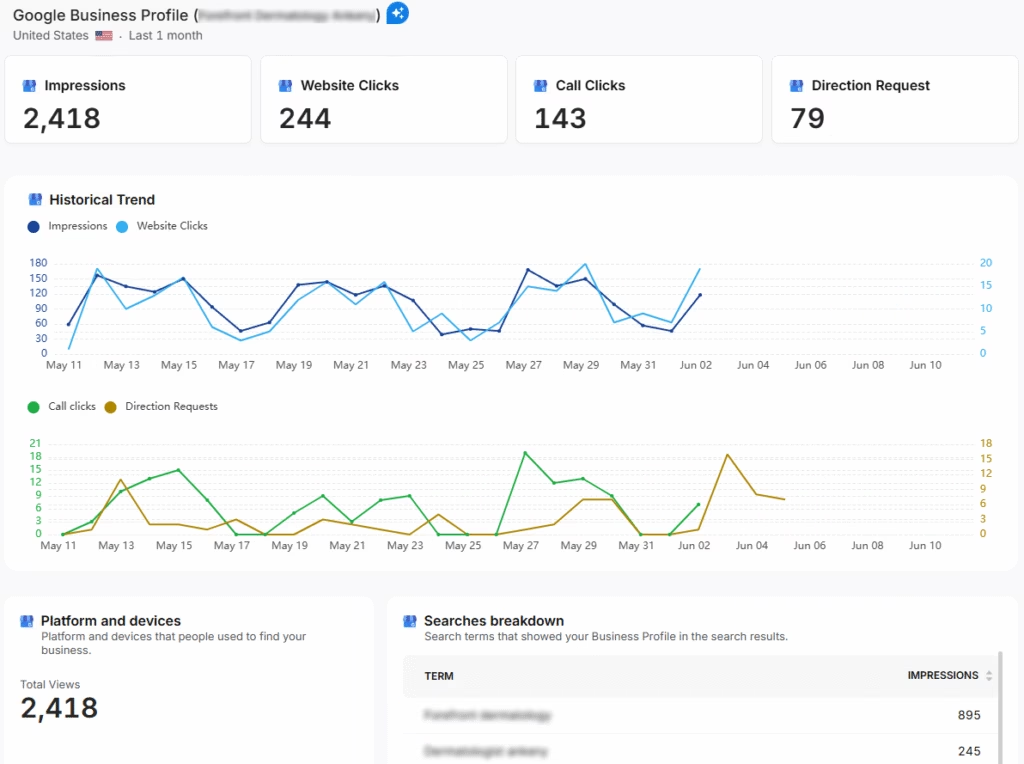
Select Configure Report and go to the Local SEO and GBP Section. Connect as many Local SEO projects and GBP Accounts as needed for your report.
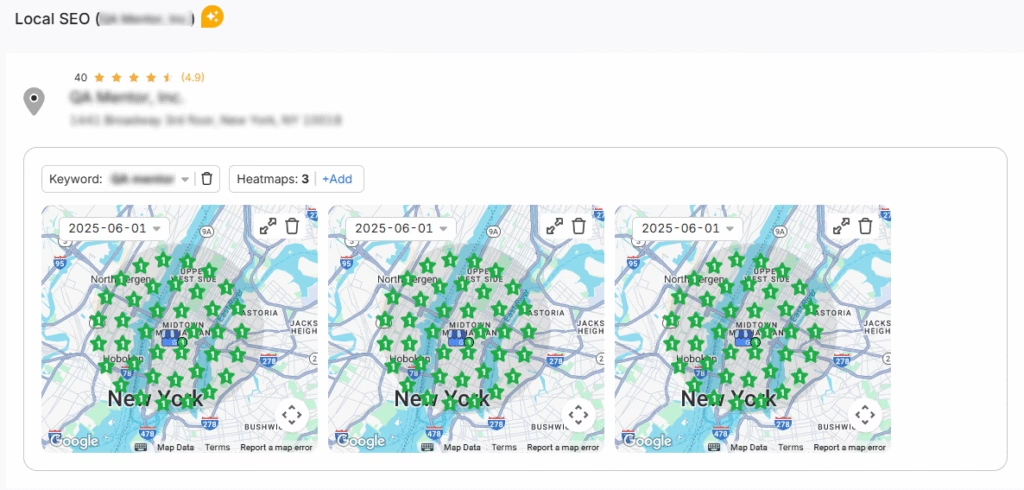
Any heatmaps you’ve set up for each Local SEO project will automatically appear in the report. These are completely customizable.
GBP data gets included in the report automatically. Every metric can be fully adjusted.
Distributing the Report
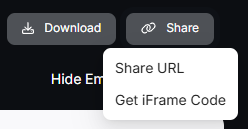
Once your report is set up, save it as a PDF or distribute it using Share URL or Get iFrame Code.
iFrame Code is HTML code that lets you display another web page inside your own website.
White Label Branding
Search Atlas lets you fully customize your dashboard and URL with your own branding.
Navigate to Agency White Label and configure your personalized dashboard URL and logo.
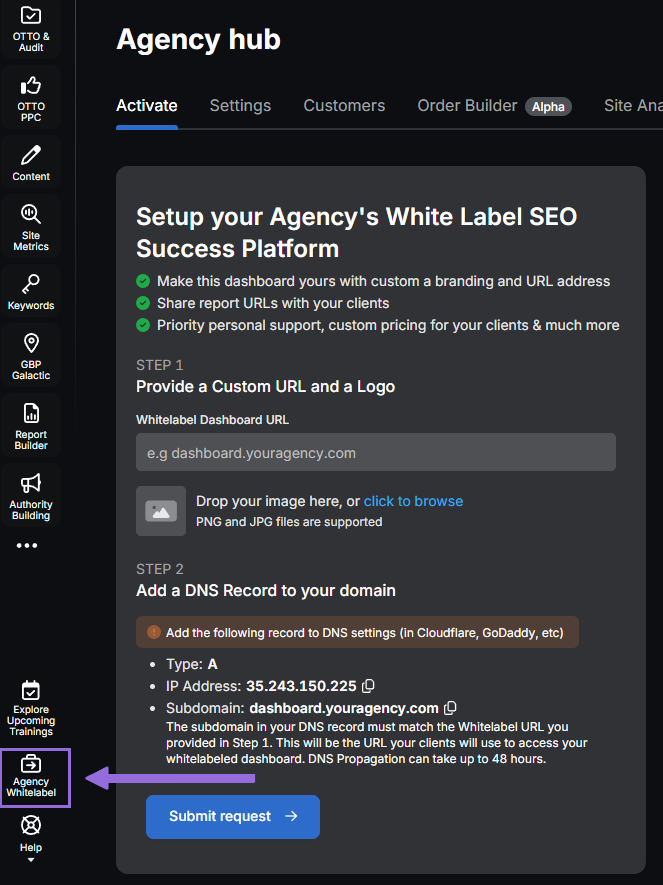
When you distribute your report through a Shareable URL, it will show your logo and custom URL.
8. How to Enable Automated SEO Optimization in Search Atlas?
Botify has AI features such a PageWorkers and SpeedWorkers. Search Atlas has OTTO SEO, an AI assistant that automatically manages SEO tasks, including technical audits, on-page optimization, link building, content creation and optimization, Local SEO, and Google Business Profile management.
Note: You must complete the Site Audit on your project before setting up OTTO.
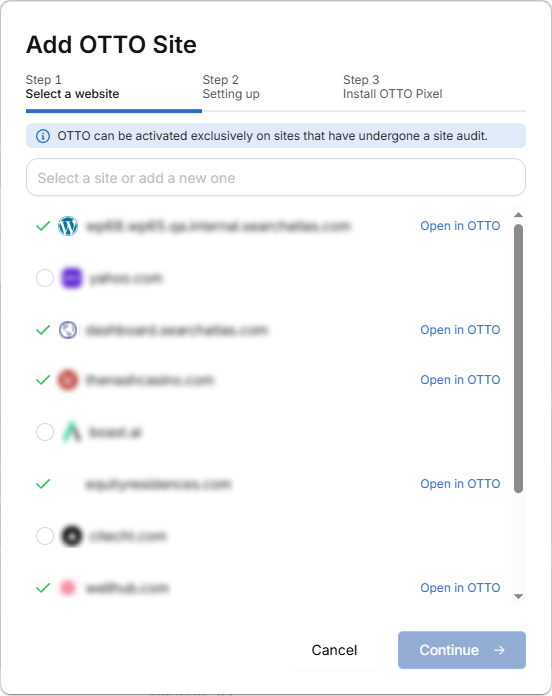
Navigate to Projects > + Add a Website
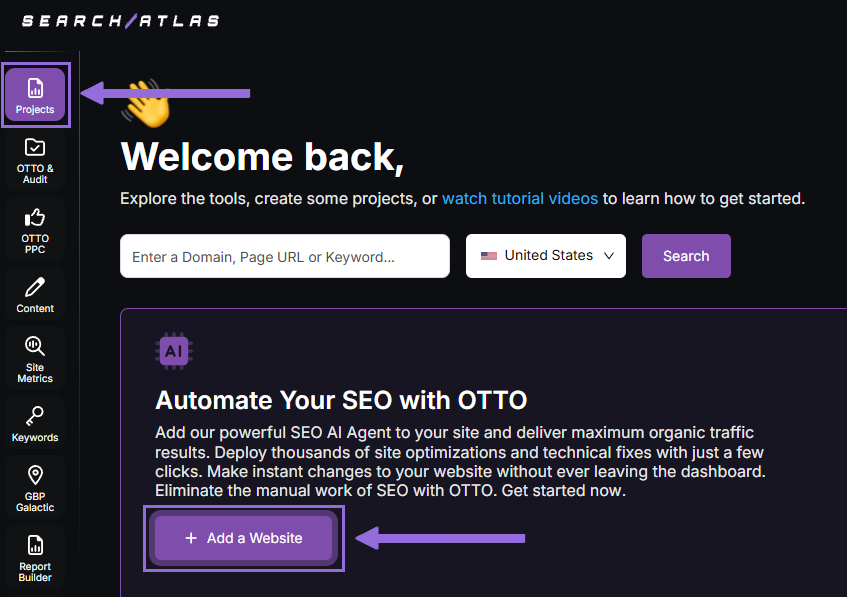
Choose one of your existing projects without OTTO installed, or create a new website.
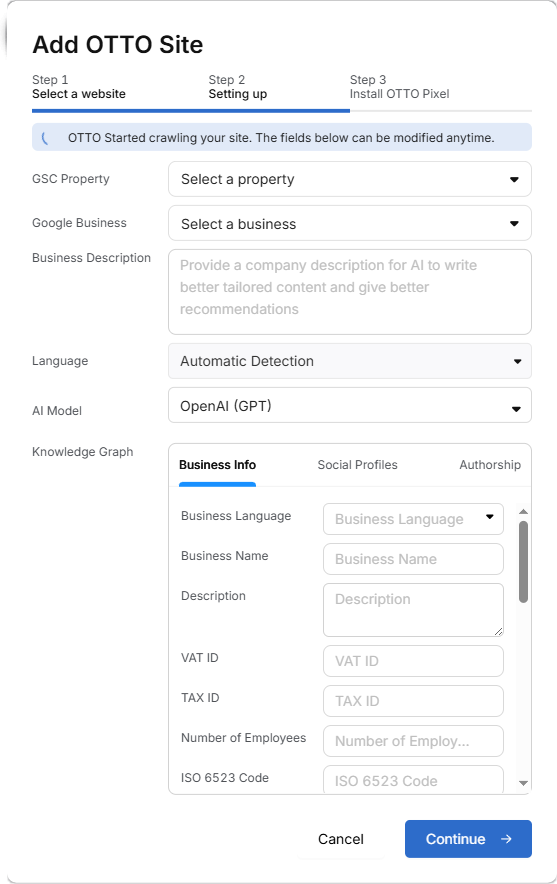
Connect your GSC and GBP, then enter your business information.
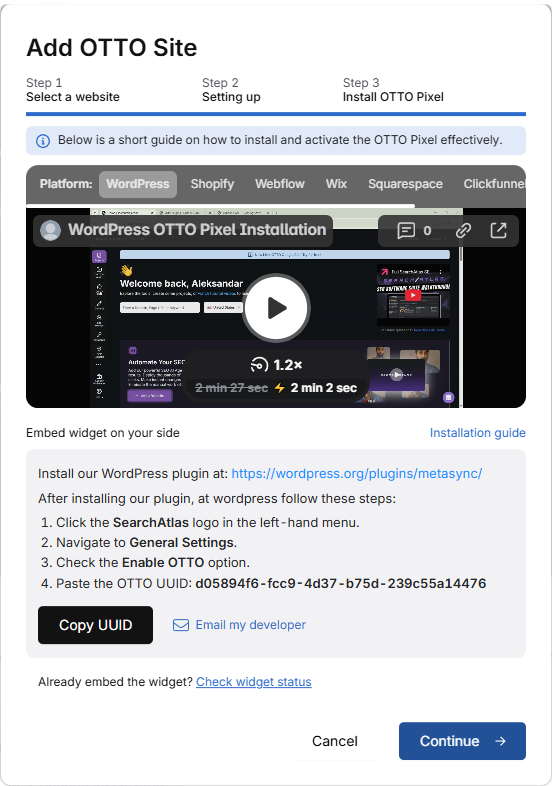
Follow the setup tutorial to install OTTO.
Setting Up OTTO on Different Platforms
Navigate to OTTO & Projects > Installation Guide. You’ll find quick tutorials for:
- Google Tag Manager
- WordPress
- Shopify
- Webflow
- Squarespace
- ClickFunnels
- Wix
- GoHighLevel (GHL)
- Custom Installation
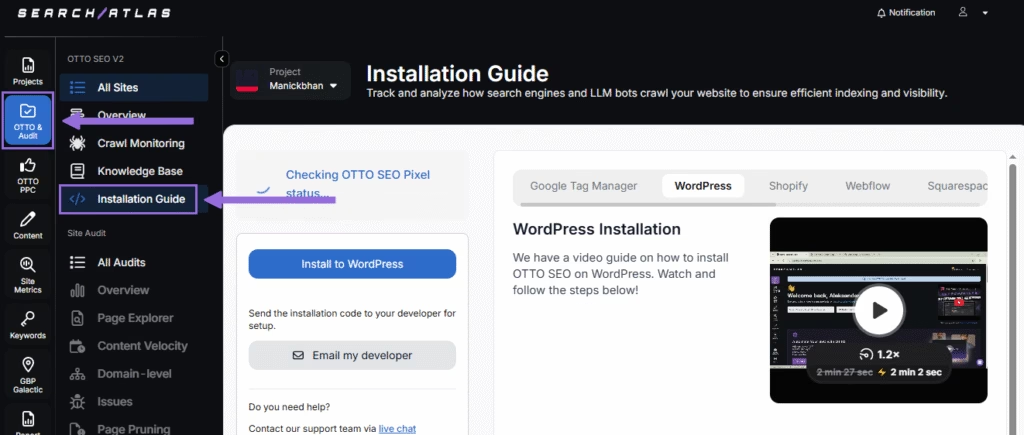
We’ll quickly explain how to install OTTO SEO on WordPress.
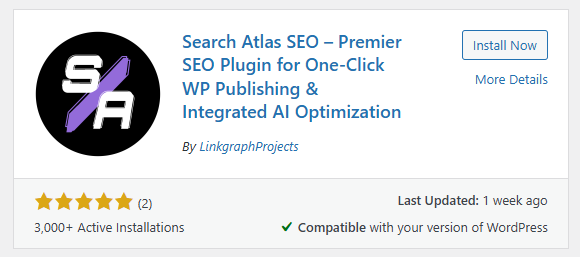
First, access your WordPress admin panel and navigate to the Plugins section. Search for “Search Atlas” in the plugin directory. Click Install Now, then activate the plugin.
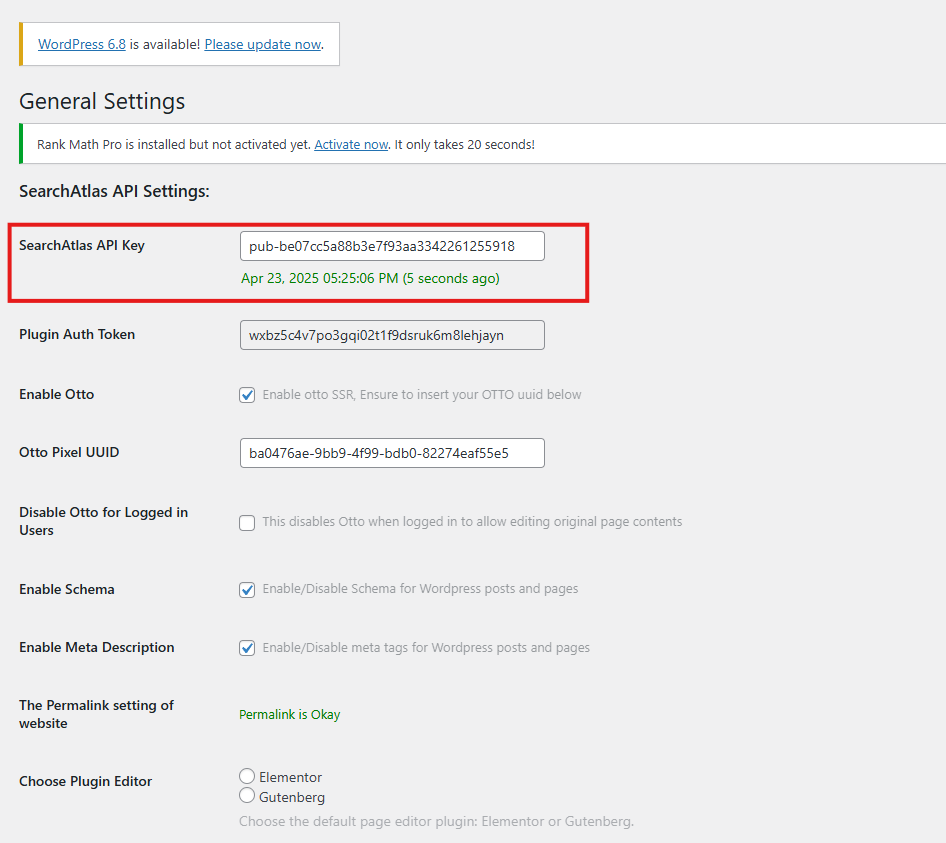
Copy the API key from your setup process. Open the Search Atlas plugin settings by clicking the Search Atlas logo in the left sidebar. Navigate to General Settings. Paste the API key in the Search Atlas API Key field and continue.
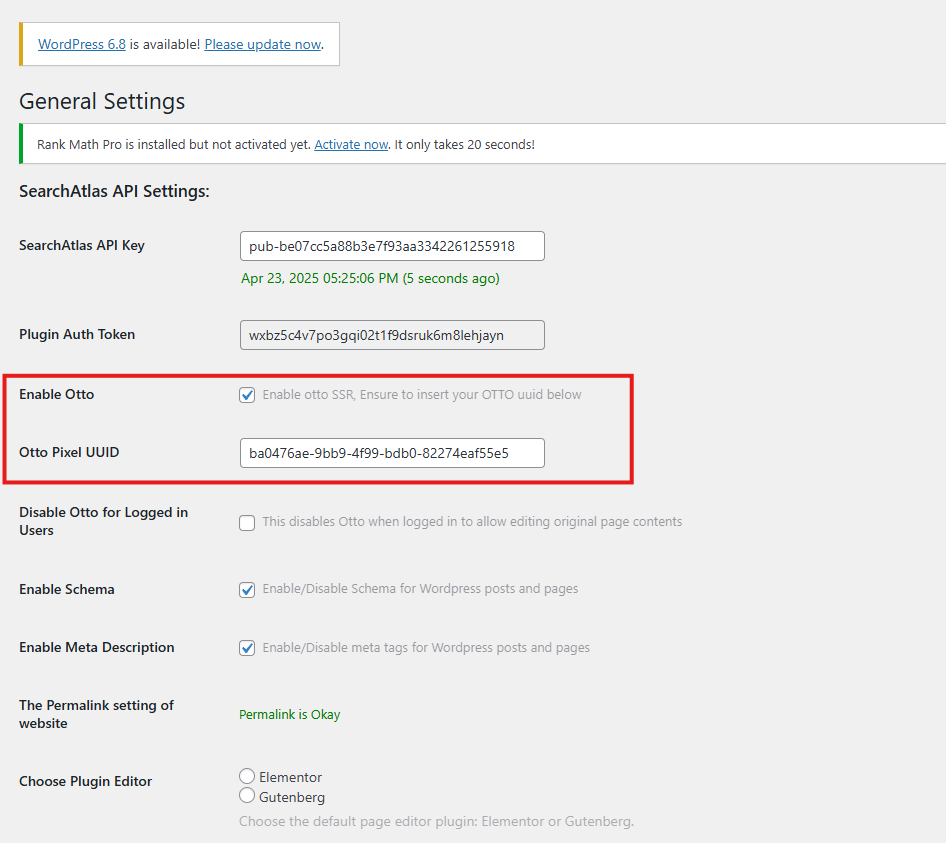
Copy the code from the next step. Return to your WordPress admin panel. Access the plugin settings again. In General Settings, check the Enable OTTO checkbox. Paste the code in the OTTO Pixel UUID field. Save your settings.
OTTO SEO is now running on WordPress, automatically applying fixes and SEO improvements across your website.
Configuring OTTO SEO
Here’s how to set up OTTO Autopilot and its configuration options.
9. How to Go Through the Search Atlas Onboarding Process?
Search Atlas offers multiple support resources to help with questions or issues. Here’s how to get the most from your onboarding process.
Watch Tutorial Videos
Search Atlas offers comprehensive video tutorials on YouTube that walk you through report creation, dashboard configuration, and automation setup.
Book a 1:1 Onboarding Session
During your trial, you can schedule a 1:1 onboarding session directly from your dashboard. A product specialist will help you customize your setup, connect integrations, and configure OTTO SEO automation.
Follow the 7-Day Email Campaign
Your free trial includes a 7-day onboarding email sequence. Each email covers one core feature.
Technical Documentation
Access technical docs in the Help Center with detailed guides for every feature. All documentation is searchable and regularly updated.