Search Atlas provides what SEO PowerSuite doesn’t: a fully integrated workflow powered by AI automation.
Instead of managing separate desktop applications for analysis, Search Atlas combines your data, content creation, and automated technical fixes into a single, simplified platform.
For professionals transitioning from SEO PowerSuite, the core analytical tools will feel familiar, but the addition of AI opens up new efficiencies.
This guide will show you exactly how to replicate your previous workflows, from backlink analysis and site audits to rank tracking, within Search Atlas. We will also cover how to use the new automation and content creation features now available to you.
1. What Is the Initial Setup in Search Atlas?
Start by configuring your workspace properly to enable smooth tracking, automation, and performance insights.
Create a New Project:
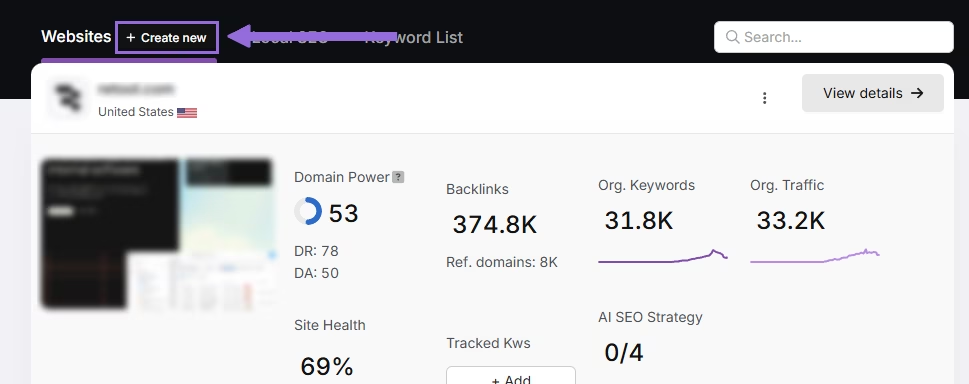
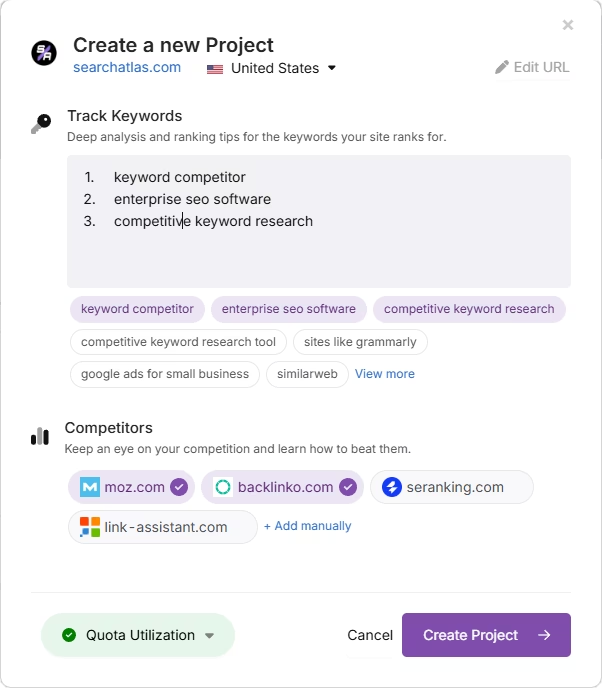
Log in to your Search Atlas account, scroll down in the main Dashboard, and click + Create new.
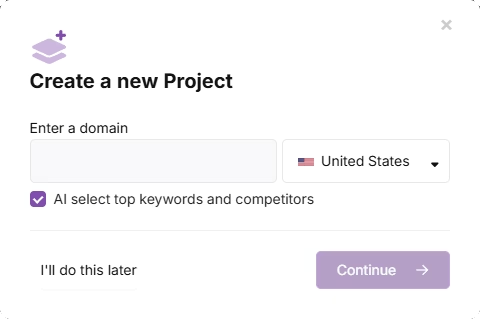
Enter your domain, select the target country, and optionally enter primary keywords for tracking.
Add or remove recommended keywords, and also add your main competitors. You will be able to change both of these options later.
Connect Key Integrations
Google Search Console (GSC)
Click on Site Metrics > All Sites > Connect GSC Account.
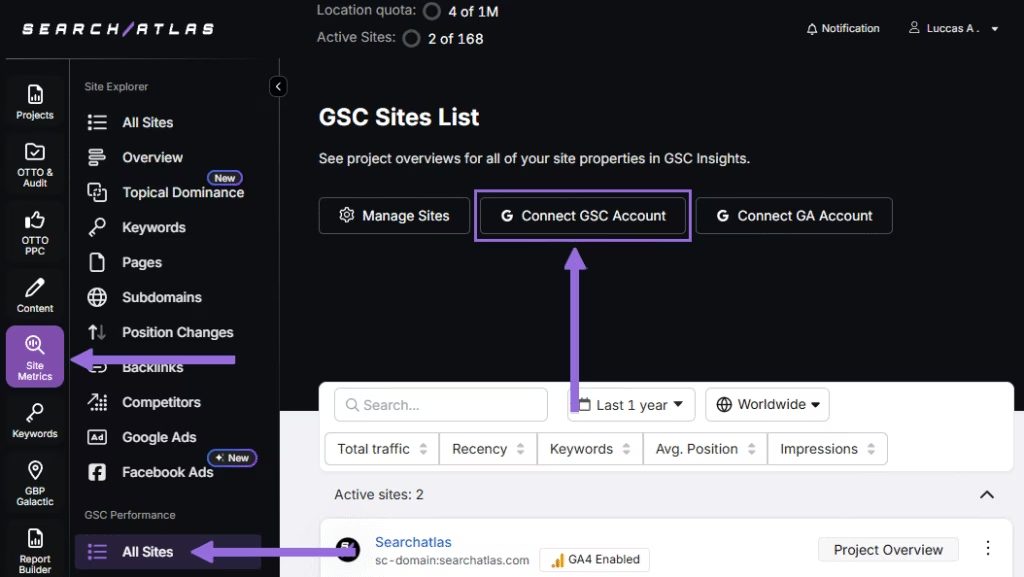
Authorize access and connect your verified property.
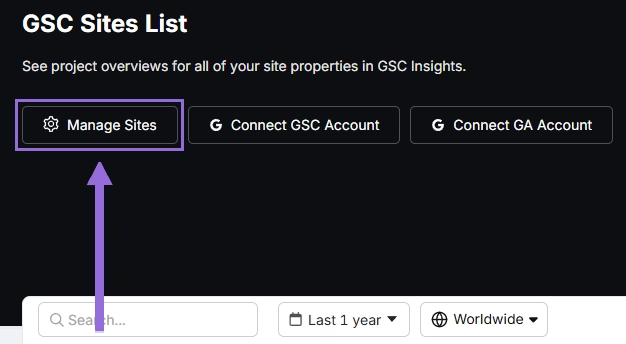
After GSC is connected, go to Manage Sites.
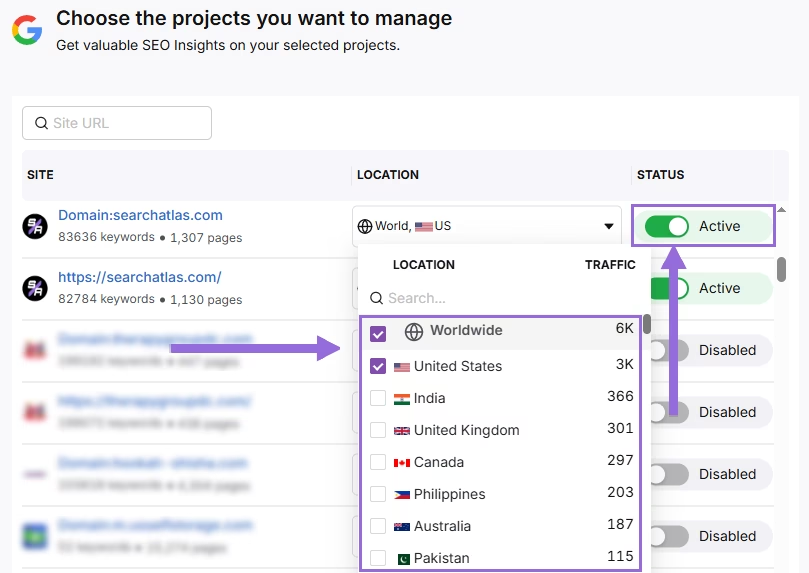
A slider will appear showing all imported GSC properties (they are disabled by default). Find your domain and then click Enable.
Google Analytics 4 (GA4)
From your GSC Performance dashboard, click on Connect Google Analytics 4.
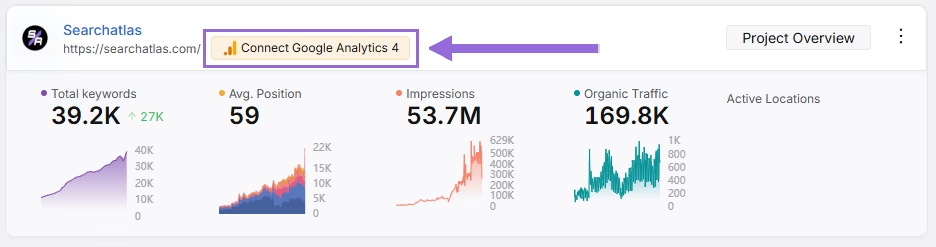
Select your GA property or connect your GA4 account. Authorize access and connect your verified property.
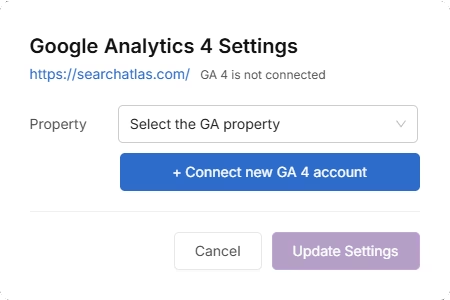
Once enabled, Search Atlas will link keyword data, impressions, CTR, and engagement metrics automatically.
You can use publicly shareable links for fast access to verification if needed.
2. How to Export Site Audit Data from SEO PowerSuite and Import to Search Atlas?
This section covers moving your technical SEO audit process from SEO PowerSuite’s WebSite Auditor into Search Atlas.
From SEO PowerSuite
Open the WebSite Auditor application.
Create or open the project for the website you want to analyze.
Run a full site crawl and analysis.
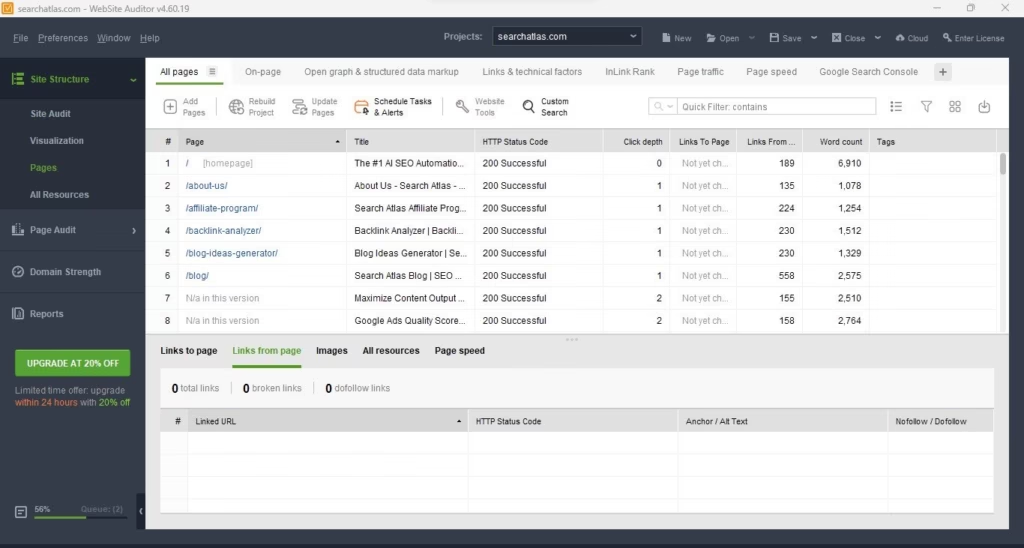 Via SEO PowerSuite
Once the audit is complete, go to the top menu and click Save > Save Current Project As to save the full project file.
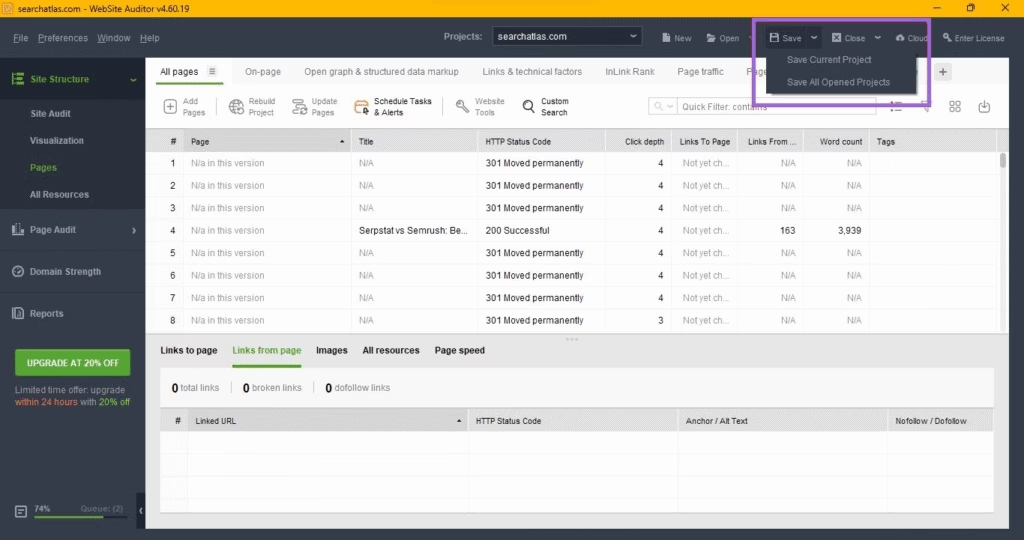 Via SEO PowerSuite
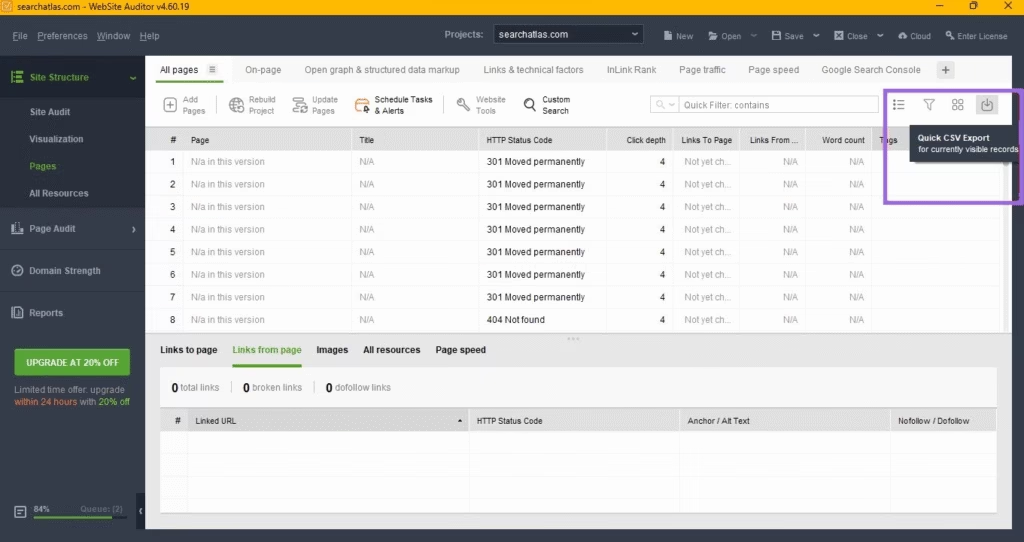
To export a shareable report, click on the Export icon to export a quick CSV file.
 Via SEO PowerSuite
Set Up Site Audit in Search Atlas
Go to OTTO & Audit > All Audits > Site Auditor.
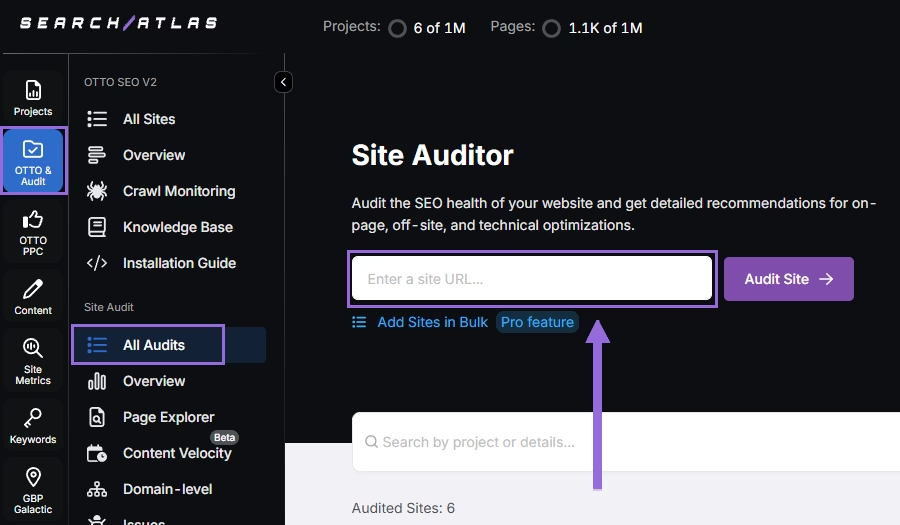
Enter your domain and configure the crawling features:
- User agent (use Search Atlas bot; recommended for best accuracy)
- Number of pages to crawl (default is 100)
- Adjust crawl speed (default is 20 pages per second)
- Set crawl frequency (default is every 7 days)
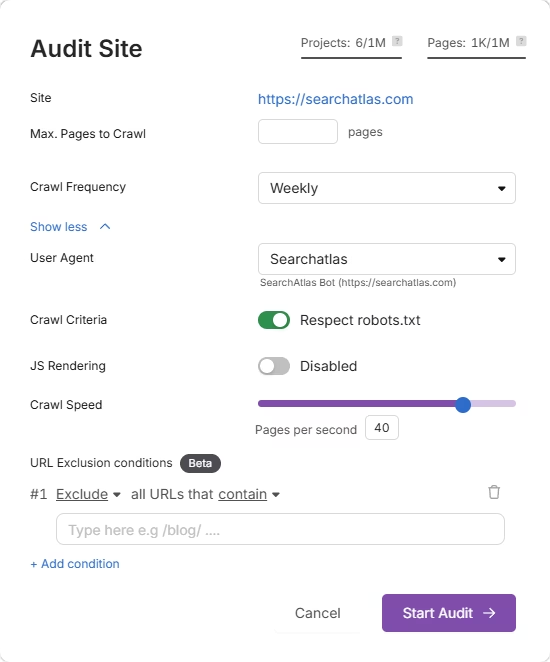
Run a full scan to launch the crawl across all pages under that domain.
Pro Plan Feature – Bulk Auditing:
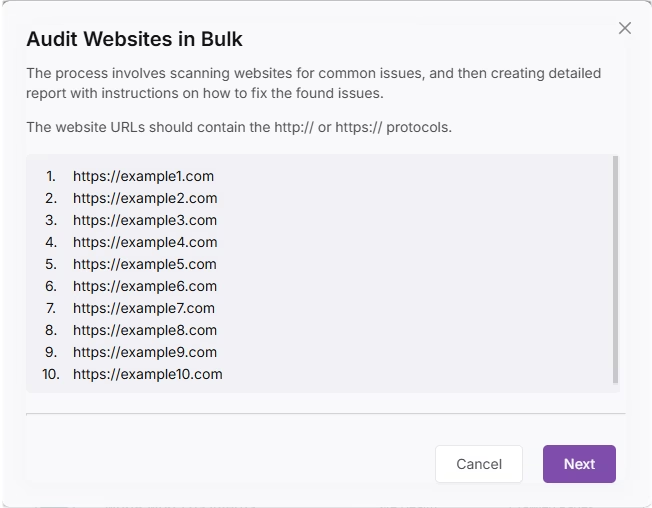
For agencies or multi-site audits, go to Update Sites in Bulk and paste multiple domains to queue audits simultaneously.
This is ideal for auditing multiple projects quickly.
3. How Do You Migrate Keyword & Rank Tracking Data from SEO PowerSuite to Search Atlas?
This covers moving your keyword lists and ranking data from SEO PowerSuite’s Rank Tracker.
From SEO PowerSuite
Open the Rank Tracker application on your desktop and open your project.
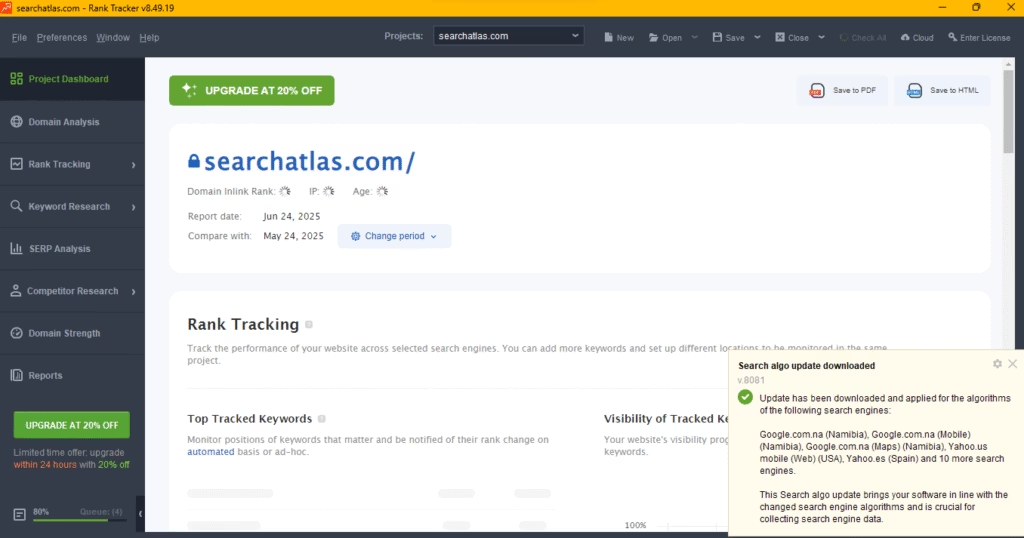
In the Rank Tracking module, you will see your list of tracked keywords and their current positions.
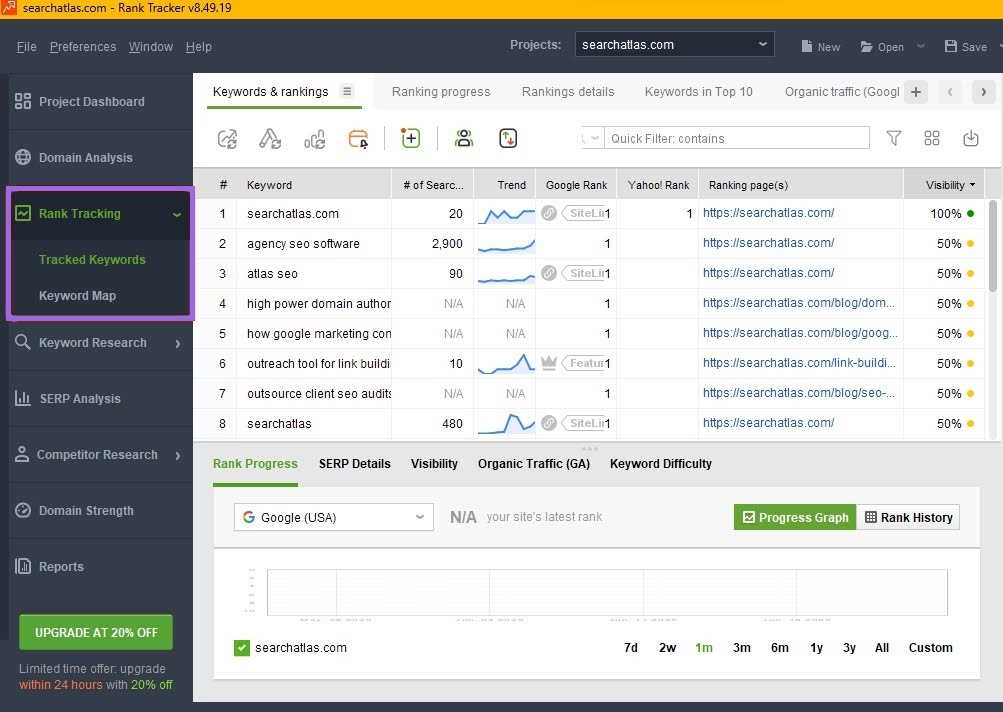 Via SEO PowerSuite
Click on the export icon to export a quick CSV file.
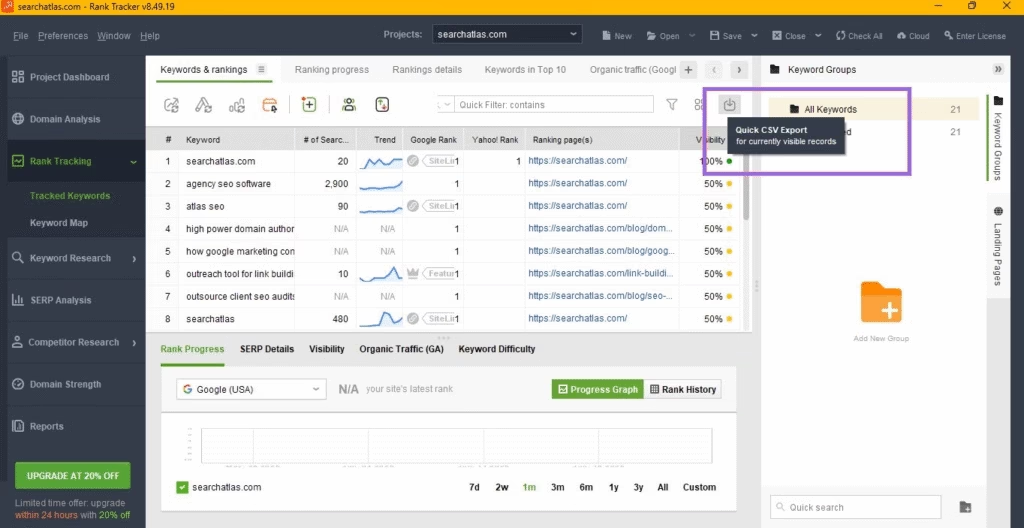 Via SEO PowerSuite
In Search Atlas
Go to Keywords > Keyword Rank Tracker
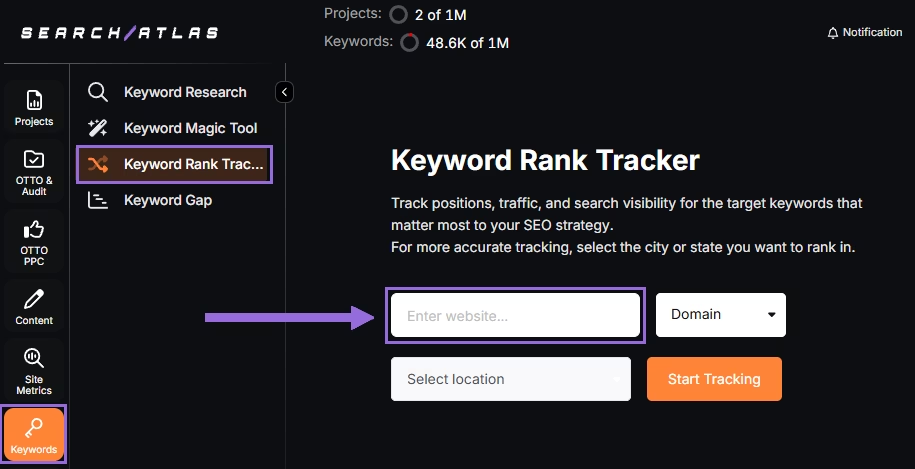
Enter your domain or target page, and specify the target location (country, state, city, county, or province).
Example: Track rankings for searchatlas.com in Las Vegas, Nevada
Click Start Tracking and connect your Google Business Profile (GBP), if applicable. Enter the name of your project, description, language, and keyword refresh interval (Daily, Weekly, Monthly, or Custom).
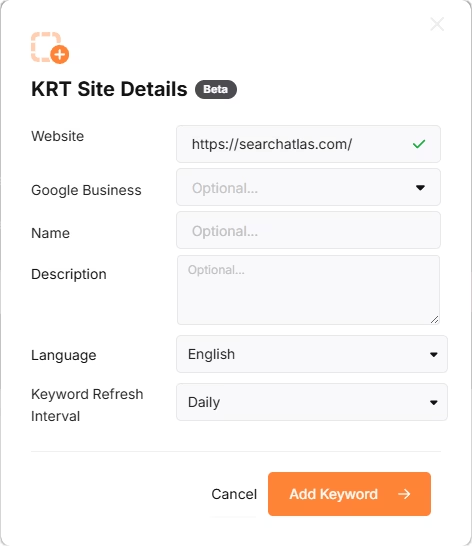
Search Atlas will automatically recommend keywords, and you can choose between selecting them or pasting keywords manually from the SEO PowerSuite CSV or PDF.
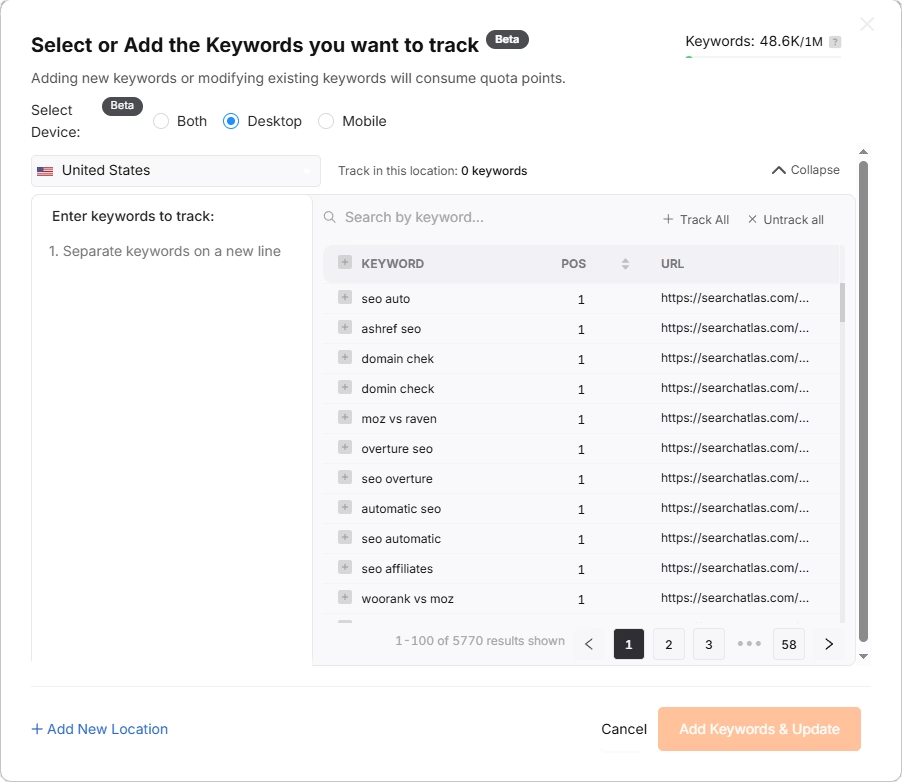
4. How Do You Migrate Backlink Analysis Data from SEO SpyGlass to Search Atlas?
To transition your backlink research workflow, save your key backlinks and referring domains data from SEO SpyGlass for reference.
From SEO PowerSuite
Open the SEO SpyGlass application and run a fresh analysis to ensure your data is up-to-date.
Export your backlink and referring domain data as a CSV file if you wish to keep it for records.
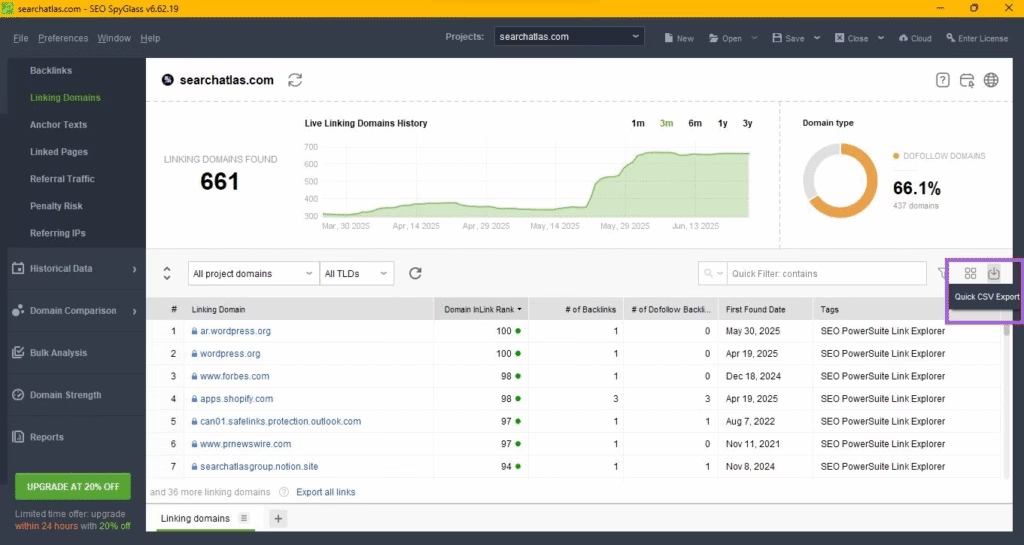 Via SEO PowerSuite
In Search Atlas
Go to Backlinks > Backlink Research.
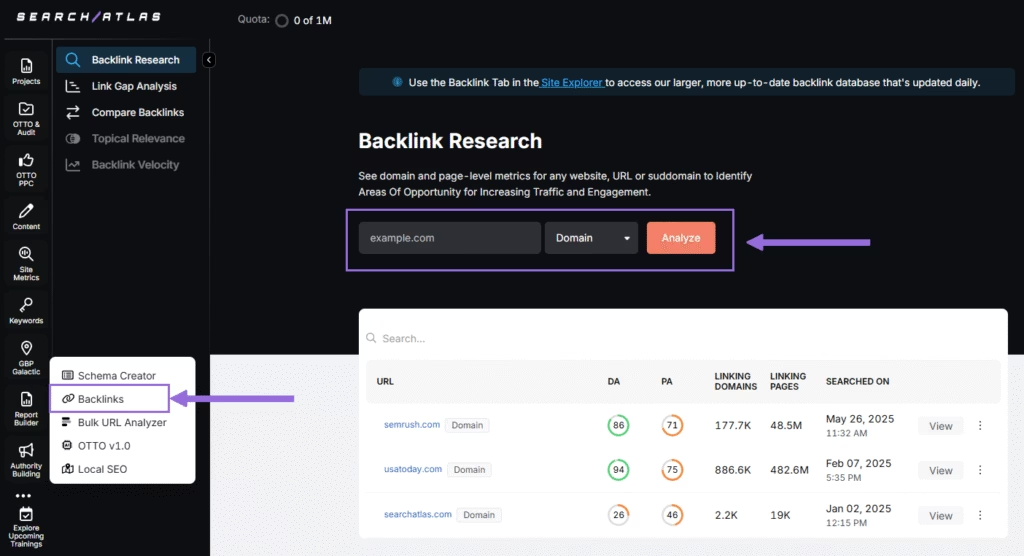
Add your Domain or Page and hit Analyze.
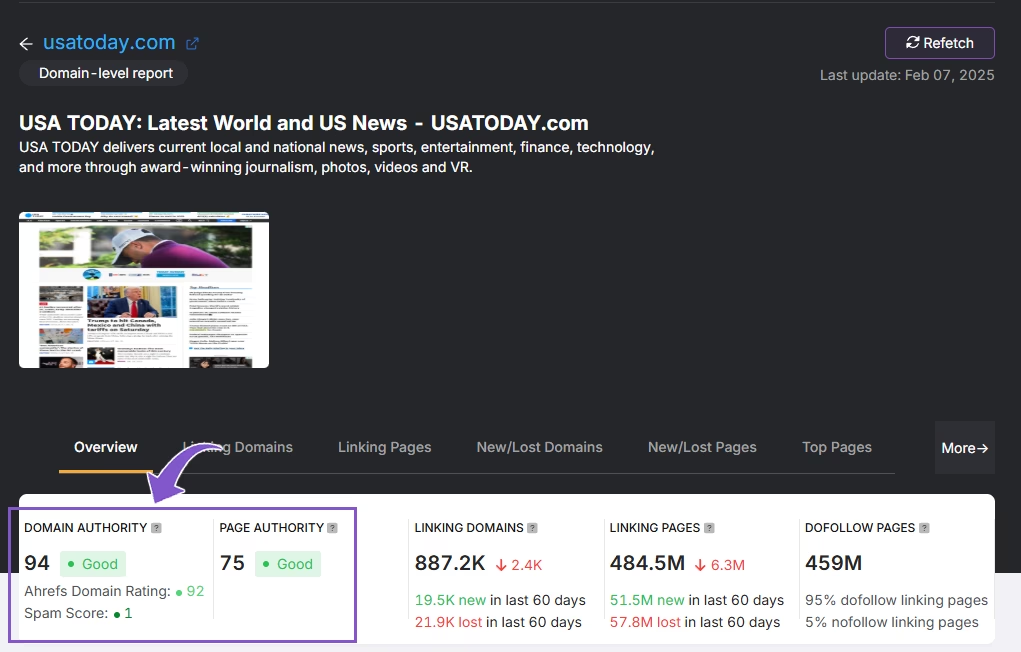
Receive a full report of the website backlink profile, including authority metrics, linking domain and pages, and more.
5. How to Export Reports from SEO PowerSuite and Set Up Reports in Search Atlas?
This section covers saving your old reports and setting up the new, advanced reporting in Search Atlas.
From SEO PowerSuite
Save custom report templates you’ve built in WebSite Auditor, Rank Tracker, SEO SpyGlass, or LinkAssistant.
Go to Reports section and click Quick Save to download historical reports as PDFs.
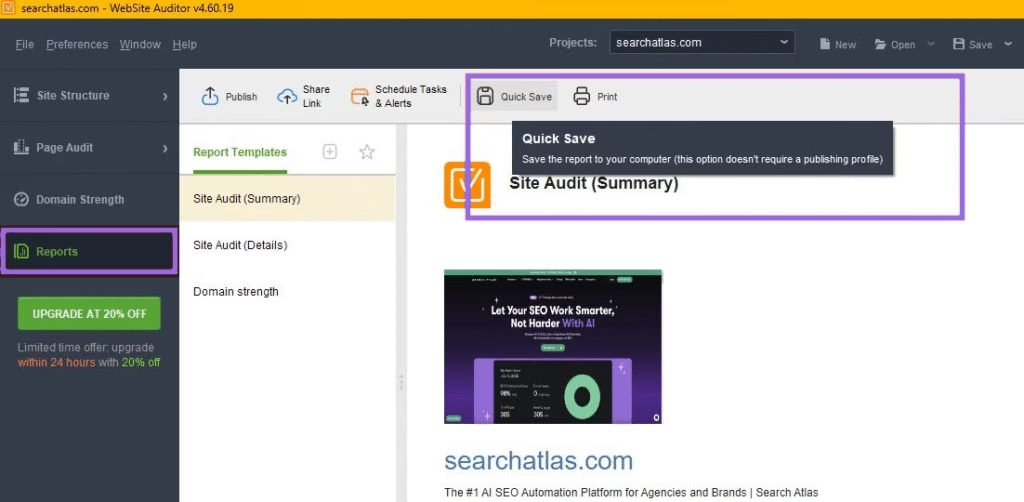 Via SEO PowerSuite
In Search Atlas
Go to Report Builder > Report List
Choose the location, date range, and the widgets you want to report, like:
- AI Summaries
- Site Explorer
- OTTO SEO
- Orders & Tasks
- Google Analytics data
- Google Search Console data
- Facebook Ads
- Google Ads
- Google Business Profile
- Keyword Rank Tracking
Next, schedule the automated reporting by adding recipients, selecting the email frequency (weekly, monthly, or quarterly), and choosing what day of the week the report will be sent.
Choose between Default Layout and Custom Layout, and create the report.
Customize the Reporting
After creating the report, click Configure Report to change the Integrations, Scheduled emails, and Layout.
In Layout, you can fully customize the report.
Click Add custom text to add your own text or HTML, enabling you to add your branding, like logo, banner, and even links.
Scroll down and click, and drag each metric to the report. You are free to choose any place to add the report.
Add the AI Summaries
In the Integrations, you can add the AI Summary Overview.
These are automated overviews that quickly highlight the key points of your report, making it much easier for both you and your clients to understand the results.
Creating a Local SEO Report
Click on Configure Report and navigate to the Local SEO and GBP Section. Integrate as many Local SEO projects and GBP Accounts as necessary for the report.
The previously configured heatmap for each Local SEO project will be automatically added to the report. They are fully customizable.
The GBP data will be automatically added to the report. Each metric is fully customizable.
Sharing the Report
After configuring your report, download the report as a PDF, or share via Share URL or Get iFrame Code.
IFrame Code is an HTML element that allows you to embed another HTML page within your own.
White Label Reporting
Search Atlas enables you to completely white-label your dashboard and URL.
Go to Agency White Label and set your custom dashboard URL and logo.
When you share your report via Shareable URL, it will display your logo and URL.
6. How to Enable Automated SEO Optimization in Search Atlas?
SEO PowerSuite doesn’t offer an AI SEO agent.
With Search Atlas, you can set up OTTO SEO, the AI agent that automates nearly every SEO task, including technical audits, on-page optimization, link building, content creation and optimization, Local SEO, GBP optimization, and more.
Obs: It’s necessary to go through the Site Audit on your project before activating OTTO.
Go to Projects > + Add a Website.
Select one of your projects that doesn’t have OTTO installed, or add a new website.
Select the GSC and GBP, and add the details about your business.
Next, proceed with the tutorial to install OTTO.
Installing OTTO on another CMS
Go to OTTO & Projects > Installation Guide. You will find a short tutorial for:
Here is a quick recap on how to install OTTO SEO on WordPress.
Go to your WordPress dashboard. Open the Plugins section. Search for “Search Atlas” in the plugin directory. Click Install Now, then activate the plugin.
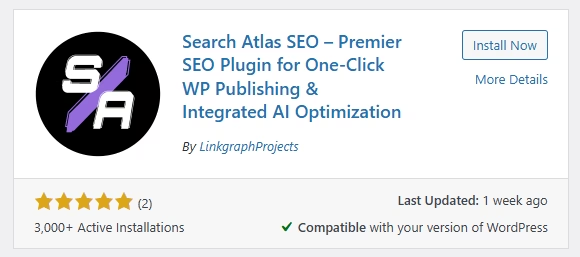
Copy the API key provided during setup. Open the Search Atlas plugin settings by clicking the Search Atlas logo in the left-hand menu. Navigate to General Settings. Paste the API key into the Search Atlas API Key field and continue.
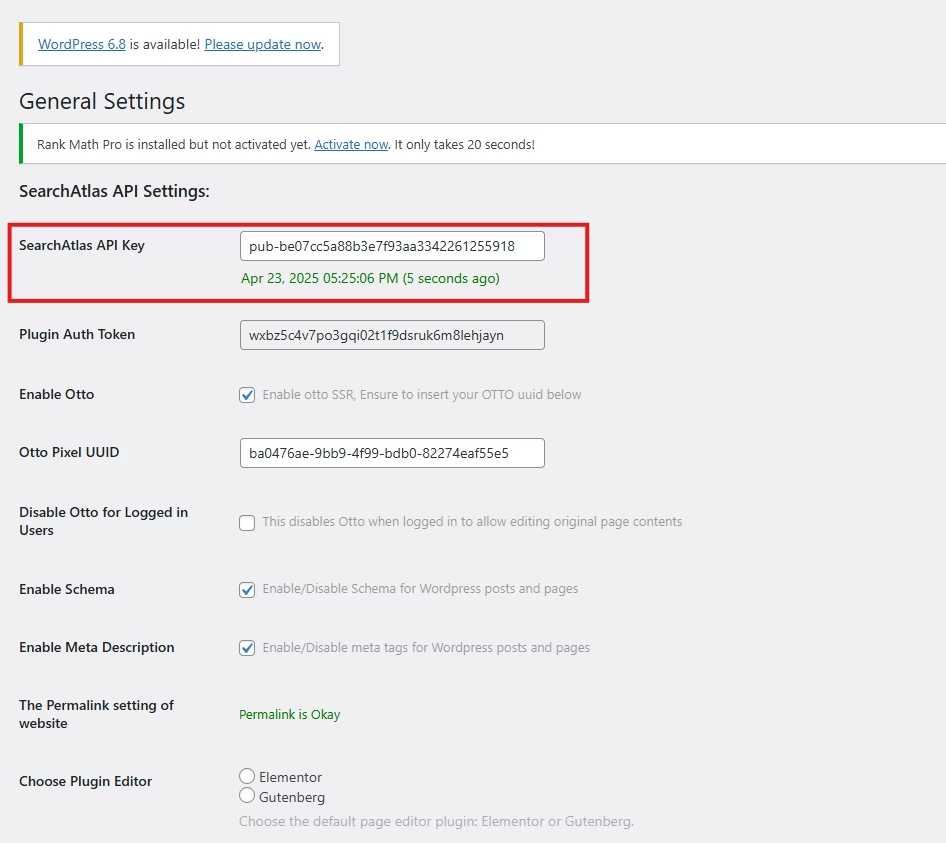
Copy the code provided in the next step. Return to your WordPress dashboard. Access the plugin settings again. In General Settings, check the Enable OTTO box. Paste the code into the OTTO Pixel UUID field. Save changes.
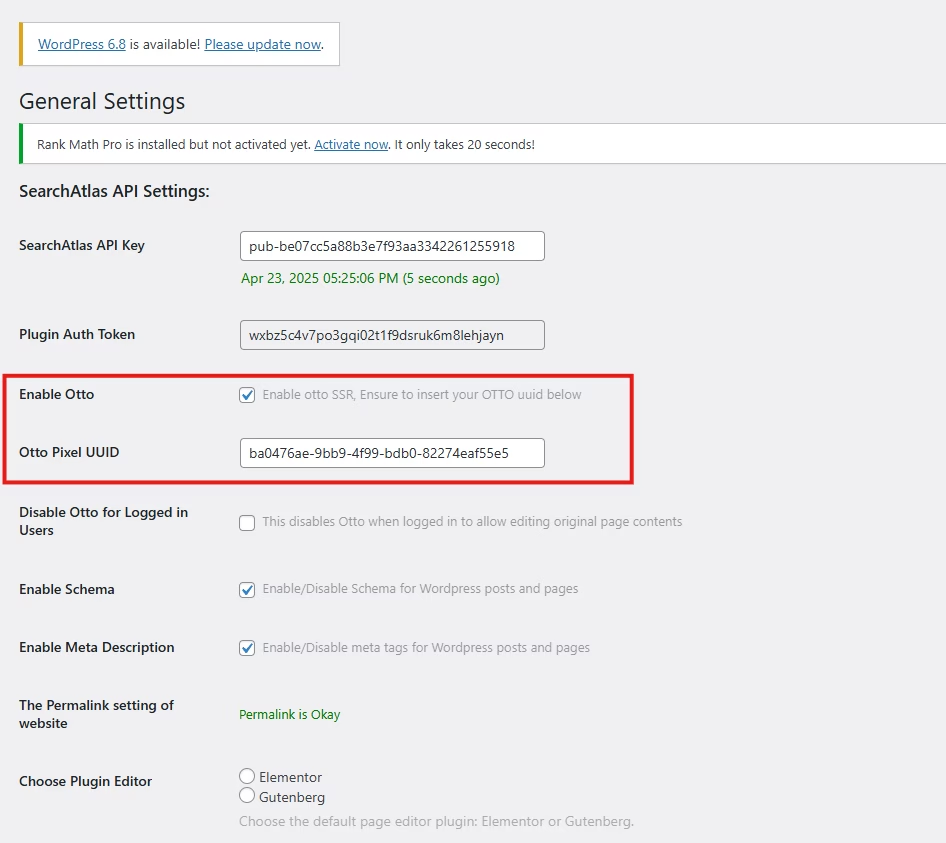
OTTO SEO now runs inside WordPress, automating fixes and SEO updates across your site.
How to Configure OTTO SEO?
Here is a quick tutorial on how to configure OTTO Autopilot and its settings.
7. How to Use Search Atlas Onboarding Process?
Search Atlas offers multiple support channels to help you with any questions or issues. Here is how to make the most of our onboarding process.
Watch Tutorial Videos
Search Atlas offers step-by-step tutorials on YouTube to help you set up reports, dashboards, and automations.
Book a 1:1 Onboarding Session
During your trial, you can schedule a 1:1 onboarding session directly from the dashboard. A product expert will help you customize your setup, connect integrations, and configure OTTO SEO for automation.
Follow the 7-Day Email Campaign
As soon as you start your free trial, you’ll receive a 7-day onboarding email sequence. Each email walks you through a core feature.
Technical Documentation
Access full technical docs via the Help Center for detailed instructions on using every tool. Everything is searchable and regularly updated.