Seodity is an SEO toolkit designed for growing businesses, offering AI-powered content generation, keyword research, and performance tracking with an intuitive interface. It provides quick SEO insights and content creation, with daily rank tracking and competitor analysis features.
Search Atlas delivers enterprise-grade SEO automation that goes beyond Seodity’s content-focused approach, with comprehensive technical optimization, advanced tracking systems, and automated implementation across all SEO disciplines. While Seodity requires manual optimization, Search Atlas automatically executes improvements across on-page, technical, content, and link building campaigns.
Every Search Atlas plan includes free OTTO SEO activation with enterprise-level databases and scalable audit capabilities. We help you upgrade from Seodity’s approach to Search Atlas’s fully automated system that implements optimizations automatically.
1. What Is the Initial Setup in Search Atlas?
First, configure your workspace properly to enable smooth monitoring, automation, and performance tracking.
Set Up Your First Project
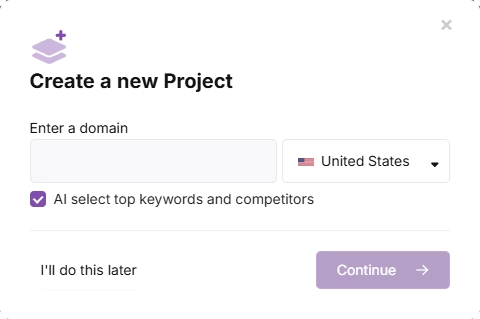
Access your Search Atlas account, navigate to the main Dashboard, and click + Create new.
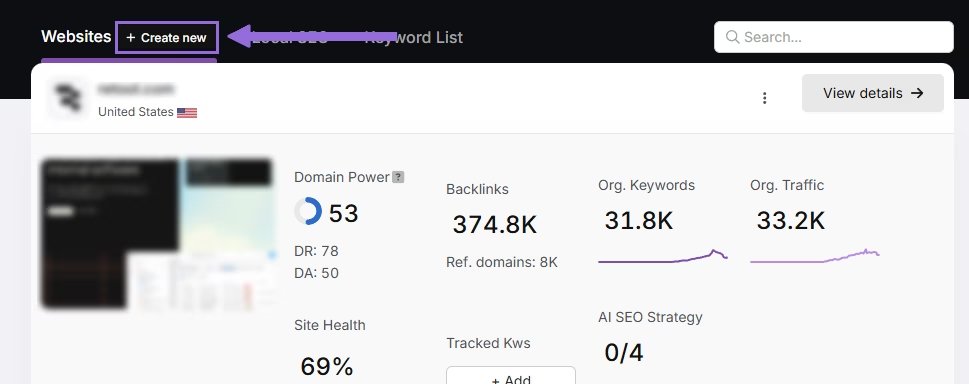
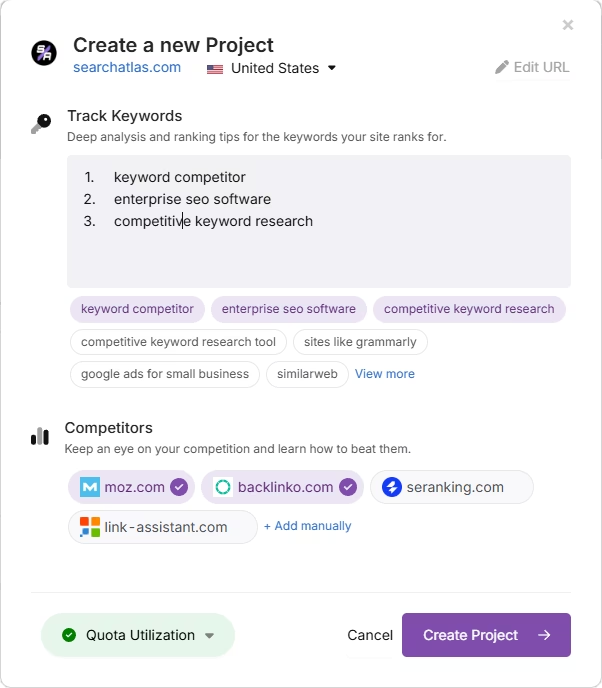
Enter your website domain, select your target location, and include primary keywords for tracking.
Modify the recommended keyword list and add your main competitors. These settings can be updated later as needed.
Link Important Tools
Google Search Console (GSC)
Navigate to Site Metrics > All Sites > Connect GSC Account.
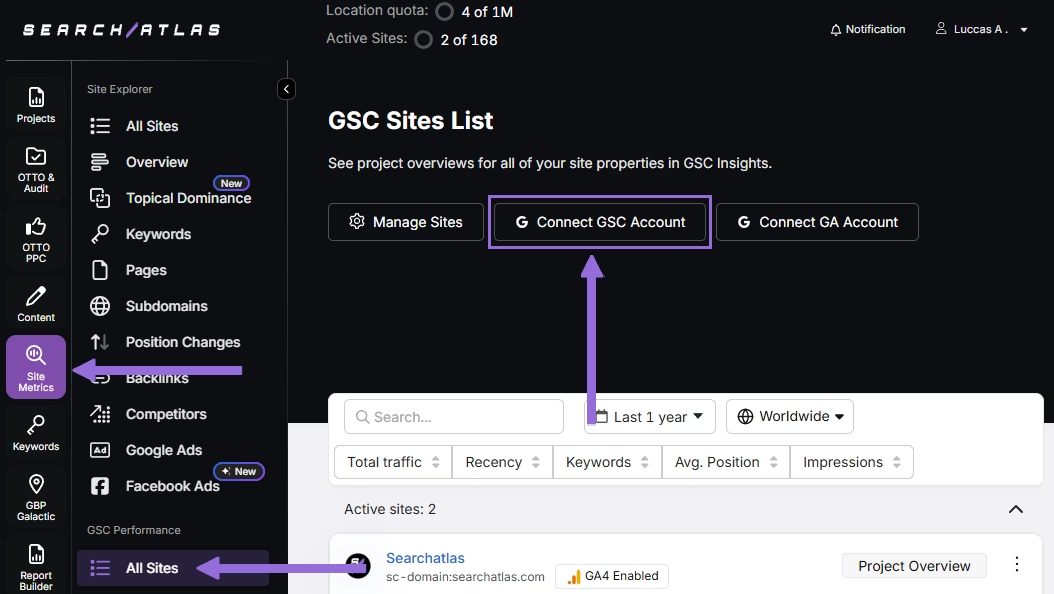
Grant permission and link your verified website property.
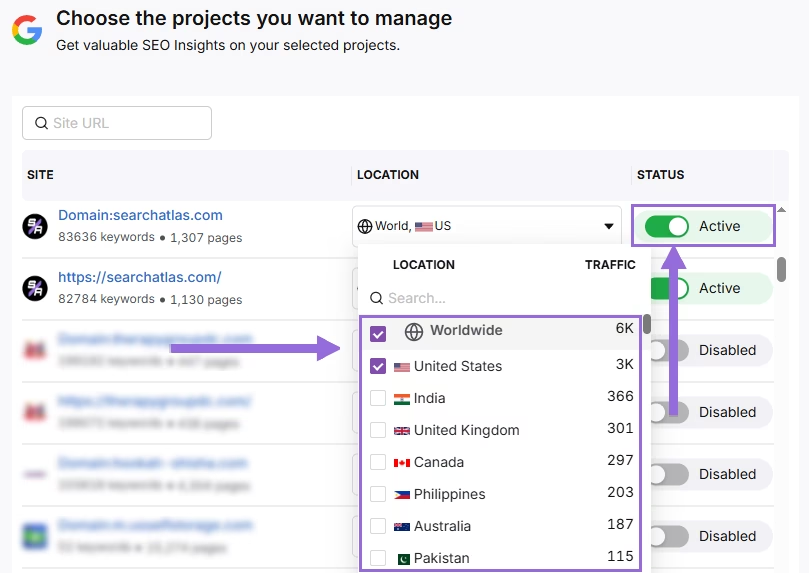
After you connect GSC, go to Manage Sites.
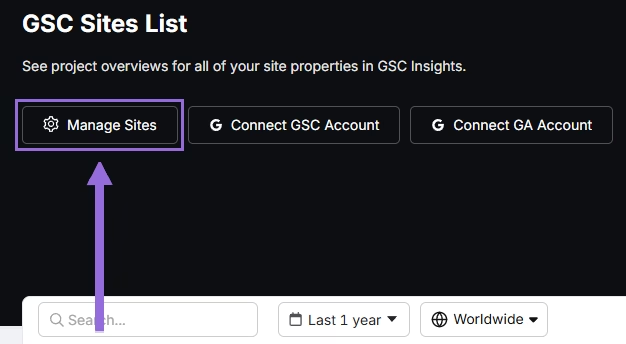
You'll see a toggle displaying all imported GSC properties (disabled by default). Locate your domain and click Enable.
Google Analytics 4 (GA4)
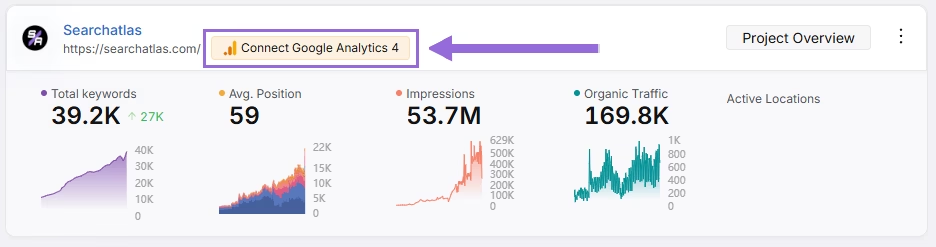
In your GSC Performance dashboard, click Connect Google Analytics 4.
Pick your GA property or link your GA4 account. Give permission and connect your verified property.
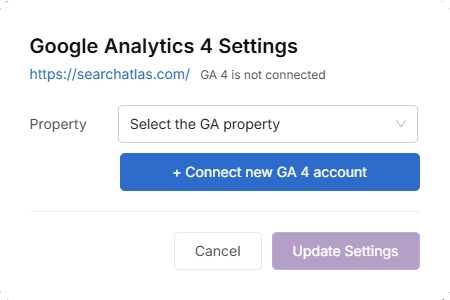
Once activated, Search Atlas will automatically integrate keyword data, impressions, click-through rates, and user engagement metrics.
You can use public sharing links for quick verification access when needed.
2. How to Export Site Audit Data from Seodity and Import to Search Atlas?
It’s not necessary to import site audit data from Seodity. Search Atlas performs fresh technical scans automatically using the Site Auditor. However, you can keep the data for future reference.
From Seodity
In SEodity, go to On-Site > Audit > Report. Download the Report for your projects.
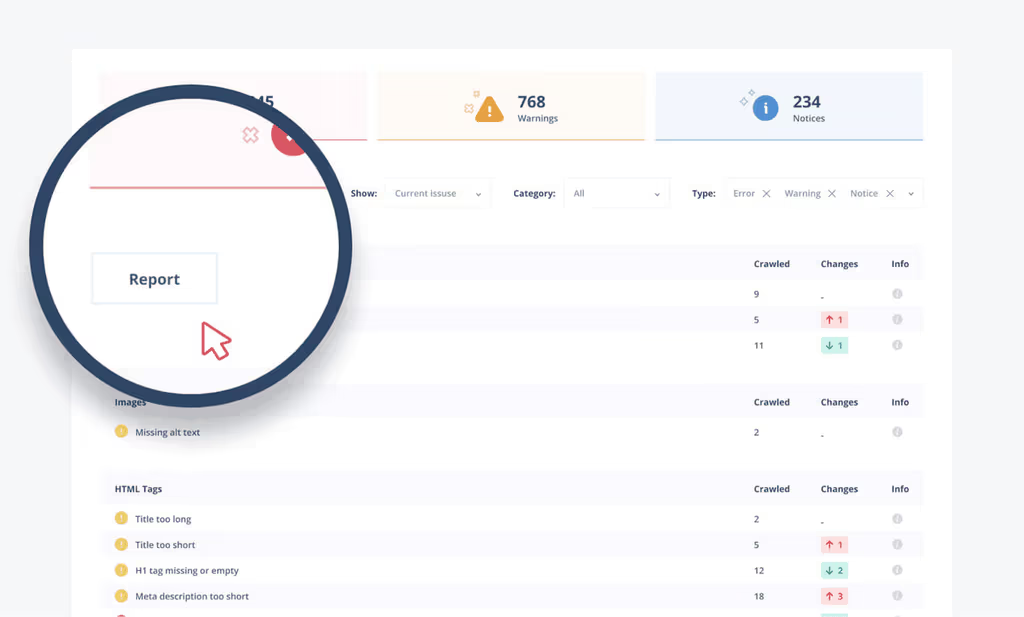
User interface of Search Atlas SEO tool with warnings and report button.
For individual pages, click the green Show affected pages in the Explorer button on the bottom of that screen. In Data Explorer, find pages you are interested in and click on them. Then click on Download Report in the upper right section of the page.
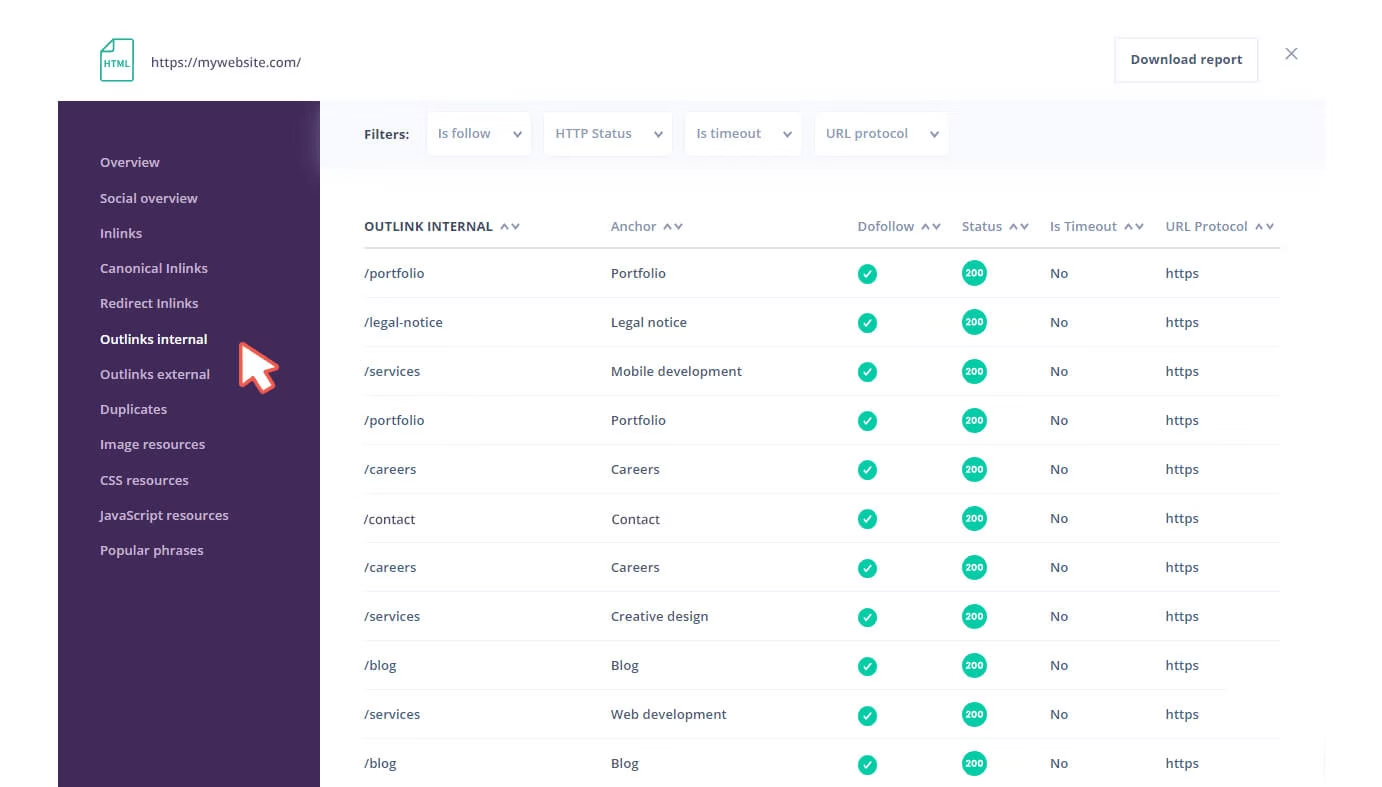
via Seodity
Set Up Site Audit in Search Atlas
Navigate to OTTO & Audit > All Audits > Site Auditor.
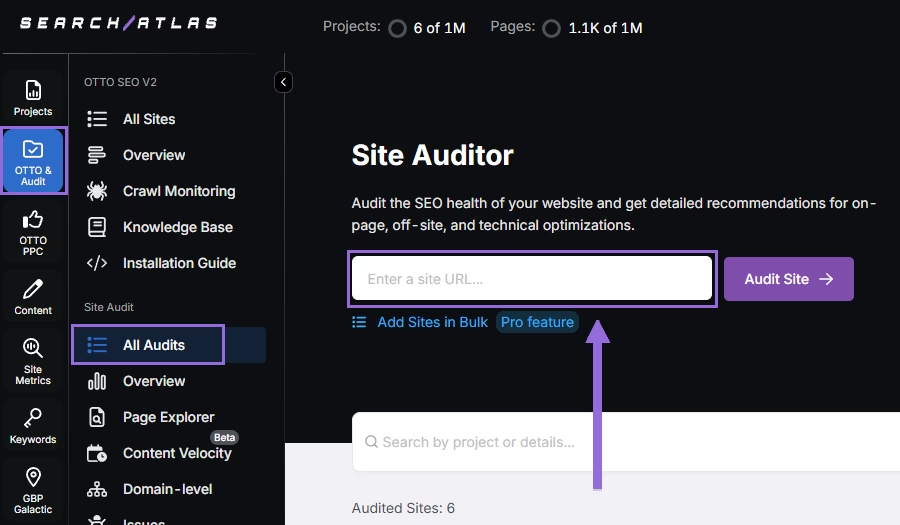
Add your website domain and set up the crawl settings:
Set up crawling using these options:
- User agent (choose Search Atlas bot for the most accurate results)
- Pages to crawl (starts at 100 by default)
- Crawl speed (starts at 20 pages per second)
- How often to crawl (starts at every 7 days)
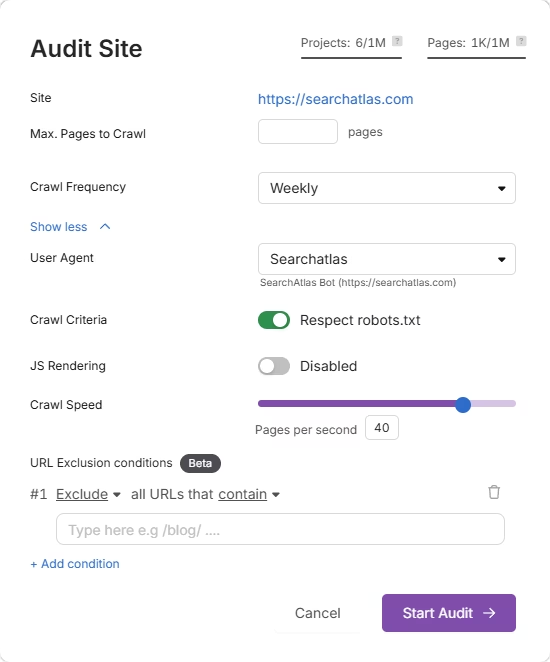
Start a complete scan to begin crawling all pages on your domain.
Pro Plan Feature: Multiple Site Auditing
For agencies or when auditing several websites, use Update Sites in Bulk and add multiple domains to run audits at the same time.
This works great for checking multiple projects at once.
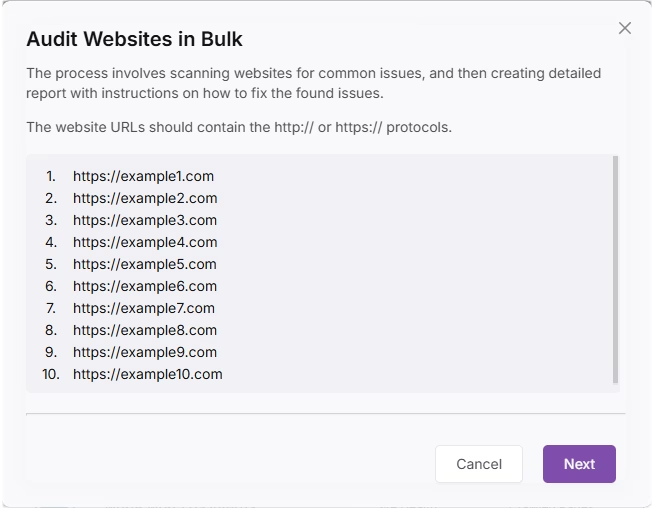
3. How to Export Keyword Rank Data from Seodity and Import to Search Atlas?
Download Seodity data or set up Rank Tracking in Search Atlas for a fresh start.
From Seodity
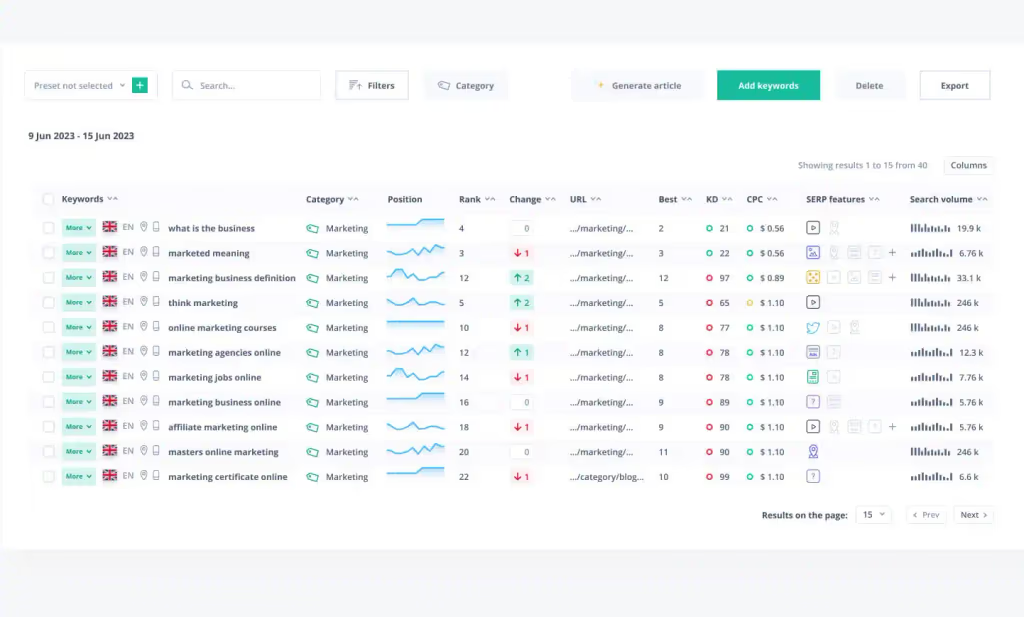
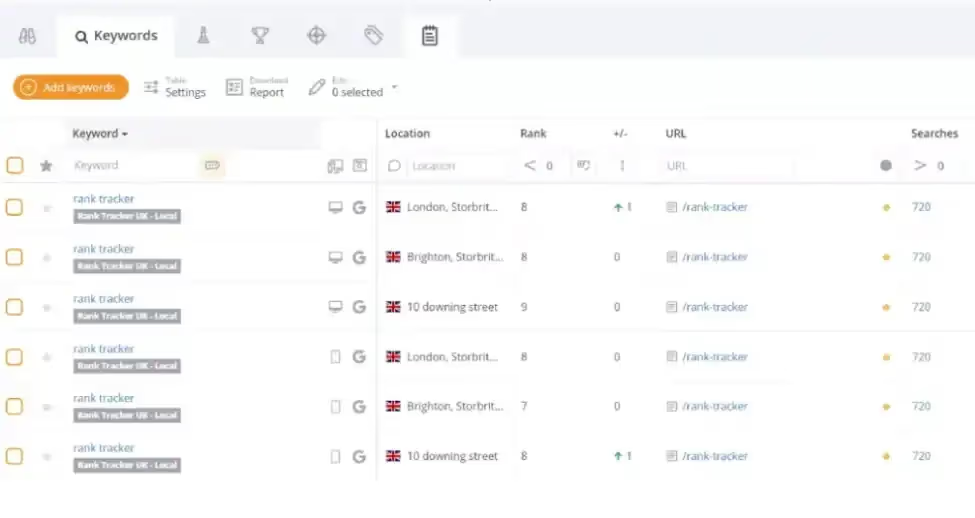
Go to the Seodity Rank Tracker. Select keywords to export or export all keywords by clicking the Export button on the right.
In Search Atlas
Navigate to Keywords > Keyword Rank Tracker
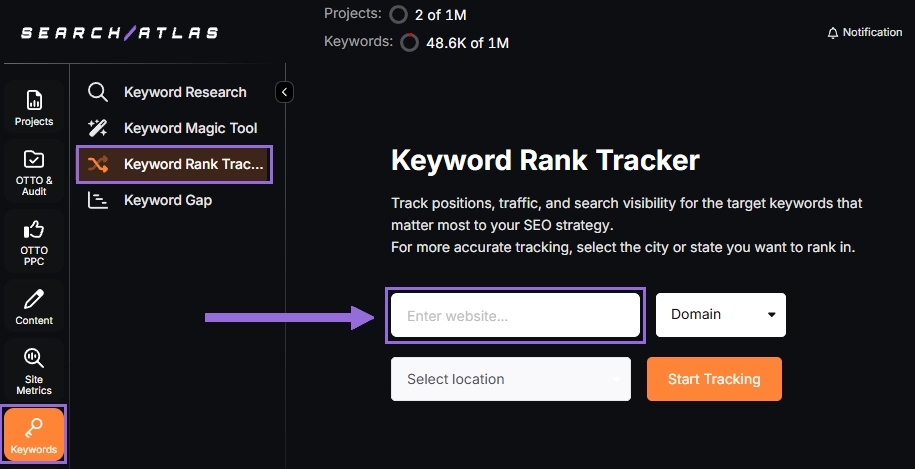
Add your website domain or specific page URL, then choose your target location (country, state, city, county, or province).
Example: Monitor rankings for searchatlas.com in Las Vegas, Nevada
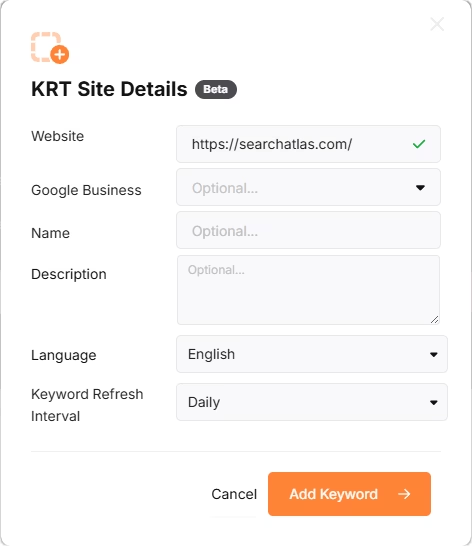
Select Start Tracking and link your Google Business Profile (GBP) if you have one. Fill in your project name, description, language, and how often you want keyword updates (Daily, Weekly, Monthly, or Custom).
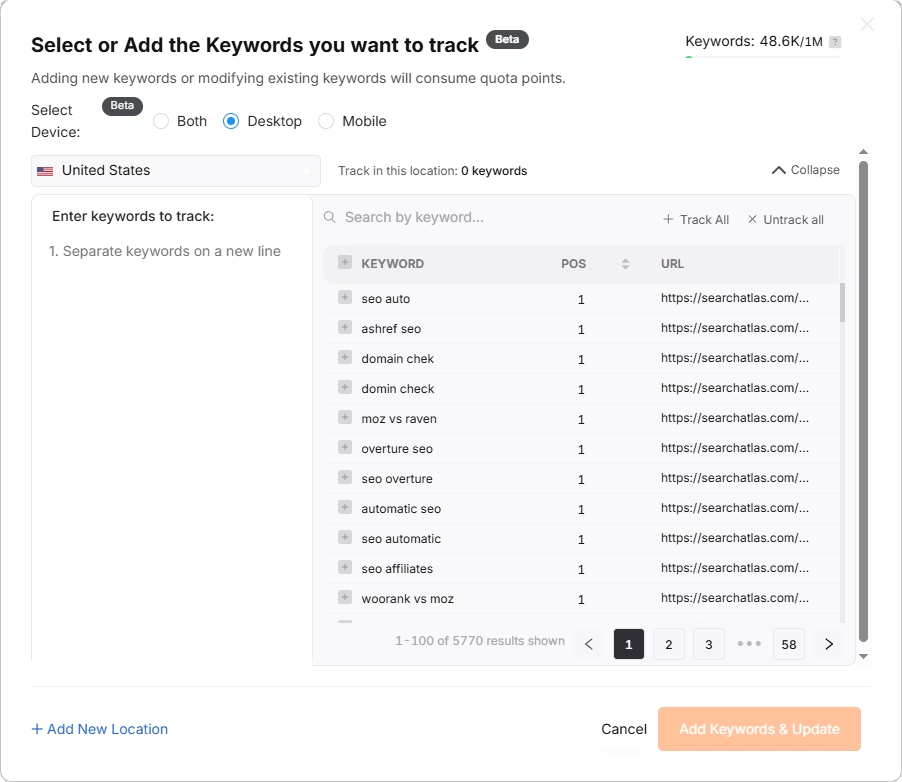
Search Atlas will suggest keywords automatically. Choose from these suggestions or add keywords manually from the downloaded Seodity file.
4. How to Import Local SEO Data and Set Up GBP Project in Search Atlas
Seodity has local rank tracking options but not a full local SEO toolkit. Search Atlas covers local SEO completely. Here’s how to set our tools up.
In Search Atlas
Navigate to Local SEO > Connect GBP, and link your verified business listing.
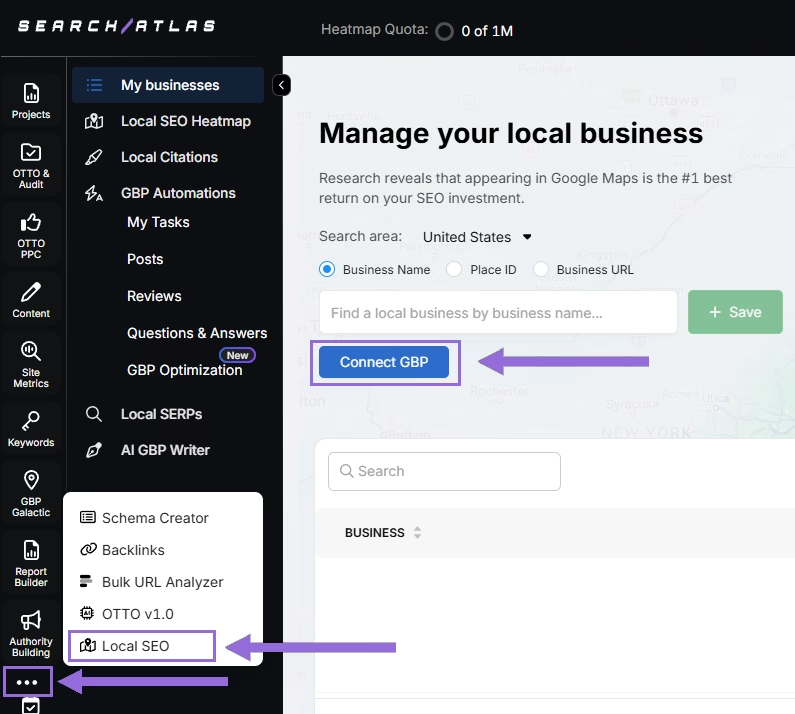
Give permission and connect your verified business property.
Find Your Business
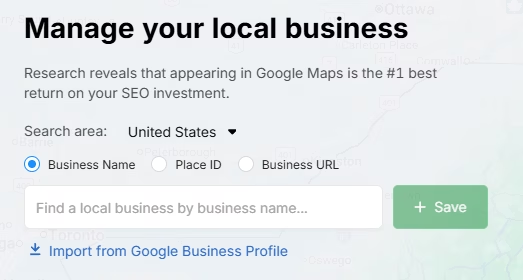
Find your business by name, Place ID, website URL, or import through email invitation.
Select + Save to set up your local SEO project.
Set Up the Heatmap
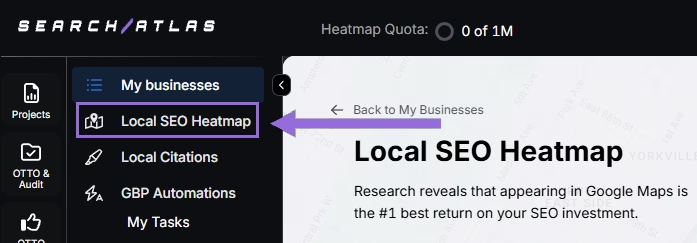
Once GBP is connected and your project is saved, go to Local SEO > Local SEO Heatmap.
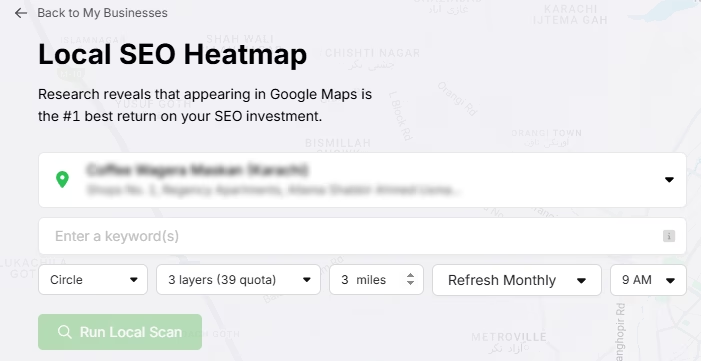
Enter the keywords you want to track, pick between circle or rectangle to set your tracking area, and choose the radius. We suggest:
- 3–5 miles → Use 3 layers or grids
- 10–25 miles → Use 4–5 layers or grids
The larger your mile radius, the more layers or grids you should use. This helps increase grid density for better coverage.
Set refresh intervals and pick specific times when your business is open. Don't choose midnight or off-hours, as this may show lower rankings than your actual performance.
Click on pins to remove unnecessary ones (like empty areas) to save your quota and prevent skewed average rankings.
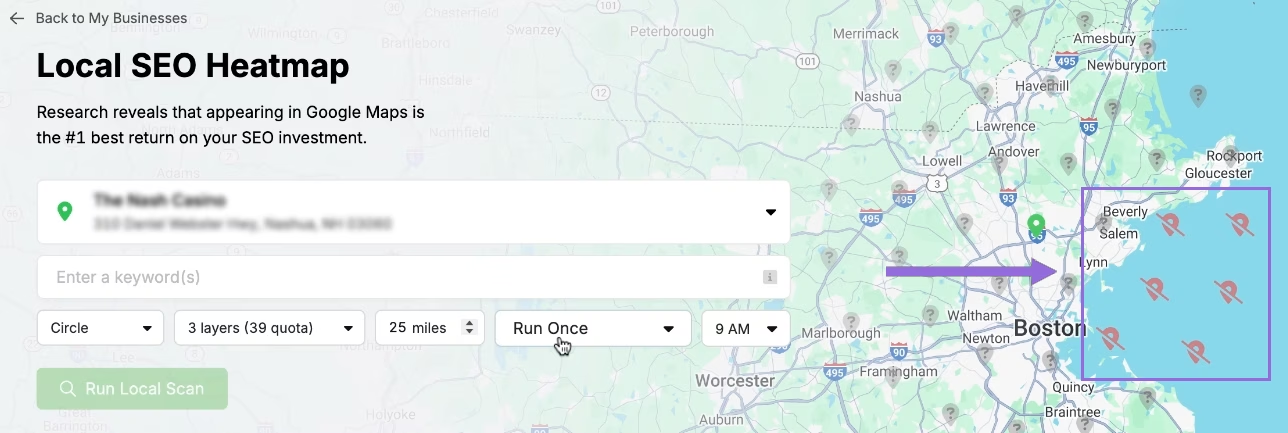
Modify Existing Reports
Select an existing project and click at the top of the page.
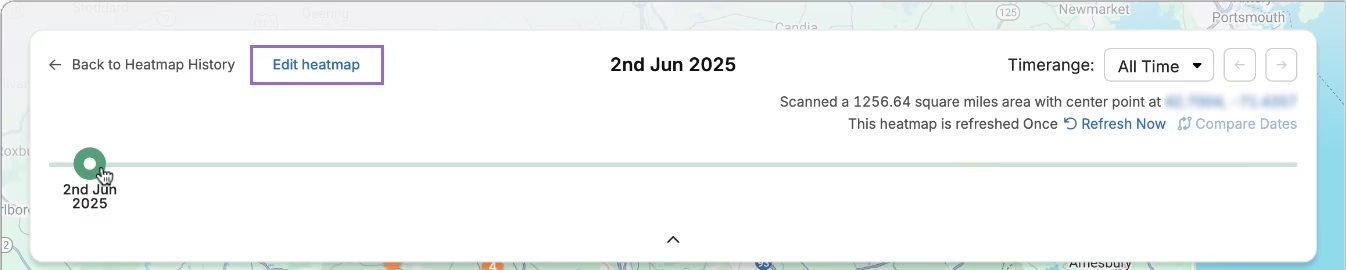
A timeline will show your ranking progress over time. Select Edit heatmap to change any of your settings.
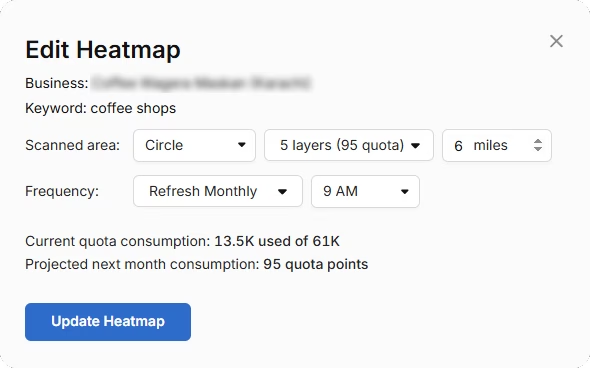
Analyze Against Competitors
You can see how your business ranks compared to local competitors in your area. Click on any individual pin you want to focus on.
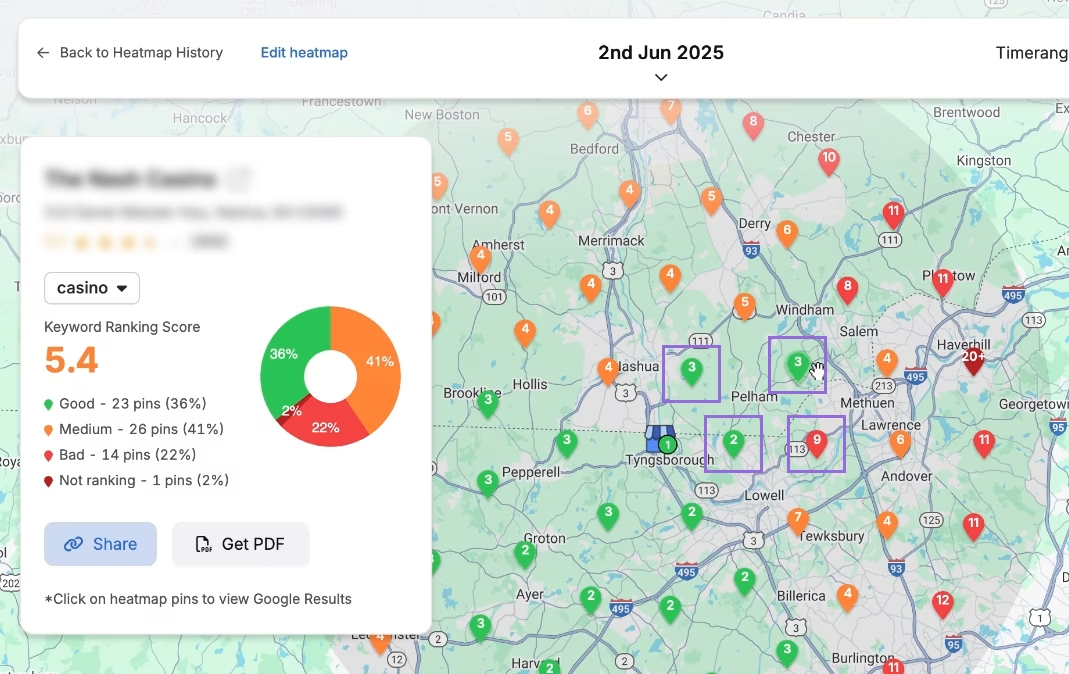
A list of local competitors will appear for the same keyword and location. Select Compare to pick which competitor you want to analyze.
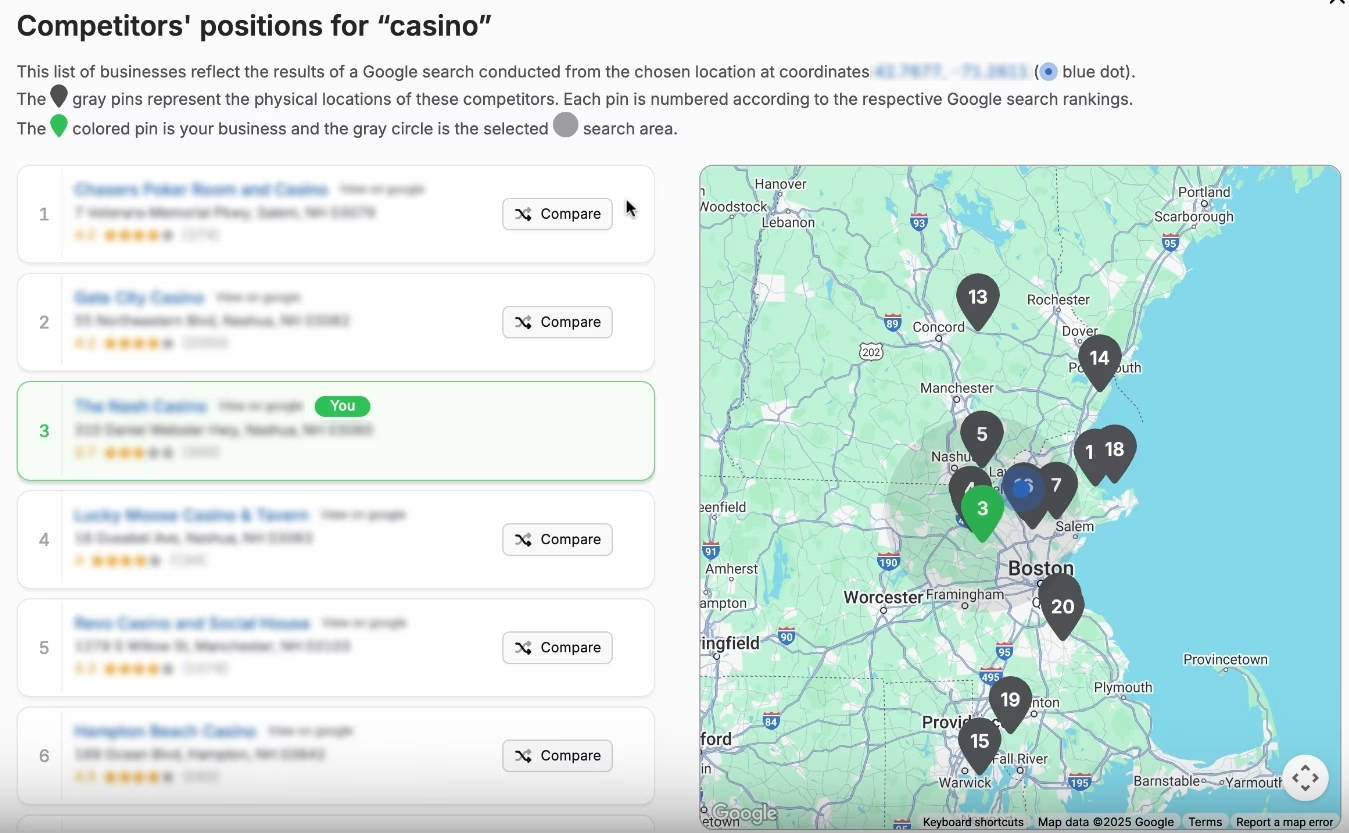
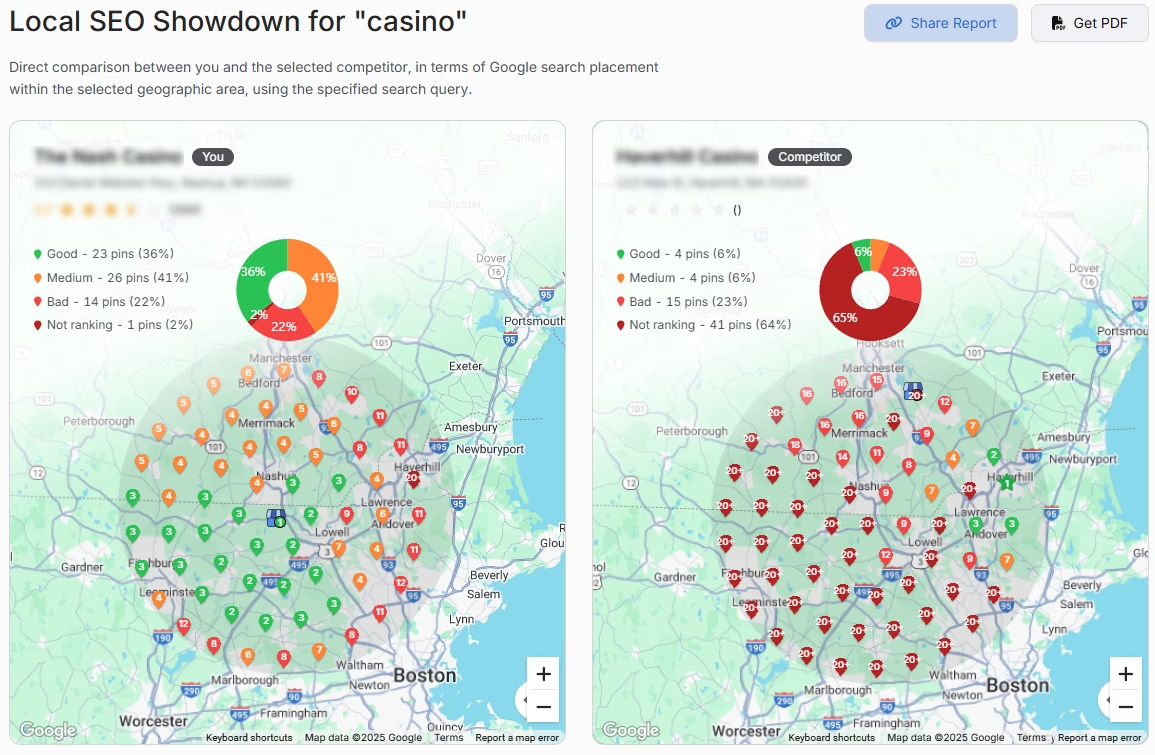
Your business and the chosen competitor will appear side by side. You can move around, zoom out, and zoom in to study the entire area.
Set Up Local Rank Tracker
Go to Keywords > Keyword Rank Tracker
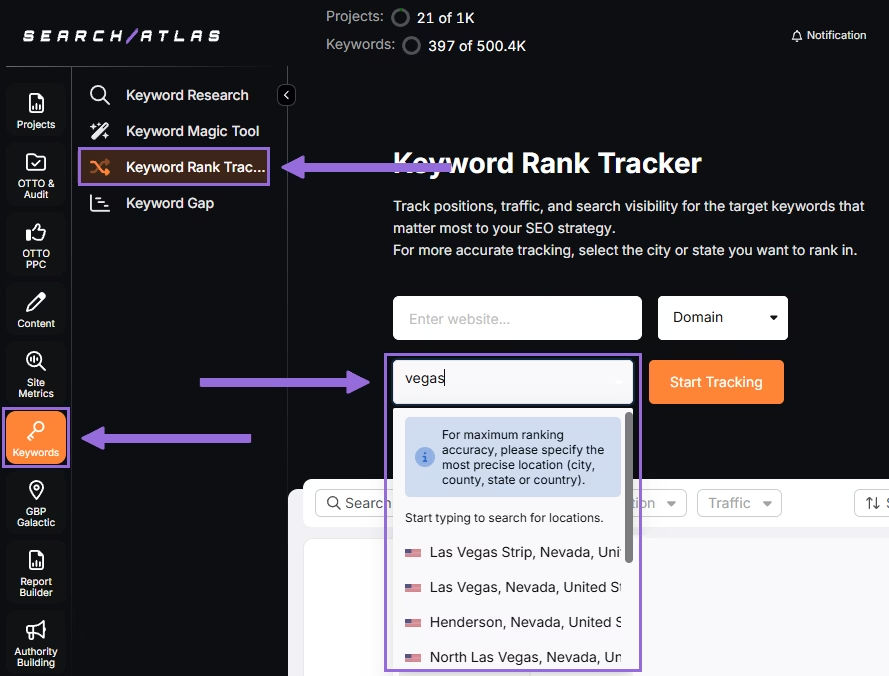
Add your business website or specific page, choose your exact target location, and select Start Tracking.
Configure device preference, language, frequency, custom naming, and campaign description.
Import local rank tracking data for different locations from Seodity.
Track Multiple Locations
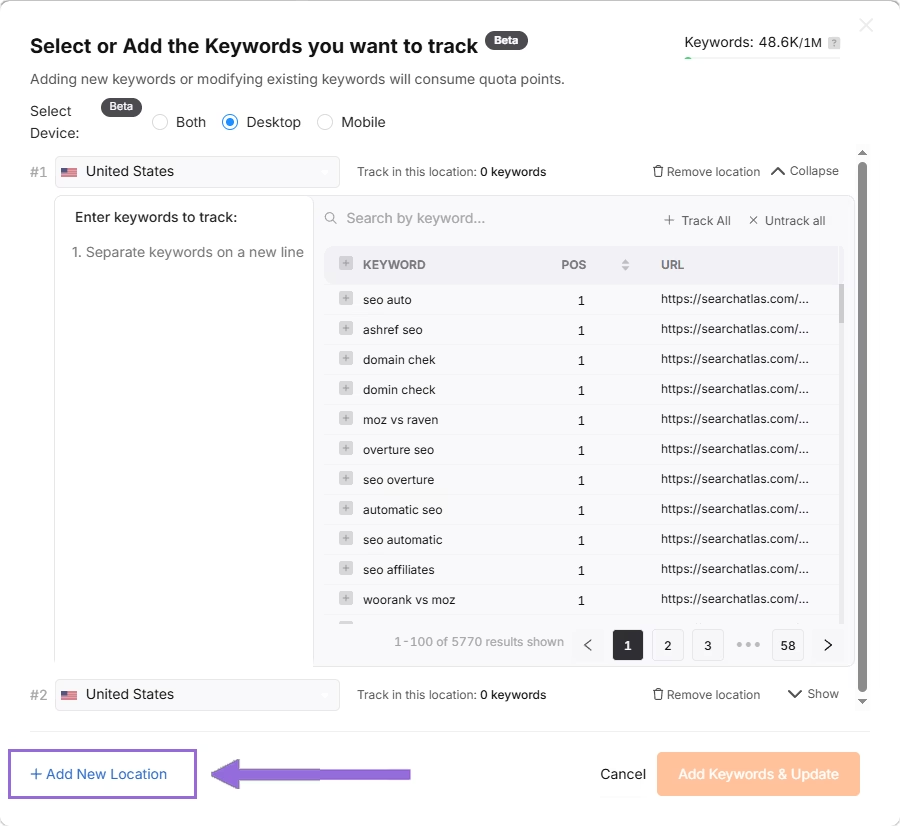
If you manage several business locations for the same project, click + Add New Location to monitor keywords for multiple areas in one report (like Las Vegas and New York) and set different keyword groups for each location.
5. How Do You Migrate Backlink Analysis Data from Seodity to Search Atlas?
Download your backlinks data from Seodity for comparison in the future.
From Seodity
Go to Backlinks in the Seodity dashboard. Set your domain and filters. Choose to export Anchors, Backlinks, or Referring Domains from the table on the bottom of the page.
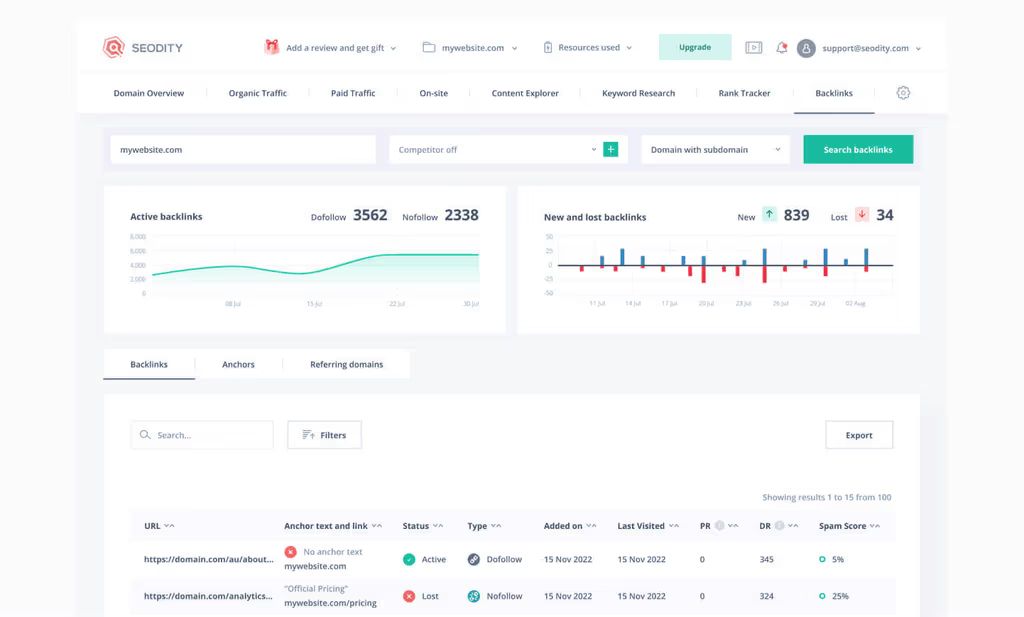
Screenshot of Search Atlas SEO software dashboard.
In Search Atlas
Navigate to Backlinks > Backlink Research.
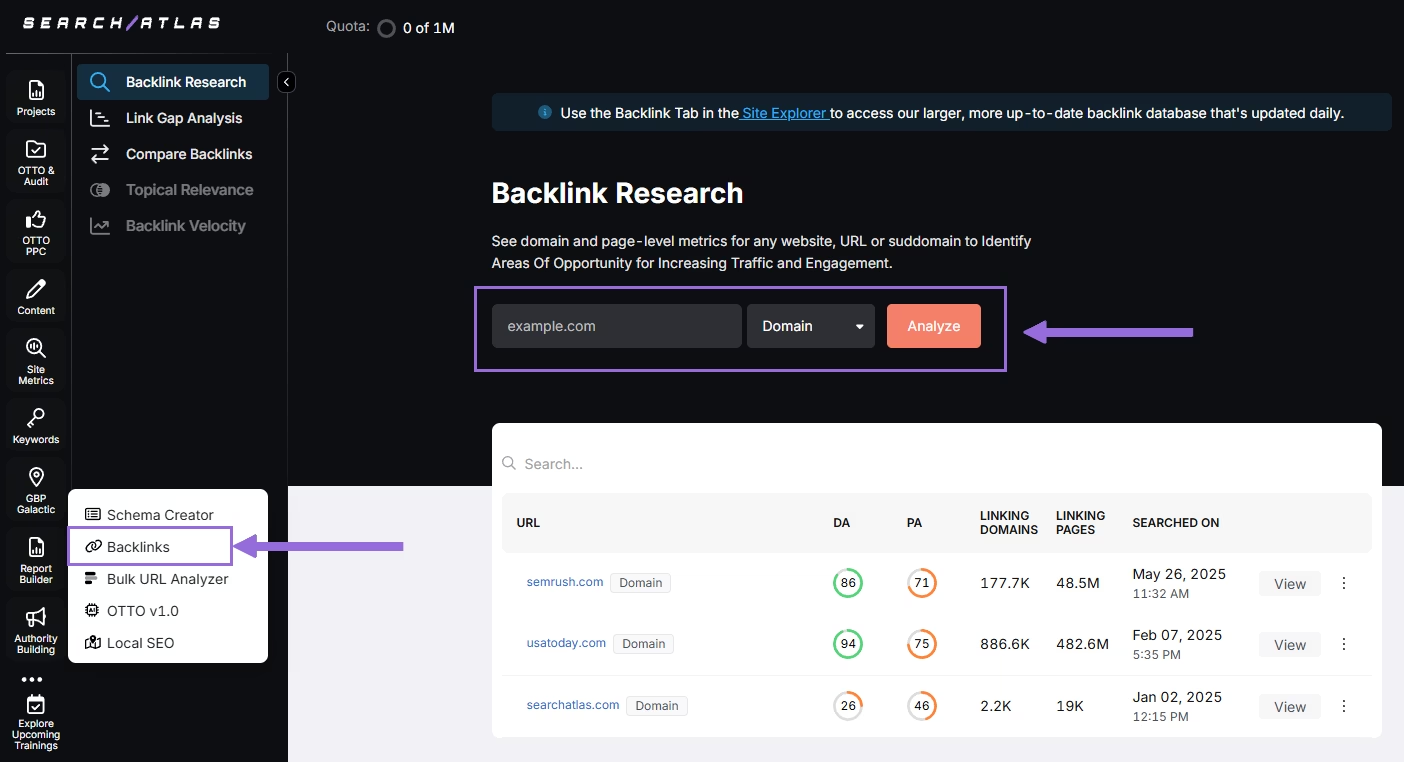
Enter your Domain or Page and click Analyze.
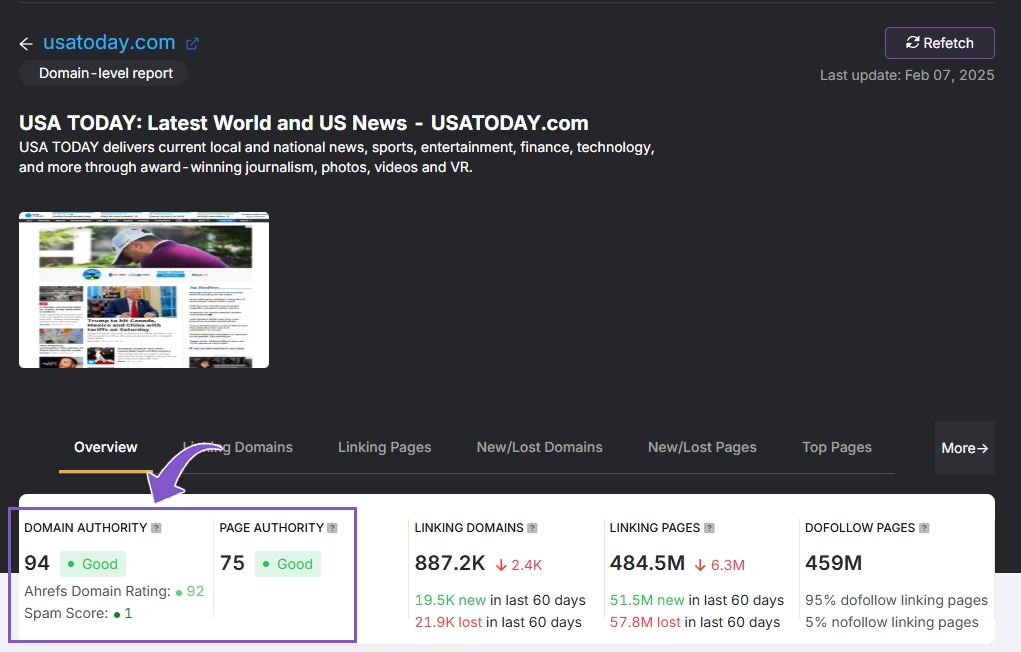
Receive a comprehensive analysis of the website’s backlink profile, including authority scores, linking domains, pages, and additional metrics.
6. How to Migrate Content from Seodity to Search Atlas’ Content Genius?
You can easily transfer your existing content from Seodity’s Content Editor to Search Atlas’s Content Genius.
From Seodity
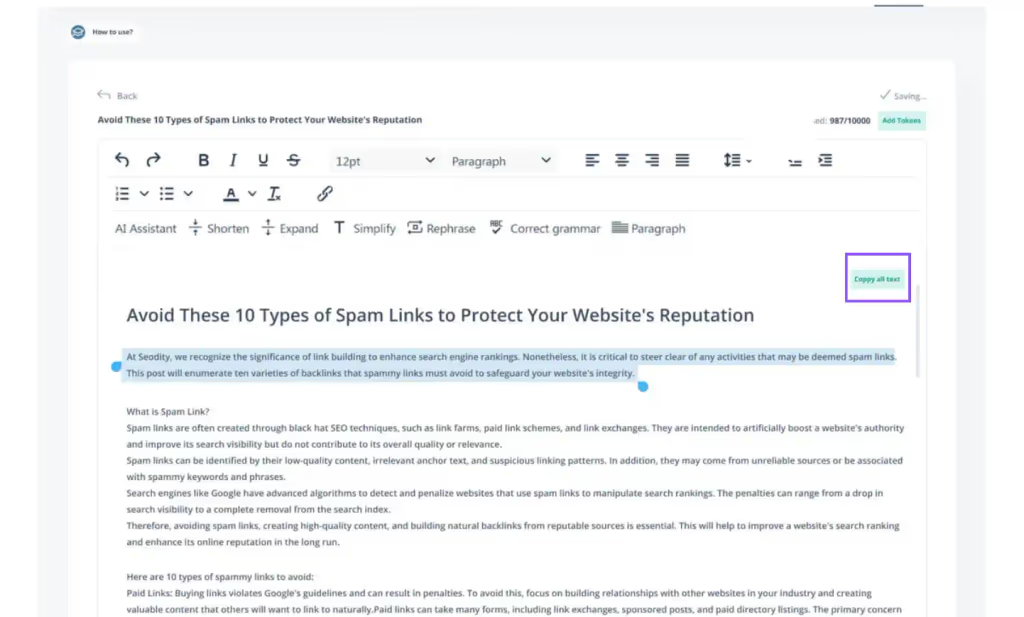
Copy and paste the content from Seodity into a document of your choice or directly into Search Atlas. Do it manually or by clicking Copy all text in the corner of the editor.
In Search Atlas
From your Search Atlas main dashboard, go to Content > Content Genius.
Select the Write Yourself option, then choose Create Article.
You have two ways to bring in your content:
- Direct Transfer: Copy and paste your article text directly from Seodity into the editor
- URL Import: Enter the web address of your published content along with your target keywords
Search Atlas will automatically identify related keywords and topical terms for your content.
Using the URL Import Method
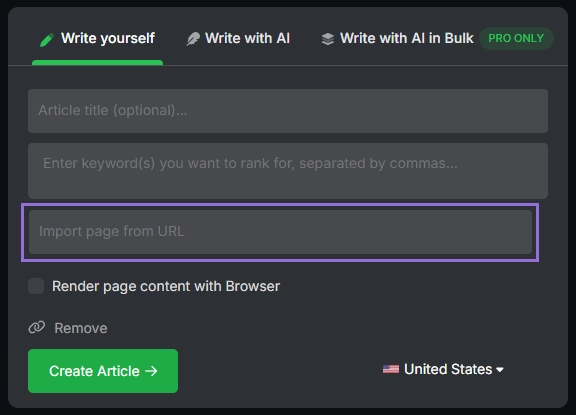
Enter your article's URL, add the primary keywords you're targeting, and click to import.
The platform will analyze your content and provide recommendations for:
- Technical improvements
- Content structure enhancements
- Keyword optimization opportunities
7. How to Set Up Reports in Search Atlas?
Automating your reporting in Search Atlas is fast and simple. Here’s how to do it.
In Search Atlas
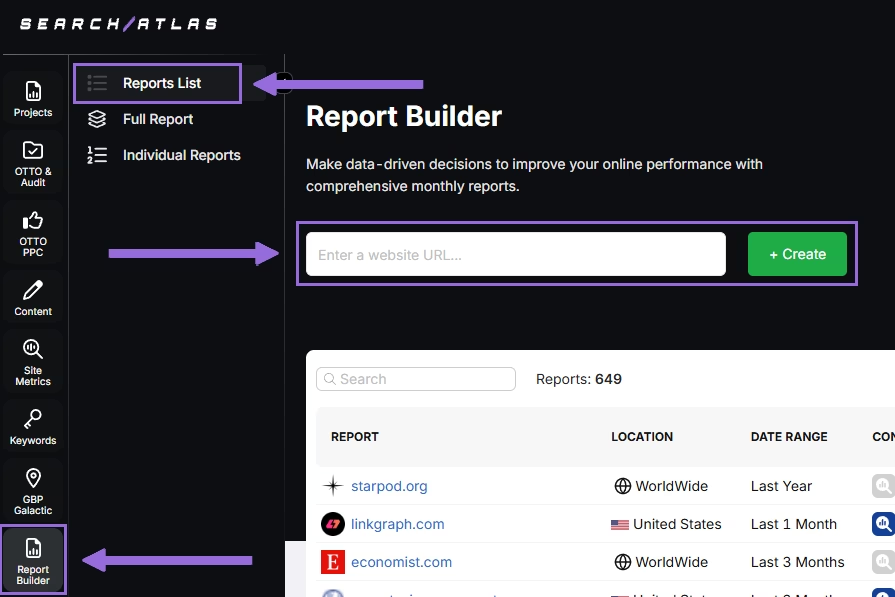
Go to Report Builder > Report List
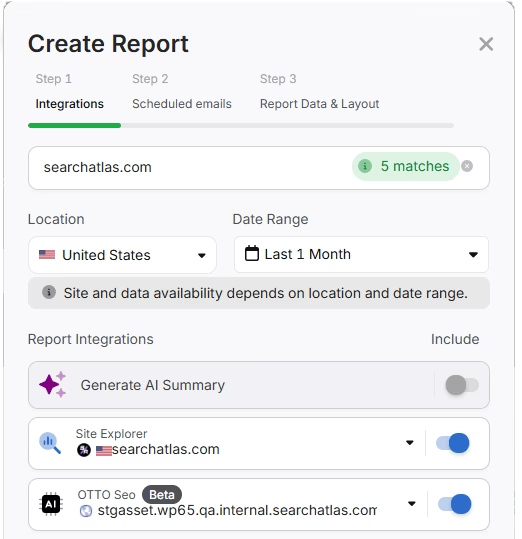
Select your target location, time period, and the data widgets you want to include, such as:
- AI Summaries
- Site Explorer
- OTTO SEO
- Orders & Tasks
- Google Analytics data
- Google Search Console data
- Facebook Ads
- Google Ads
- Google Business Profile
- Keyword Rank Tracking
Then set up automatic report delivery by adding email recipients, choosing how often to send reports (weekly, monthly, or quarterly), and selecting which day of the week for delivery.
Pick either Default Layout or Custom Layout, then generate your report.
Customize the Reporting
Once your report is created, select Configure Report to modify the Integrations, Scheduled emails, and Layout.
The Layout section allows you to completely personalize your report.
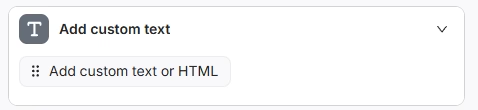
Select Add custom text to include your own text or HTML, which lets you incorporate your branding such as logos, banners, and clickable links.
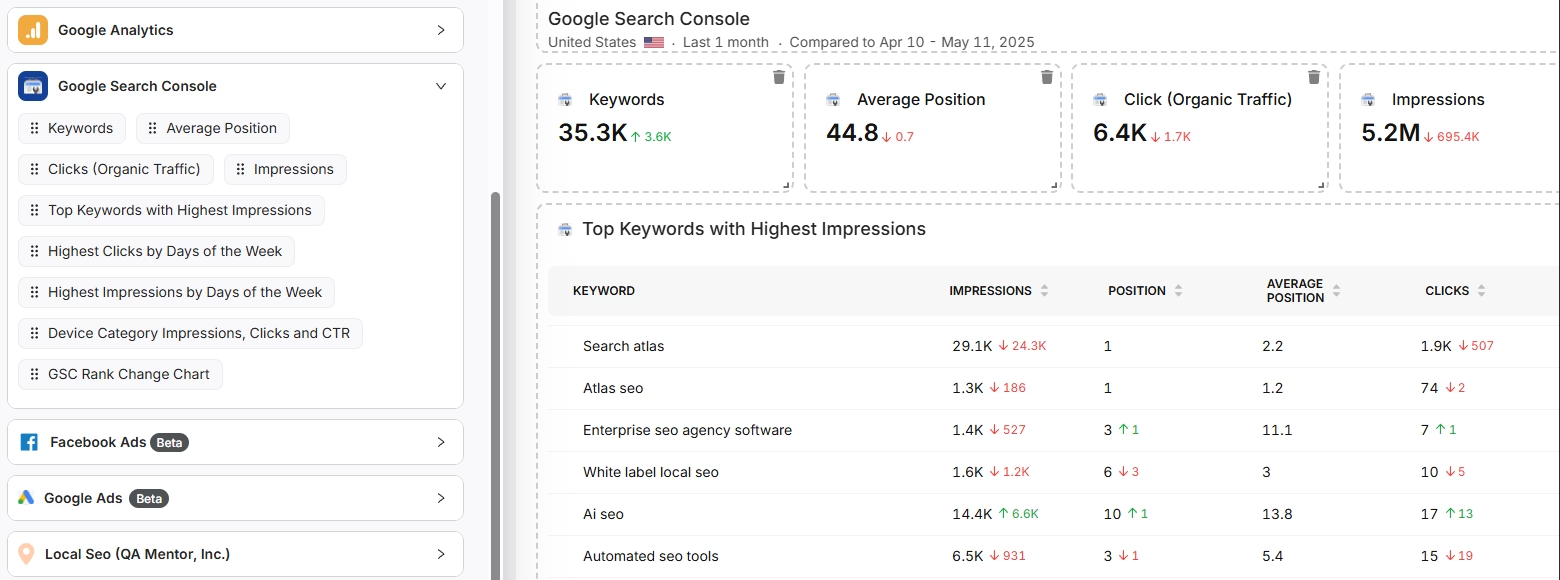
Scroll down and drag each data point into your report. You can position any metric wherever you prefer in the layout.
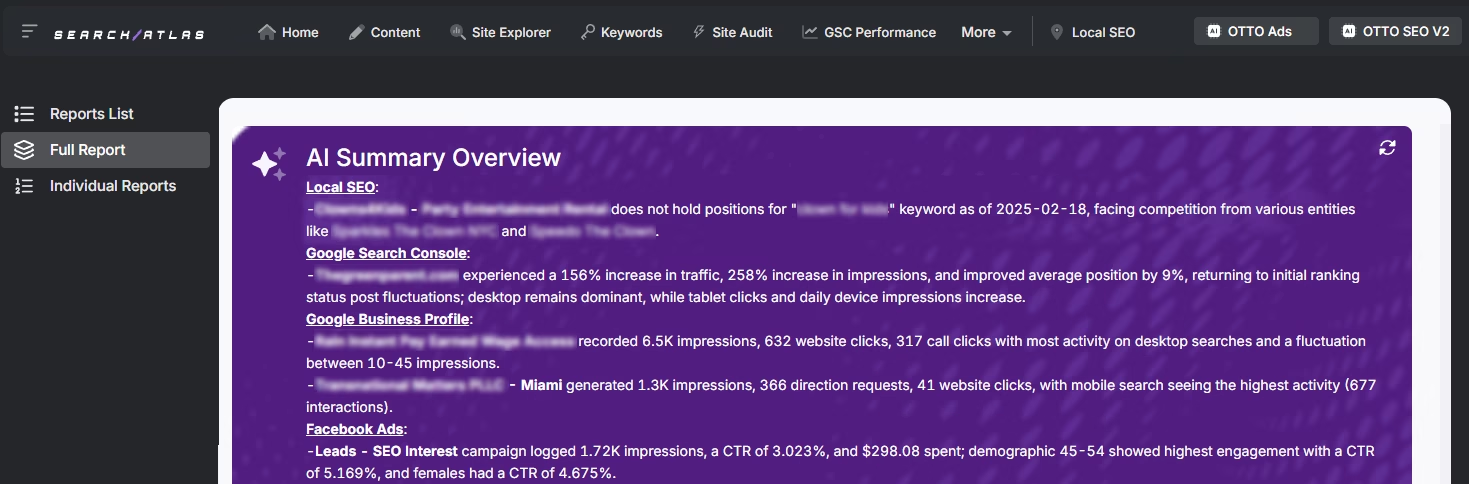
Include AI Summaries
Under Integrations, you can enable the AI Summary Overview.
These automatic summaries quickly emphasize the most important aspects of your report, making it simpler for you and your clients to grasp the findings.
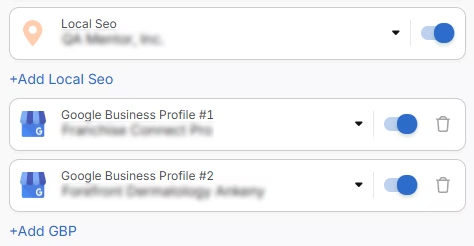
Building a Local SEO Report
Select Configure Report and go to the Local SEO and GBP Section. Connect as many Local SEO projects and GBP Accounts as needed for your report.
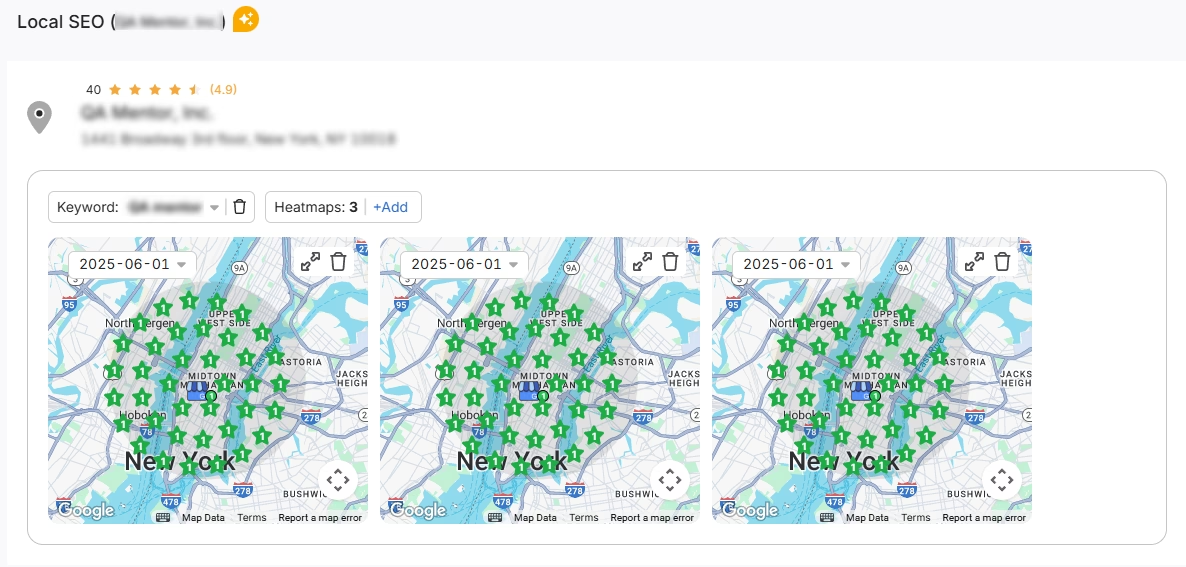
Any heatmaps you've set up for each Local SEO project will automatically appear in the report. These are completely customizable.
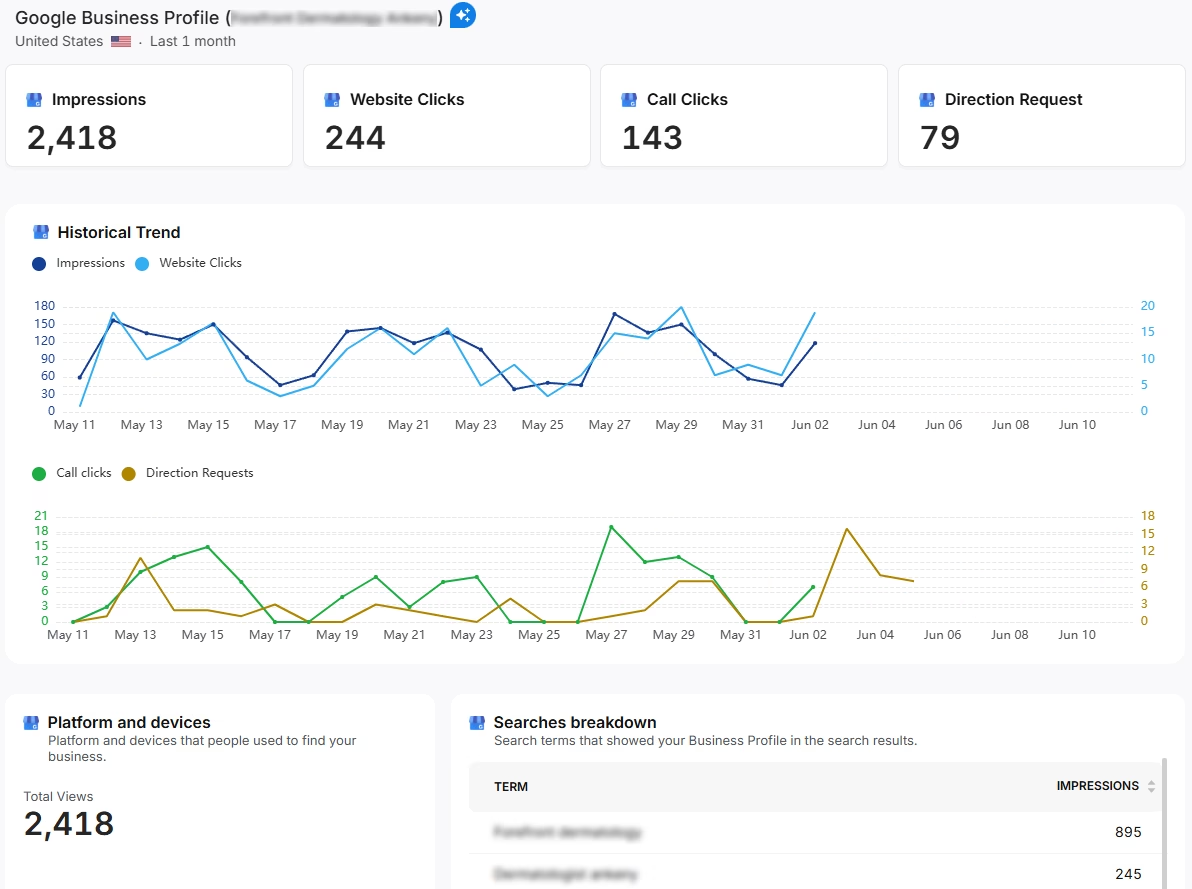
GBP data gets included in the report automatically. Every metric can be fully adjusted.
Distributing the Report
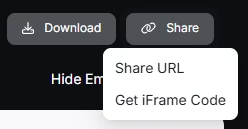
Once your report is set up, save it as a PDF or distribute it using Share URL or Get iFrame Code.
iFrame Code is HTML code that lets you display another web page inside your own website.
White Label Branding
Search Atlas lets you fully customize your dashboard and URL with your own branding.
Navigate to Agency White Label and configure your personalized dashboard URL and logo.
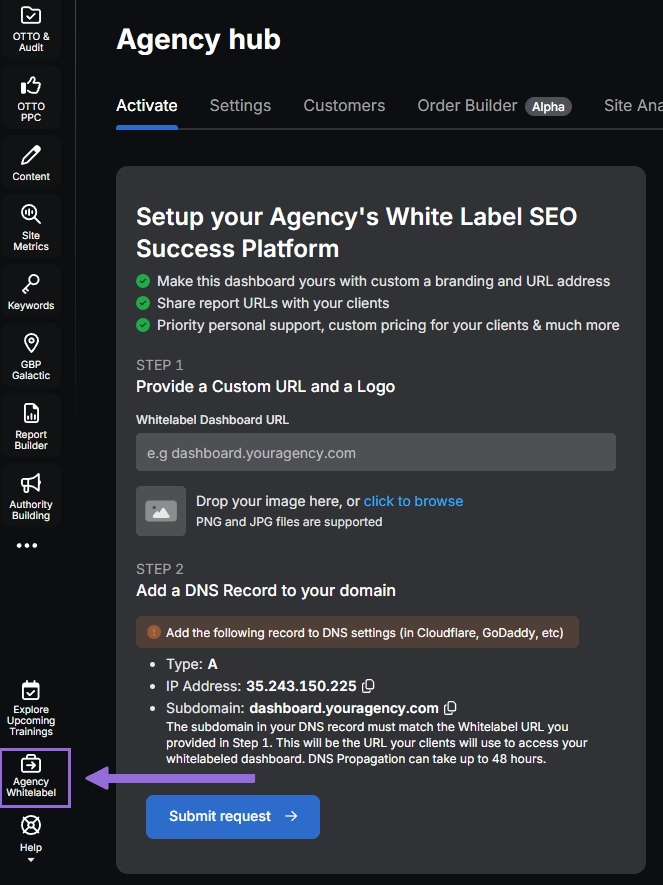
When you distribute your report through a Shareable URL, it will show your logo and custom URL.
8. How to Enable Automated SEO Optimization in Search Atlas?
Seodity has some AI features, but not a complete automation system. Search Atlas includes OTTO SEO, an AI assistant that automatically manages SEO tasks, including technical audits, on-page optimization, link building, content creation and optimization, Local SEO, and Google Business Profile management.
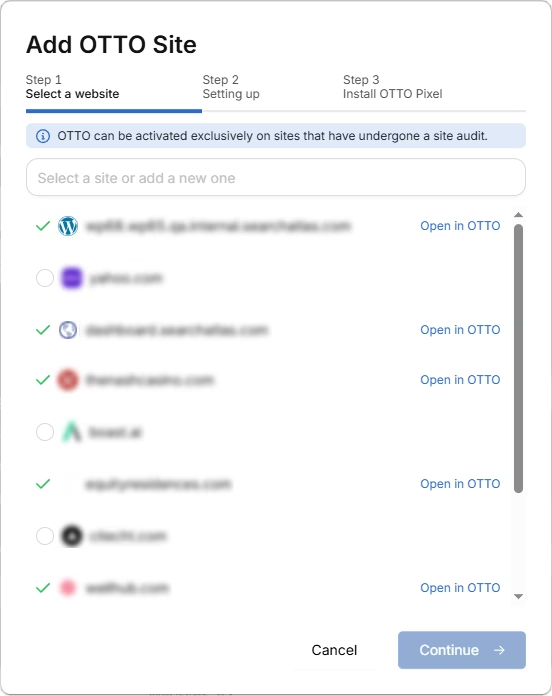
Note: You must complete the Site Audit on your project before setting up OTTO.
Navigate to Projects > + Add a Website
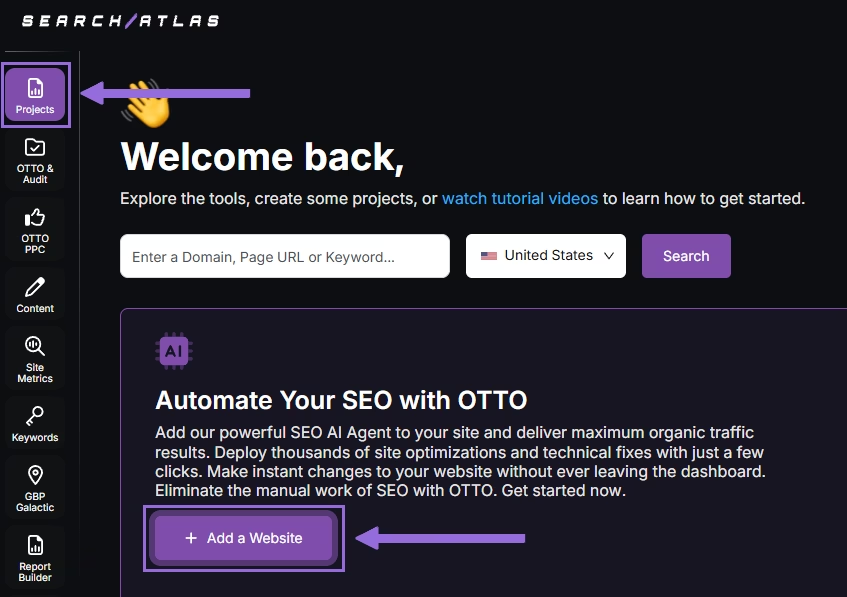
Choose one of your existing projects without OTTO installed, or create a new website.
Connect your GSC and GBP, then enter your business information.
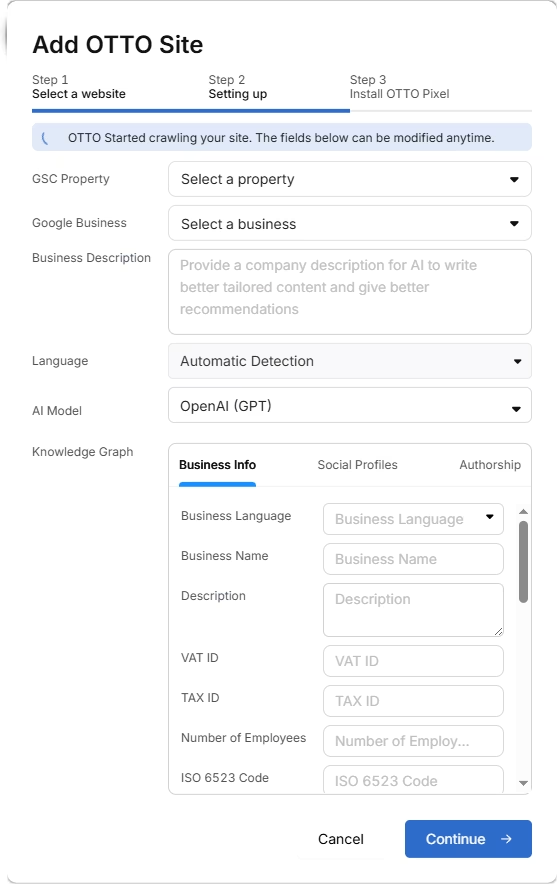
Follow the setup tutorial to install OTTO.
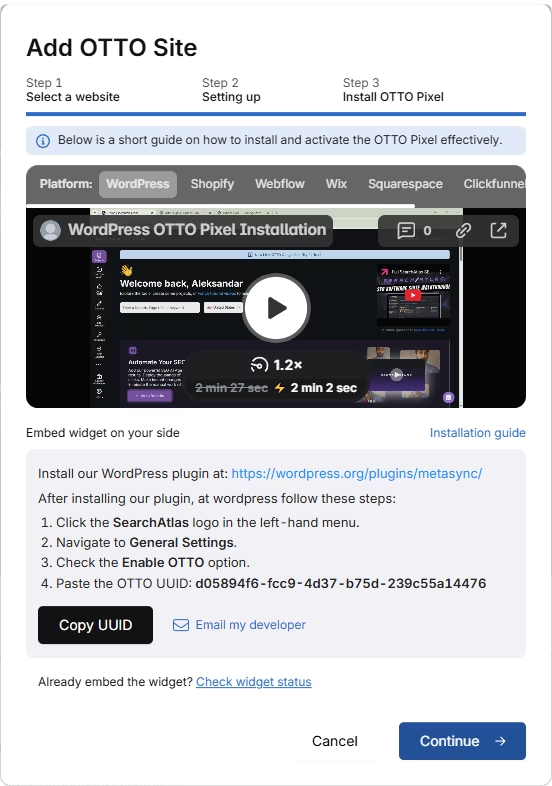
Setting Up OTTO on Different Platforms
Navigate to OTTO & Projects > Installation Guide. You'll find quick tutorials for:
- Google Tag Manager
- WordPress
- Shopify
- Webflow
- Squarespace
- ClickFunnels
- Wix
- GoHighLevel (GHL)
- Custom Installation
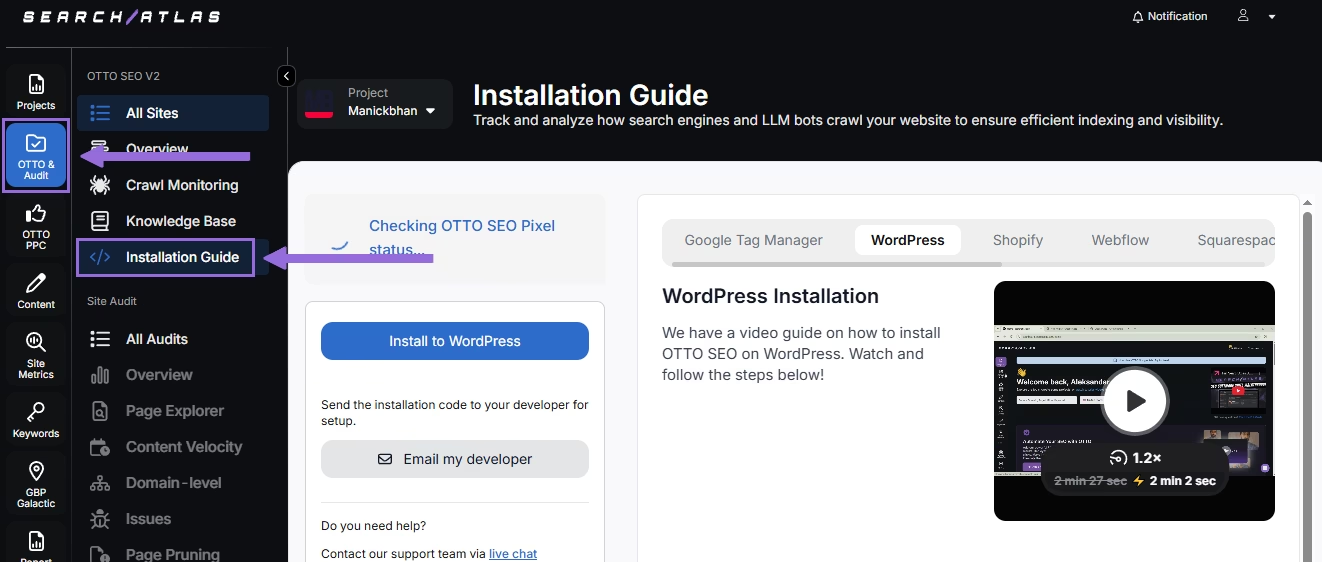
We’ll quickly explain how to install OTTO SEO on WordPress.
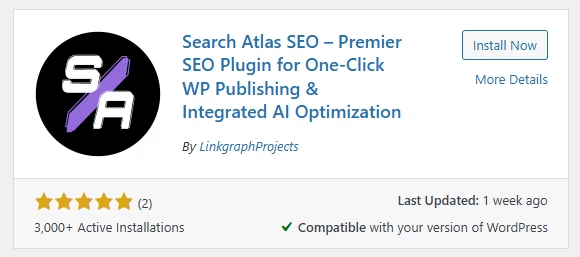
First, access your WordPress admin panel and navigate to the Plugins section. Search for "Search Atlas" in the plugin directory. Click Install Now, then activate the plugin.
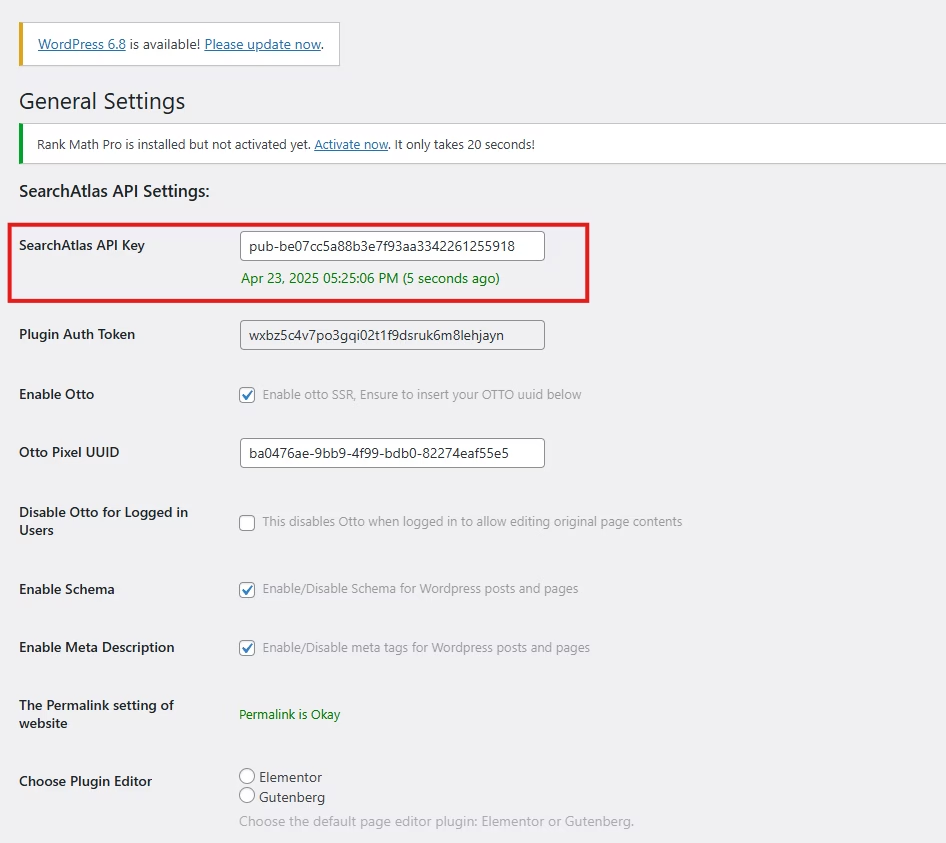
Copy the API key from your setup process. Open the Search Atlas plugin settings by clicking the Search Atlas logo in the left sidebar. Navigate to General Settings. Paste the API key in the Search Atlas API Key field and continue.
Copy the code from the next step. Return to your WordPress admin panel. Access the plugin settings again. In General Settings, check the Enable OTTO checkbox. Paste the code in the OTTO Pixel UUID field. Save your settings.
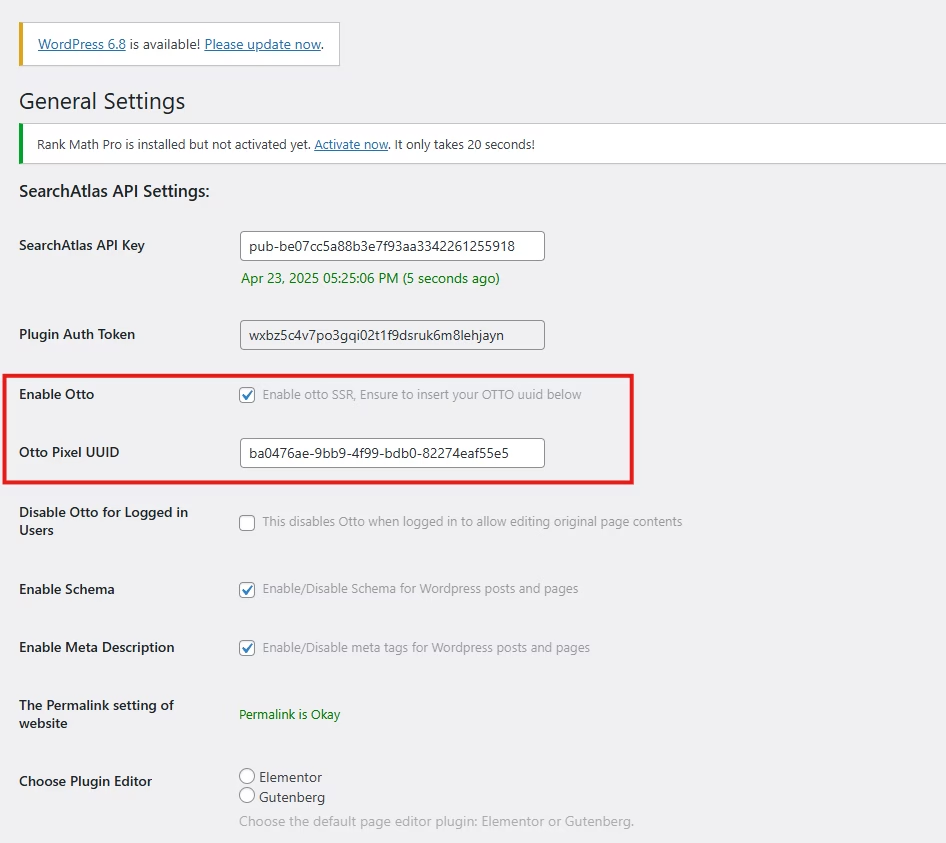
OTTO SEO is now running on WordPress, automatically applying fixes and SEO improvements across your website.
Configuring OTTO SEO
Here’s how to set up OTTO Autopilot and its configuration options.
9. How to Go Through the Search Atlas Onboarding Process?
Search Atlas provides multiple support resources to help you resolve questions or issues efficiently. Here’s how to maximize your onboarding experience.
Watch Tutorial Videos
Search Atlas provides comprehensive video tutorials on YouTube that guide you through report creation, dashboard configuration, and automation setup.
Book a 1:1 Onboarding Session
During your trial period, you can schedule a 1:1 onboarding session directly from your dashboard. A product specialist will assist you with customizing your setup, connecting integrations, and configuring OTTO SEO automation.
Follow the 7-Day Email Campaign
Your free trial includes a 7-day onboarding email sequence. Each email covers one core feature.
Technical Documentation
Access technical docs in the Help Center with detailed guides for every tool. All documentation is searchable and regularly updated.